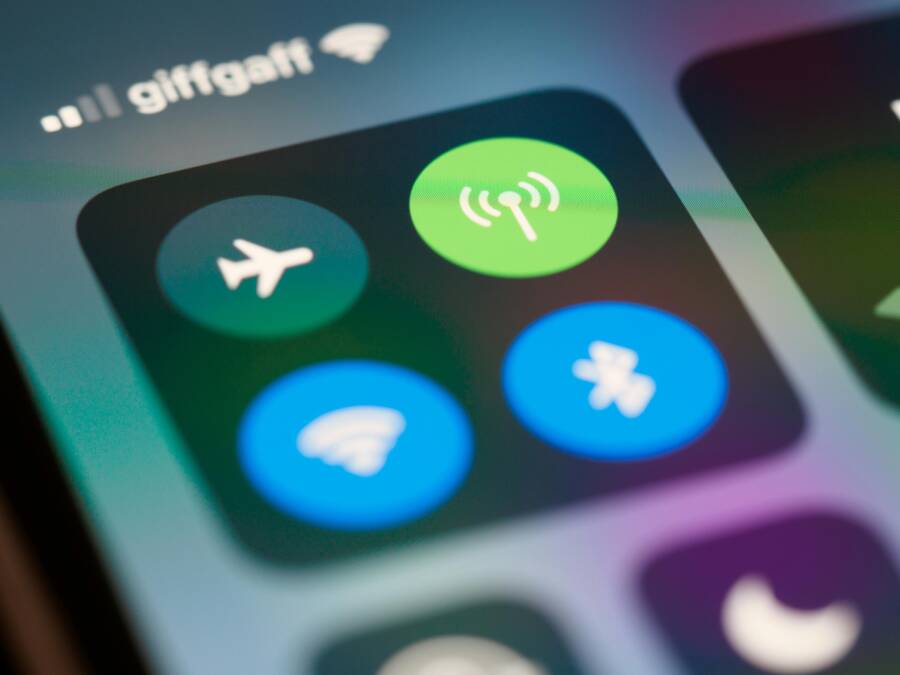
This guide helps you fix a phone that keeps turning on airplane mode by itself. It’s a calm, practical walkthrough that works for both Android and iPhone, with a clear, step by step approach you can try today. Most causes come from settings, software glitches, or rare hardware faults, and most fixes are safe and reversible.
If you’ve ever wondered why this happens, you’re not alone. The issue often comes from simple wonky settings or background apps, not a broken device. We’ll start with quick checks and move to more thorough fixes that don’t require a full reset.
You’ll walk away with a practical plan you can follow without specialized tools. Each fix is chosen for safety and reversibility, and you’ll know exactly what to try first and what to skip. By the end, you’ll have a phone that stays connected the way it should, with minimal hassle for your everyday smartphone use.
What Makes a Phone Jump to Airplane Mode by Itself
Airplane mode turning on by itself is a nuisance, but it’s usually caused by a few straightforward factors. In this section, we unpack the main culprits and give you practical steps to confirm and fix each one. By understanding the mechanics behind accidental toggles, software quirks, power management, and hardware faults, you can stop the mystery from slowing you down.
Accidental taps and quick settings tiles
Quick settings tiles are meant for fast control, but they can cause big headaches in a pocket or bag. A tiny bump, pressure from keys, or even the way you grip your phone can trigger a tap on the airplane mode tile without you realizing it. This is especially common when the phone is in a jeans pocket or a loose bag where the screen is exposed to friction.
To check for a stuck tile, start with a quick screen inspection:
- Open the quick settings panel and look for the airplane mode tile. If it’s highlighted or remains on after you swipe away, it might be stuck or repeatedly tapping due to a touch fault.
- Gently tap around the tile area to see if you can reproduce the trigger. If you often hear a soft click or feel the screen respond when the phone is in your pocket, the issue could be hardware-related.
Preventive steps to minimize accidental toggles:
- Remove or relocate the Airplane Mode tile from the quick settings panel. On most devices, you can long-press the tile and drag it out of the active row.
- If your device supports custom control centers, hide Airplane Mode from the control center entirely.
- Consider enabling a lock screen or a short screen timeout so the screen isn’t easily tapped when you’re not actively using the phone.
If the tile isn’t the problem, the issue might be triggered by a shortcut or automation:
- Check for any automation rules that might turn on Airplane Mode at certain times or when you connect to specific networks.
- Review app permissions to ensure no app is toggling network states without your knowledge.
- Test with a fresh screen state by rebooting the phone and observing whether the behavior reappears.
Software glitches from updates or apps
Bugs after an OS update or after installing a new app can flip Airplane Mode on by mistake. These glitches range from minor UI quirks to deeper service issues that misinterpret user actions as a command to disable connectivity.
What to do when you suspect a software glitch:
- Reboot the device. A simple restart can clear stuck processes that might cause Airplane Mode to engage unexpectedly.
- Review recent updates. If the problem started after an update, consider delaying subsequent patches or performing a clean install if your device supports it.
- Inspect recently installed apps. Some apps request broad permissions and can interfere with system settings. Uninstall or disable apps one by one to identify the culprit.
- Use safe mode. Booting in safe mode disables third party apps. If Airplane Mode stops turning on in safe mode, the issue is likely caused by a third party app.
- Check for firmware updates. Sometimes the device manufacturer releases patches that address strange networking behavior after OS updates.
When you’re troubleshooting, keep a log:
- Note the times Airplane Mode flips on.
- Record any actions you were taking just before the toggle.
- List apps you recently installed or updated. This can help you identify a pattern if the problem recurs.
If the behavior persists after a clean boot, you may be facing a deeper software fault that warrants a reset or professional support. Always back up your data before performing a factory reset, and if possible, try a device restore via official recovery tools to avoid bricking.
Battery saver and other power management features
Power saving features can inadvertently affect network settings. Builders of Android and iPhone devices include several modes designed to stretch battery life, and a few of these can interfere with how radios stay connected.
Common names you’ll see:
- Battery saver or Low power mode
- Optimized charging or Adaptive charging
- Doze or App Standby (Android)
- Focus, Quiet, or Sleep modes (varies by OS and manufacturer)
What to check and how to disable or adjust:
- Battery saver: If this mode is active, it can limit network activity and toggle radios on or off. Turn off Battery Saver temporarily to test if Airplane Mode behavior changes.
- Doze or App Standby: These features cap background activity to preserve power. They can unexpectedly suspend certain services, leading to odd network behavior including Airplane Mode triggering.
- Focus or sleep modes: Some phones automatically tweak notifications and connectivity when you enable Focus modes. Review the mode’s settings to ensure it isn’t tied to Airplane Mode toggling.
- Adaptive or optimized charging: While designed to protect the battery, these features can alter how the device handles network connections during charging cycles or at specific times. If Airplane Mode flips during charging, disable this option to test.
How to review and adjust:
- Navigate to Settings > Battery or Battery & devices. Look for any active modes and test by turning them off one by one.
- Check the advanced settings area where power management options live. Some manufacturers place Airplane Mode control within broader energy profiles.
- Run a controlled test by enabling a single mode at a time and observing the phone for several hours or a full day.
If you notice Airplane Mode turning on after enabling a specific power feature, reconfigure that feature or leave it off for a while to confirm a fix. In many cases, turning off battery optimization for certain apps stops the intermittent toggling.
Hardware issues and rare button faults
Though less common, hardware problems can mimic Airplane Mode turning on. A stuck button, a loose SIM tray, or a damaged antenna can cause the phone to misread physical input or lose network state, which manifests as Airplane Mode being enabled.
Simple checks you can perform:
- Inspect the power and volume buttons for stickiness. Press each button firmly a few times to ensure they aren’t sticking or getting pressed inadvertently when the phone sits in a pocket.
- Check the SIM tray. Remove and reseat the SIM card and tray. A loose tray can press against the SIM contact and trigger a network state change.
- Look for antenna or chassis damage. If the phone has been dropped or exposed to moisture, a damaged internal component can cause erratic behavior, including unintended toggling of Airplane Mode.
If you suspect a hardware issue but can’t reproduce it reliably, consider visiting a professional for a diagnostic. Hardware problems often require a hands-on inspection and may need parts replacement.
Putting it all together, most cases of Airplane Mode turning on by itself fall into one of these categories. Start with the simplest fix, like removing the tile from quick settings, then move to software checks, power management reviews, and finally hardware inspection if needed. With a methodical approach, you can stop the mystery from interrupting your day and keep your phone connected when you need it most.
Fast, Do It Now fixes you can try today
When a phone keeps flipping into Airplane Mode, the cause is usually simple. Start with fast, safe steps you can complete in minutes. If the problem persists, move to the more thorough fixes. You’ll learn to spot quick mistakes, quiet background routines, and settings that inadvertently toggle radios. This section gives you practical, bite‑sized actions you can implement today to reclaim reliable connectivity.
Restart and easy toggle checks
A full restart clears stuck processes and often resets any software hiccups that trigger Airplane Mode. After rebooting, test the behavior again. If the issue repeats, try turning Airplane Mode on and off as a quick reset. This simple cycle often clears minor software hiccups and restores normal radio behavior.
- Do a complete restart: power off, wait 10 seconds, then power back on.
- After startup, manually enable Airplane Mode for a few seconds, then disable it and observe stability.
- Check the quick settings or Control Center to ensure Airplane Mode isn’t left on by mistake after a reboot.
 Photo by Brett Jordan
Review quick settings and Control Center tiles
Tiles and quick controls are designed for speed, but they can be tapped by accident and turn Airplane Mode on. Removing or hiding the Airplane Mode tile helps prevent accidental taps. You can also customize where tiles appear on Android and how the Control Center is arranged on iPhone.
- Android: remove Airplane Mode from the Quick Settings panel. Long-press the tile and drag it out of the active row. If you can, rearrange so essential controls stay accessible but less prone to accidental taps.
- iPhone: customize Control Center. Go to Settings > Control Center, remove Airplane Mode from Included Controls if it’s in the list. Reorder controls to keep the most used items at the top, and verify the change by opening Control Center.
- Both platforms: consider turning on a brief screen timeout or a lock screen delay to limit stray taps when the phone sits in a pocket or bag.
If you notice Airplane Mode turning on after specific actions, review any automations or shortcuts. Some apps or routines can trigger connectivity changes without you realizing it. Disable or modify those automations to prevent recurrence.
Reset network settings
Resetting network settings is a strong reset for connectivity quirks. It clears saved Wi‑Fi networks, Bluetooth pairings, and cellular setups, so you’ll need to reconnect afterward. This step is safe and targeted, though it does require re‑entering passwords for saved networks.
- iPhone: Settings > General > Transfer or Reset iPhone > Reset > Reset Network Settings. Enter your passcode to confirm, then the phone restarts.
- Android: Settings > System > Reset options (or General management on some devices) > Reset Wi‑Fi, mobile & Bluetooth. Choose the network or SIM you want to reset if prompted, confirm the reset, and restart if asked.
After the reset, reconnect to your Wi‑Fi and re‑pair Bluetooth devices. If Airplane Mode still flips on, you’ll know the issue lies elsewhere.
Update software and apps
Software glitches from OS updates or recent app installations can cause odd Airplane Mode behavior. Keeping both the system and apps current reduces the chance of these quirks.
- Check for OS updates: iPhone users should go to Settings > General > Software Update. Android users should open Settings > System > System update (or your device maker’s update path) and install any available updates.
- Update apps: visit the app store and install any pending updates. Focus on apps with permissions to manage network access.
- If updates don’t fix the issue, consider a clean boot or safe mode test to isolate third‑party interference.
Regular updates improve stability and address known network quirks, so check for updates monthly as part of your routine.
Check Focus, Bedtime, and schedules
Automation and scheduling features can turn Airplane Mode on automatically, especially during Focus or Quiet Hours. It’s easy to miss these rules until you notice the behavior.
- iPhone: Focus modes (including Sleep) can enable Airplane Mode based on time or location. Go to Settings > Focus and review each mode’s settings. Look for Add Schedule or Time Based triggers that might enable Airplane Mode at night or during routines.
- Android: Do Not Disturb or bedtime routines may affect notifications and connectivity. Review any routines in Settings > Digital Wellbeing or your device’s Customization area. Ensure Airplane Mode isn’t tied to a schedule.
To prevent future surprises, disable or adjust these modes temporarily while testing ifAirplane Mode behavior changes. If you rely on Focus for focus time, create exceptions to avoid accidental toggles.
Deeper Troubleshooting by operating system
If your phone keeps switching to Airplane Mode, you’ve already ruled out the obvious causes. This section dives into deeper, OS specific steps you can take. The goal is to identify whether a hidden setting, a background process, or a minor software hiccup is to blame. Work through the Android steps first, then move to iPhone specifics. Each path ends with a caution to back up data before any major resets.
Android specific steps you should try
Booting into Safe Mode is a powerful first step. It disables all third party apps, so if Airplane Mode stops toggling on in Safe Mode, a culprit app is almost certainly the cause. After testing, you can uninstall or disable the suspect apps and regain control over your network settings.
- Enter Safe Mode and observe
- Press and hold the Power button until the power options appear.
- Tap and hold Power off until you see the option to reboot to Safe Mode, then confirm.
- If the phone restarts with Safe Mode indicator in the corner, use it for several hours. If Airplane Mode remains stable, a background app is the likely culprit.
- Review app permissions that can modify system settings
- Open Settings and go to Apps or Apps & notifications.
- Inspect apps with permission to modify system settings or control radios. Revoke those permissions from unfamiliar or recently updated apps.
- Focus on apps that manage connectivity, profiles, or battery optimization, and consider temporary removal for testing.
- Check battery optimization and background activity
- Navigate to Settings > Battery > Battery optimization (or Battery usage).
- Exclude essential networking apps from optimization or temporarily turn off optimization to test stability.
- Disable Doze or App Standby for critical tools if your device allows it during testing.
- Wipe app caches (without a full reset)
- Go to Settings > Storage > Cached data and clear cached data where appropriate.
- For individual apps, open Settings > Apps, select an app, and choose Clear cache.
- Clearing caches can resolve misbehaving services that trigger Airplane Mode without affecting personal data.
- Consider a factory reset as a last resort
- If Safe Mode and app testing do not fix the issue, back up all data.
- Proceed with a factory reset via Settings > System > Reset options > Erase all data.
- After reset, restore only essential apps and test before adding more. A reset can cure stubborn software faults that other steps miss.
Keep a quick-start checklist handy:
- Safe Mode test: did Airplane Mode stop turning on?
- App sweep: any recent installs or updates?
- Permissions review: any app with system setting permissions?
- Battery optimization: is a profile suppressing radios?
- Caches cleared: any improvement after cleaning caches?
- Reset as last resort: data backed up and ready?
If you still see unexpected toggling after a reset, hardware or firmware issues may be at fault. Professional service can diagnose deeper networking or antenna problems.
[Image: Close-up of a smartphone screen showing settings panel] Photo by Andrey Matveev
iPhone specific steps you should try
iPhone users won’t find a Safe Mode option, so focus shifts to forced restarts and targeted resets. Start with network and Focus settings, then move to a full reset only after backing up data. Keeping iOS up to date is crucial, as Apple often patches odd network behavior in small releases.
- Reset network settings
- This step clears saved Wi‑Fi networks, Bluetooth pairings, and cellular configurations.
- Go to Settings > General > Transfer or Reset iPhone > Reset > Reset Network Settings.
- Enter your passcode to confirm, then the device will restart.
- Review Focus and related automation
- Focus modes can automatically disable or alter connectivity during certain times or locations.
- Open Settings > Focus and inspect each mode. Look for schedules or time-based triggers that enable Airplane Mode.
- If you’re using Sleep or Do Not Disturb alongside Focus, ensure they aren’t unintentionally toggling radios.
- Keep iOS updated
- Regular updates fix known issues and improve radio stability.
- Settings > General > Software Update. Install any available updates.
- After updating, monitor Airplane Mode behavior to confirm the fix.
- Forced restart and careful testing
- If the phone seems unresponsive or behaves oddly after an update, perform a forced restart.
- On most iPhones, press and release the Volume Up button, press and release the Volume Down button, then press and hold the Side button until the Apple logo appears.
- Test for a while to see if the issue recurs before attempting more drastic steps.
- Full reset only after data backup
- If problems persist after network resets and Focus checks, a full reset may be needed.
- Backup your data first via iCloud or a local backup.
- Go to Settings > General > Transfer or Reset iPhone > Erase All Content and Settings.
- After the reset, restore from the backup and reintroduce apps one by one to identify potential triggers.
Tips to keep in mind for both platforms
- Maintain a clean testing window. Try fixes one at a time and document results.
- If Airplane Mode toggling aligns with a specific time or event, note that pattern. Automations and schedules are often the unseen culprits.
- Always back up before major changes. A reset can save you from longer downtime later.
- When in doubt, consult the device manufacturer’s support resources. They can offer model-specific steps and firmware recovery tools.
This deeper approach helps you isolate the cause more confidently. Start with safe mode or network resets, then move to more targeted steps. The goal is a phone that stays connected when you need it most.
When to see a pro and how to prevent future episodes
If your phone keeps flipping to Airplane Mode, you want a clear plan. This section helps you decide when professional help is needed and how to prevent repeats. We’ll cover hardware checks, data protection, and practical daily habits to keep your smartphone reliably connected.
Hardware check and service options
Most Airplane Mode misbehavior comes from software quirks, but hardware faults are a real possibility. Here’s how to spot signs that hardware might be failing and what to expect from a diagnostic.
- Signs that hardware may be failing
- Repeated or effortless triggering of Airplane Mode after small taps or pocket use.
- Physical buttons feel sticky or misread input, especially the power or volume keys.
- SIM tray or antenna area shows visible damage, or the phone was dropped or exposed to moisture.
- The problem is device-wide and persists across resets or new user profiles.
- When to contact support or visit a service center
- You notice consistent hardware symptoms like a stuck button, loose SIM tray, or damaged chassis.
- Software fixes haven’t resolved the issue after multiple attempts.
- The device is under warranty and physical inspection is recommended by the manufacturer.
- What a diagnostic might cover
- Hardware integrity tests for the antenna, radio modules, and SIM interfaces.
- Button and sensor calibration to rule out misreads or short circuits.
- Internal board checks for water ingress or loose connections.
- Firmware verification to ensure no low-level corruption affects connectivity.
- What to expect during the process
- A formal diagnostic report detailing findings and recommended repairs.
- If a component is faulty, parts replacement or a board-level repair may be proposed.
- Most centers offer data-safe handling, but back up first as a precaution.
If you’re unsure about the cause, starting with a professional diagnostic can save time and avoid repeat issues. A pro can confirm whether the problem is fixable without a full factory reset and whether a repair will restore stable networking.
Back up and protect your data
Before any major change, including resets or hardware work, back up your data. A reliable backup ensures your photos, contacts, and messages are safe if you need to reset or replace parts. Here are straightforward steps to guard what matters.
- Backing up photos
- Android: use Google Photos backup or your device’s built‑in cloud option. Enable backup over Wi‑Fi and verify items are syncing.
- iPhone: enable iCloud Photos or regularly back up to a computer via Finder or iTunes.
- Saving contacts and messages
- Android: sync contacts with your Google account. Consider exporting a vCard for an extra copy.
- iPhone: use iCloud backup or create a local backup on your computer.
- Messages and other apps
- Android: back up messages via Google One or a manufacturer’s backup tool.
- iPhone: ensure Messages in iCloud is on if you want message history in sync across devices.
- General tips for ongoing protection
- Turn on automatic backups and verify they complete on schedule.
- Store key data in at least two places (cloud plus local copy).
- Regularly review backup settings after major app or OS updates.
- Why daily backups matter
- A simple reset can clear stubborn issues, but it wipes data. Regular backups minimize downtime and frustration.
Practical prevention tips for daily use
Keeping Airplane Mode from turning on unexpectedly is about simple habits and smart settings. Here are actionable steps you can practice every day.
- Keep software updated
- Install OS updates promptly. They fix bugs that can trigger odd network behavior.
- Update essential apps that manage connectivity or power.
- Review power and focus settings
- Check battery saver and power optimization options. These can unintentionally affect radios.
- Inspect Focus or Do Not Disturb modes for any schedules that toggle Airplane Mode.
- If a feature is causing trouble, tailor its rules rather than turning it off completely.
- Watch app permissions
- Some apps request permission to modify system settings. Revoke permissions for anything unfamiliar.
- Periodically audit apps with critical permissions and remove those you don’t use.
- Be cautious with automation
- Automations can turn Airplane Mode on at specific times or locations. Disable or adjust rules that seem to trigger the toggle.
- Test automations by simulating typical daily routines to see if they cause unexpected changes.
- Manage hardware care
- Use a protective case to reduce the chance of pocket taps on the screen that could trigger accidental toggles.
- Avoid exposing the device to moisture or dust, which can affect radios and sensors.
- Routine maintenance
- Do a quick restart every week to clear minor glitches.
- Perform a network reset only if you’re confident you won’t lose essential connections.
- When in doubt, revert and test
- If you make a change and Airplane Mode behavior changes, keep track of what worked.
- If a change doesn’t help after a reasonable testing window, move to the next step rather than stacking fixes.
- Quick mental checklist
- Is the behavior time or event driven? Note patterns.
- Have I updated both OS and key apps recently?
- Did I review and adjust Focus, Do Not Disturb, or power settings?
- Is there any hardware concern like a button or SIM tray issue?
- Final reminder
- Regular backups and careful testing are your best defenses. A calm, methodical approach keeps your phone connected when you need it most.
This structured plan helps you decide when a pro is needed and how to minimize future episodes. If you follow these steps, you’ll reduce the chances of another surprise toggle and keep your smartphone ready for everyday tasks.
Conclusion
A calm, methodical approach wins here. Start with the simplest fixes like removing accidental quick settings taps, then check software and power management before moving to a factory reset if needed. Back up your data first and test each change one by one to pinpoint what works. If you’ve got a smartphone story or a tricky scenario, share it in the comments and help others avoid the same frustration; and don’t forget to share this article if you found it helpful.