
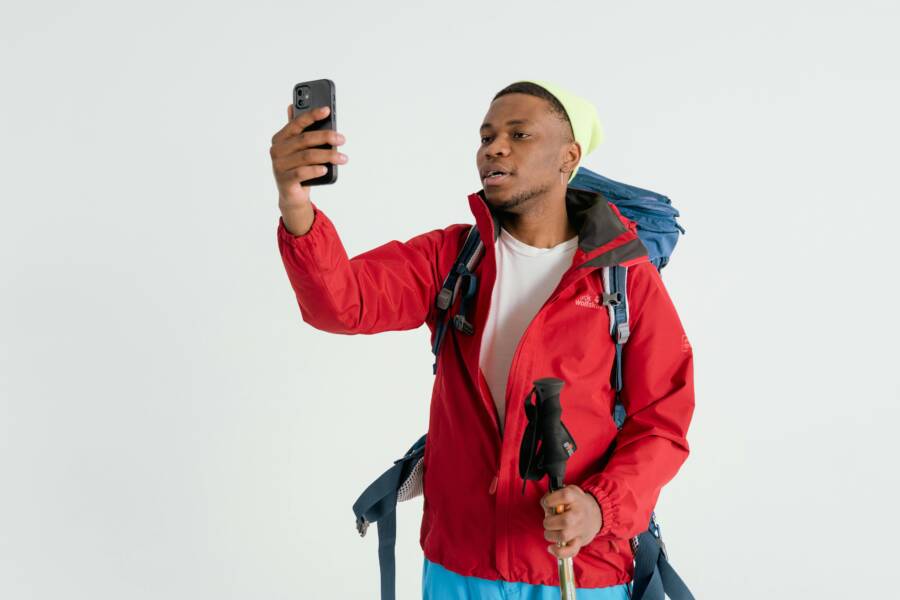
If your phone can’t detect your location indoors, you’re not imagining the problem. Thick walls and busy floors block satellite signals, so the map stays stubbornly blank. A reliable fix matters when you’re meeting friends, navigating a large mall, or calling up a quick ride.
In this guide you’ll see simple steps you can take right away. We’ll cover how to optimize settings, improve signal when you’re inside, and why your building matters as much as your device. You’ll learn what to check on your smartphone, where to look in the settings, and how to test results after each change. The goal is practical, hands on guidance that doesn’t require expert tools.
Most fixes are quick and low risk, but results can vary by device and building materials. A phone with a strong GPS antenna helps, yet even the best phone can struggle in concrete towers or glassy interiors. We’ll explain why and show how to combine GPS with nearby Wi Fi and Bluetooth signals for better indoors accuracy.
By the end you’ll have a clear checklist for indoors location issues. You’ll know which settings to toggle, when to restart, and where to position yourself for the best results. This is actionable, step by step guidance you can apply today with your smartphone.
Why indoor location tracking is tricky
Indoor location tracking sits at the edge of technology and physics. Signals from satellites struggle to reach inside, and walls, floors, and metal structures distort or block what a device needs to pinpoint a position. To stay useful indoors, phones rely on a mix of nearby networks and beacon signals. The result is a blend of imperfect data and smart filtering that can feel a little magical when it works, but still falls short in many real-world buildings. Understanding these limits helps you choose the right fixes and expectations.
GPS limitations indoors
Satellites orbit far above, broadcasting signals that are strong enough for outdoor use. Indoors, those signals have to pass through concrete, glass, and metal, which blocks or weakens them. Ceilings and dense walls act like barriers, causing the device to misread its location or lose the fix entirely. The practical effect is simple: outdoors you might see your exact position, but indoors the accuracy can degrade to many meters or vanish. This is why you often need other methods to know where you are inside.
Other signals that help indoors
When GPS falters, nearby networks pick up the slack. Wi Fi uses existing routers to create a fingerprint of the space, estimating location from signal patterns. Bluetooth Low Energy beacons are placed around a building and emit signals the phone can triangulate for closer range. Cell towers help at edges or near windows but are weaker indoors. The combination, often a hybrid system, can push accuracy from a few meters to room level in many environments like malls or large offices. Expect updates to occur every few seconds to tens of seconds, depending on the setup.
Common indoor culprits
Several obstacles routinely reduce precision. Thick concrete walls and floors absorb signals, metal shelving and elevators reflect or block them, and crowded floors create extra interference. Multipath is a sneaky problem: signals bounce off surfaces and arrive at the device along different paths, making the data harder to interpret. In busy spaces, many devices competing for the same Wi Fi and beacon signals can also degrade accuracy. These factors combine to produce less reliable location estimates indoors.
Quick checks to fix indoors now
When GPS signals fade indoors, a few quick adjustments can restore accuracy. Start with permissions, then enable nearby network signals, and finish with a simple reset of radios. These steps are safe, fast, and often enough to get your map back on track without special tools. Think of indoor location as a team effort between GPS, Wi Fi, and Bluetooth. By ensuring each member is active, you’ll see a noticeable improvement in pinpointing your position inside.
Verify location services and app permissions
Check location permissions on your iPhone and Android devices, then ensure high accuracy is selected and apps can access your location at all times. On iPhone, go to Settings > Privacy & Security > Location Services, pick each app, and enable Precise Location and Always Allow. On Android, Settings > Location, switch on Location Services, set Location permission to Allow all the time for key apps, and enable high accuracy where available. A quick review here prevents apps from guessing or blocking location entirely.
Enable Wi Fi and Bluetooth scanning
Wi Fi and Bluetooth scanning fill in the gaps when GPS is weak inside walls. Turn on these features in each platform’s location settings so the phone can use nearby networks and beacons to triangulate your position. On iPhone, ensure Wi Fi and Bluetooth are on, and consider enabling Improve Location Accuracy under System Services. On Android, enable Wi Fi scanning and Bluetooth scanning within Location or Privacy settings. Brief privacy note: these scans are designed to protect your privacy while improving indoor accuracy.
Reset radios and restart
Sometimes a fresh start helps more than you expect. Toggle Airplane Mode on, wait a few seconds, and turn it back off to reset radios. Then restart your phone and re-enable Wi Fi and Bluetooth. After the reboot, open a map or navigation app to test whether your indoors position is more stable. If needed, recheck permissions and re-enable high accuracy to finalize the reset. Keep the steps simple and repeatable.
Improve indoors with sensors, Wi-Fi, and beacons
Inside the building, your phone relies on more than GPS to pinpoint your position. By combining sensor data with nearby networks and beacons, you can drastically improve location accuracy in malls, offices, and transit hubs. Think of it as a team effort where the accelerometer, gyroscope, compass, Wi‑Fi signals, and Bluetooth beacons all contribute their part. The result is smoother navigation, quicker map loading, and fewer dropped location fixes as you move through complex interiors.
 Photo by Tima Miroshnichenko
Calibrate sensors and use motion cues
Sensors play a vital role when GPS loses its grip indoors. The accelerometer tracks your movement and tilt, the gyroscope records rotations, and the compass points you in the correct direction. Together they support inertial tracking, helping the phone estimate your path even when satellites fade. A quick calibration tip: move the phone in a figure eight a few times to reset the sensors. This small motion cue improves drift correction and makes indoor trajectories more reliable as you walk, turn, and stop.
To keep the system accurate, use calm, deliberate motions during calibration and avoid nearby magnets or metal cases. After calibrating, test by walking a short path and comparing the path against a known route in a maps app. You should notice less lag between your real movement and the on-screen position, especially in multi‑level interiors.
Let Wi‑Fi be a helper with better signals
Wi‑Fi networks and installed beacons provide rich location cues when GPS is weak. Phones map the unique signal patterns from nearby routers and transmitters to triangulate a position with higher confidence. Keeping your device connected to strong networks helps, and enabling Wi‑Fi scanning lets the phone gather these signals even when you’re not actively using the internet. If you spend time in large buildings, a dense beacon layout can push accuracy from meters to room level.
A practical tip is to stay connected to the strongest network you can access and allow the phone to scan for networks in the background. In public spaces, this often means enabling both Wi‑Fi scanning and Bluetooth scanning. This approach improves responsiveness when you move through corridors, stairwells, or crowded lobbies, where GPS alone falls short.
Keep software fresh for better fusion
Regular software updates fix bugs and improve how sensors, Wi‑Fi, and Bluetooth data combine. Operating system and app updates refine sensor fusion, reduce drift, and improve indoor fixes over time. Here’s a simple update checklist:
- Check for OS updates and install them.
- Update essential apps that rely on location (maps, ride services) to the latest version.
- Restart after major updates to ensure new routines start clean.
Updates can noticeably improve accuracy as manufacturers fine‑tune the algorithms that fuse data from multiple sources. Keeping your device current means better performance in tricky indoor spaces without extra tools.
Best practices and tools for indoor positioning
Indoor positioning is a mix of signals and smart processing. The right combination of maps, apps, and testing can make your device feel capable again inside malls, airports, and office buildings. Below are practical guidelines you can apply today to improve indoor location accuracy, stay offline when needed, and verify results through real-world checks.
Use maps with indoor details and offline data
Indoor maps give your phone a floor plan to anchor its guesses. Start by enabling offline map data for places you frequently visit, so your location service can rely on cached layouts when signals are weak. Cache sections of a building or area during a stable connection and update them periodically. Offline data reduces latency and helps maintain position fixes in basements or thick-walled environments where cellular or GPS signals degrade. When you walk, the app can compare your movements to the stored map, improving reliability even without a live internet feed.
Choose smarter apps and AI fusion features
Not all location services fuse data the same way. Look for apps or built‑in features that combine GPS, Wi‑Fi, Bluetooth beacons, and sensor data from the device. These intelligent systems use machine learning to weigh each signal and produce a cleaner position estimate. To test accuracy, try real world walks through different floors and corridors, then compare results across apps. A well‑designed fusion system reduces drift and keeps you near your actual path, even when GPS is unreliable.
Practical testing tips
A straightforward testing protocol helps you separate device quirks from environment quirks. Plan a few routes: straight paths, stairs, and turning points. Note where accuracy drops and how quickly it recovers after a change in scenery. Compare multiple devices or apps side by side to identify where one performs better indoors. Keep a short log of fixes and re‑test after each change. The goal is consistent, repeatable results you can rely on when you need precise indoors location.
When indoor location still fails and what to do next
Indoor location can still misbehave even after you tweak settings. When GPS and nearby signals aren’t enough, a stubborn mismatch between the environment and your device can leave you guessing where you are. The next steps focus on reassessment, practical workarounds, and staying ahead with new tech as it becomes available. Use these tips to regain reliable indoor positioning or to plan alternatives when accuracy remains elusive.
Check hardware limits
Device aging and sensor health matter more than you might think. Over time, GNSS antennas can lose a bit of their punch, and accelerometers or compasses may drift more than before. Model differences also play a role; midrange phones can struggle in challenging interiors where high-end models might still perform better. If you have access to another device, test the same indoor space with it to isolate whether the issue is hardware related or environmental. A quick swap can save hours of frustration and point you toward the right fix.
Workarounds and long term fixes
When the indoor environment keeps defeating location services, practical workarounds help a lot. Use manual cues like noting your floor and room on a map when you enter, or rely on floor plans inside trusted apps to orient yourself. In busy spaces, set up a temporary anchor by dropping a saved location near a known landmark, then navigate from there. Long term, pairing indoors with offline maps and known beacons can reduce reliance on real-time signals. Some spaces simply remain tough; in those cases, combine directions from the map with visible surroundings to stay oriented.
Staying updated on tech advances
The fastest way to improve indoors location is to stay current with OS and app updates. Follow official release notes, maker blogs, and newsletters from major platforms to catch improvements in sensor fusion and indoor mapping. New features can enhance how your phone uses Wi-Fi, Bluetooth beacons, and your device sensors together. Regular updates mean better accuracy over time, even in tricky spaces. Subscribing to a couple of trusted sources ensures you don’t miss a meaningful improvement.
 Photo by Karola G
Conclusion
Most indoor location issues boil down to a simple team effort between GPS, Wi Fi, Bluetooth, and your phone’s sensors. Quick wins come from checking permissions, turning on nearby network scanning, and giving radios a fresh start with a restart. When you calibrate the motion sensors and keep offline maps handy, you’ll notice steadier position fixes in malls, offices, and transit hubs.
In practice, a few practical steps make a big difference. Verify location services and high accuracy, enable Wi Fi and Bluetooth scanning, and perform a quick radio reset. Keep your maps data current by updating apps and OS, and use a building’s floor plan data when possible to anchor your position. If needed, supplement with sensor cues from the accelerometer, gyroscope, and compass to reduce drift.
Give these steps a try with your smartphone and test along a familiar route. If you still see gaps, switch to offline maps or a beacon aware app to compare results. I’d love to hear how these tips work for you. Share your experiences in the comments or drop a note with the building type you tested and the results you got.
Try the steps now and come back with your results. Your feedback helps others solve indoor location puzzles faster.

