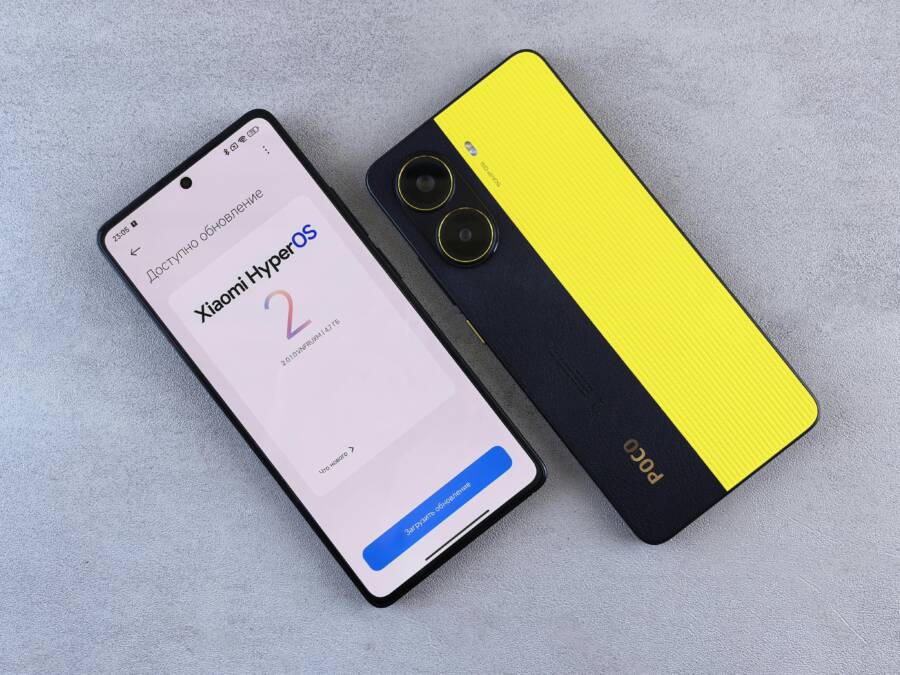
Waking up to a phone stuck on installing update overnight can turn a simple morning into a scramble. That frozen screen isn’t just annoying it can block calls, messages, and important alerts before you even start your day. This guide breaks down what causes the issue and, more importantly, how to fix it without losing data.
First, you’ll learn safe, quick steps you can try right away. Most problems come from battery drain, a weak Wi Fi connection, or not enough storage space. We’ll cover how to verify power levels, secure a reliable network, and clear just enough space to let the update finish. You’ll also see why temporary glitches show up and how a simple restart can clear them away.
If those basics don’t do the trick, this post offers deeper fixes that stay mindful of your data. We’ll walk through advanced options like clearing update caches, checking for corrupted files, and when to perform a recovery or reset with minimal data loss. The goal is to get your phone back to normal use quickly and safely, not to scare you with worst case outcomes.
We’ll close with practical tips to prevent this scenario in the future. Regular backups, scheduled updates, and a quick readiness check before you start a large upgrade can save you from another night of staring at a stalled screen. Whether you’re using iPhone or Android, these steps stay focused on the problem you’re facing today, with clear, actionable guidance for everyday use. This approach keeps your smartphone ready when you need it most.
Why Your Phone Gets Stuck on Installing Update Overnight
When a phone stalls during an overnight update, it can feel like a mystery. Most of the time the issue stems from power, connection, or storage. You’ll want to distinguish between a temporary hiccup and a true freeze to decide your next move. The goal is to finish the update without losing data or forcing a reset.
Signs Your Update is Truly Stuck
Watch for a few clear indicators that the process has stopped rather than simply taking longer than expected. If the progress bar sits in the same spot for hours with no movement, that’s a strong sign. A smartphone that stays warm but becomes completely unresponsive is another red flag. If the device shows no nightly progress, yet the battery drains while you’re not using it, it’s time to intervene. Don’t mistake a brief pause for a stall; updates often pause for verification steps. If you notice any of these, act now instead of waiting all night. If you’re unsure, you can perform a soft restart after saving any open data.
Start with These Safe Quick Fixes
When your phone is stuck on installing an update overnight, quick, safe fixes can rescue the situation without risking data. This section lays out two practical moves you can try right away. They’re designed to work across most Android devices and set you up for a smooth update finish. After each fix, give your device a moment to settle and recheck the update status. If the phone still stalls, move to the next step with confidence.
How to Force Restart Your Phone Right Now
If your device is unresponsive, a force restart often clears the hitch without data loss. Here are the button combinations you’ll likely use on the most common Android phones. Hold each combo for about 10 seconds until the device restarts.
- Samsung Galaxy: Power Button + Volume Down. Hold until the device reboots, then release.
- Google Pixel: Power Button + Volume Down. Keep holding until the phone powers off and restarts.
- OnePlus: Power Button + Volume Down. Continue until you see the OnePlus logo.
- Xiaomi: Power Button + Volume Down. Hold until the device restarts.
If the standard method doesn’t work, try these alternatives without fear of data loss:
- Volume Up + Power.
- Volume Up + Volume Down + Power held for up to 2 minutes.
After reboot, wait about 5 minutes before opening the update screen again. This pause helps processes settle and reduces the chance of re stall. If you have a dedicated power brick, use it during the first minutes post restart to ensure the battery isn’t dipping while the update completes.

Photo by Andrey Matveev
Free Up Space and Charge Fully
A stubborn update often cries out for a little breathing room. Start by freeing up space and ensuring the device is well charged. Here’s how to tackle it in simple, repeatable steps.
- Check storage: Go to Settings > Storage to see how much free space you have. If it’s under 1–2 GB, you’ll need to trim.
- Clear cache: Clear system cache or app caches for apps that tend to store a lot of data. On most devices you’ll find this under Settings > Storage > Cached data or within individual apps.
- Delete temp files: Remove large downloads, old screenshots, and duplicated files. Check the Downloads folder and Photos or Gallery for duplicates.
- Remove unused apps: Uninstall apps you don’t use. These can quietly consume space in the background.
- Move photos and videos: Back up to the cloud or transfer to a computer, then delete local copies.
- Consider your update window: Updates can pause if power is weak. Keep the device on a charger during the process and aim for a full charge before you start.
- Recheck after cleanup: Power the device off for a minute, then turn it back on and start the update again.
Why does low power halt updates? When the battery drops too low, the system prioritizes normal operation over background tasks like installing updates. A fresh, fully charged state reduces the risk of mid update interruptions and helps the system verify integrity without tripping a power safety measure.
Photo by Andrey Matveev
Boot into Safe Mode to Spot App Problems
Safe Mode is a built in diagnostic state that runs only essential system software. It hides third party apps so you can see whether the issue you’re facing is caused by your device or by an app you installed. When you boot into Safe Mode, you can test basic functions without the interference of clutter from add ons. If the problem disappears in Safe Mode, a recently installed app is likely to blame. If it persists, the issue is probably deeper in the system. This approach helps you identify faulty apps quickly without losing data.
What Safe Mode does for you
- It disables third party apps and services during startup, leaving only core functions.
- It lets you test basic functions like calls, messaging, and the camera with minimal risk.
- It makes it easier to uninstall problematic apps or revert settings without digging through clutter.
- It reveals whether a defect is tied to the OS, a driver, or a single app.
When you use Safe Mode on your smartphone, you get a clear view of what’s working and what isn’t. This clarity is crucial when you’re trying to fix an update stall or a boot loop.
How to enter Safe Mode on Android devices
Entering Safe Mode varies slightly by brand, but the core idea is the same. Use these reliable methods to get into Safe Mode quickly.
- Samsung Galaxy and most new Samsung devices: Press and hold the Power button, then tap and hold Power off until Safe Mode appears. Confirm to restart in Safe Mode.
- Google Pixel and many stock Android devices: With the device on, press and hold the Power button, then choose Restart and confirm Safe Mode when prompted or use the Volume Down method during boot.
- OnePlus devices: Hold the Power button and Volume Down during boot until Safe Mode loads.
- Xiaomi and many MIUI devices: Use the Power button menu to select Safe Mode, or boot while holding Volume Down after powering off.
If your device doesn’t respond to these methods, try the alternate combos or a standard restart and attempt again. Safe Mode can take a minute to prepare.
How to enter Safe Mode when you’re already stuck
If your phone is unresponsive, a forced restart is often the simplest path to access Safe Mode. After the restart, immediately follow the steps for your device brand to trigger Safe Mode. In some cases you may need to hold a specific key combination a bit longer or release a button at just the right moment. Once Safe Mode is active, you’ll see a banner or the words Safe mode at the screen corner.
How to use Safe Mode to identify problematic apps
- Test core features first: make a call, send a text, and open a gallery. If these work, the problem is likely app related.
- Gradually add apps back: restart normally to exit Safe Mode, then open the most recently installed app. If the issue reappears, that app is a prime suspect.
- Check for updates: while in Safe Mode, update or uninstall apps that were installed right before the problem started.
A quick tip: if the problem goes away in Safe Mode but returns after you reinstall an app, you’ve found your culprit. You can then decide to keep it updated, reconfigure its settings, or remove it entirely.
Exiting Safe Mode and resuming normal use
- To leave Safe Mode, simply restart the phone. It boots back into the regular environment with all apps enabled.
- If the device still misbehaves after leaving Safe Mode, you might need to clear the cache, reset a specific app, or perform a more thorough clean up.
- In some cases, Safe Mode can reveal a broader issue with the OS. If that happens, consider a firmware update, a factory reset as a last resort, or professional support.
Practical tips for using Safe Mode during a troublesome update
- Use Safe Mode as a diagnostic stopgap. It helps you determine whether the update is blocked by a rogue app or by a deeper system issue.
- Keep data safe: Safe Mode does not erase data, but plan ahead. If you suspect a larger problem, back up important information before performing deeper repairs.
- Maintain a clean testing routine: disable or remove apps you suspect, then test again. A structured approach yields clearer results than random tapping.
- Combine with storage checks: insufficient space can mimic app related crashes. Free up space and re test in Safe Mode to be sure the problem is not storage related.
Quick checklist to keep handy
- Boot into Safe Mode using the correct method for your device.
- Test core functions: calls, messages, camera, and basic apps.
- Reinstall or remove recently added apps one by one.
- Update remaining apps to latest versions.
- Exit Safe Mode and monitor for reoccurrence.
- If issues persist, consider deeper fixes like cache clearing or a factory reset as a last resort.
Smartphone troubleshooting is often a process of elimination. Safe Mode gives you the clean slate you need to see what’s really going on. If you’re ready for the next steps, we’ll cover cache clearing, file integrity checks, and when to perform a recovery without losing data.
Clear Cache in Recovery Mode Without Losing Data
When a phone stalls during an update, clearing the temporary files can help without touching your personal data. Recovery Mode offers a safe path to wipe the cache partition, which is basically a landing zone for system and app temporary files. This process can resolve stuck update screens, app glitches, and sluggish performance. It does not erase your photos, messages, or contacts. Think of it as a quick spring cleaning that resets how the system reads temporary data, not a full reset.
Below are two practical approaches you can try depending on your device. Each method is designed to be safe, repeatable, and easy to understand. You’ll gain clarity about what is happening under the hood and what to do next if the issue persists.
Recovery Mode Steps for Samsung Phones
Samsung devices share a common path to recovery, with button combos that vary slightly by model. The goal is simple: reach the recovery menu without losing data and wipe only the cache partition. Use this guide as a practical map.
- Power off the phone completely.
- For newer Samsung models, press and hold Power + Volume Up; on some mid-range models you’ll also press the Bixby button; older devices may require Power + Volume Up + Home.
- Release when the Samsung logo appears, then navigate with Volume Up and Volume Down.
- In the Recovery menu, choose “Wipe Cache Partition” using the Power button to confirm.
- After the cache is cleared, select “Reboot System Now” and let the device start fresh.
What you’re doing is refreshing the system’s temporary workspace. If the update or apps were blocked by stale cache, this step often clears the hurdle without touching personal data. It’s safe, quick, and a great first move when you’re troubleshooting a stuck install.
 Photo by Kelvin Valerio
Recovery Mode for Google Pixel and Other Brands
Pixel phones and many other brands follow a similar recovery pattern, but the exact key combination can differ. The common objective remains the same: access Recovery Mode, then clear the cache to resolve stalls without data loss. This approach works across many Android devices and saves you from a more drastic reset.
- Ensure the device is powered off.
- On most modern devices, press and hold Volume Down + Power until the device vibrates and the boot menu appears. Some models require Volume Up + Power or a short press on the release sequence.
- Use the volume keys to highlight “Recovery Mode” and confirm with the Power button.
- In Recovery, navigate to “Wipe Cache Partition” and confirm. The system will wipe only the cache, not your personal data.
- Reboot the phone and monitor the update status.
Clearing the cache can clear out corrupted temporary files that block the installation. You’ll often see a smoother boot and a quicker update finish. After the restart, give the device a few minutes to settle before testing the update again.
If you’re dealing with a stubborn stall, this approach often buys you time and can prevent the need for a broader reset. As always, keep a recent backup available so you’re ready for the next step if the problem persists.
When to Use Factory Reset or PC Tools as Last Steps
If your phone is still stuck after trying quick fixes, it’s time to plan safer, more thorough options. The aim is to finish the update with minimal data loss. Use factory reset only after you’ve backed up and explored non-destructive paths. If the device won’t boot or you can’t access the UI at all, off-device recovery methods with a PC can restore stock firmware and bring the phone back to its original state. Think of these steps as a last-resort safety net, not a regular routine.
Factory Reset: Backup Data First
A factory reset wipes everything and returns the phone to its out‑of‑the‑box state. Back up first so you don’t lose essential information. Start by syncing contacts and photos to the cloud, and export important messages if possible. If you can boot into the device, use Settings > System > Backup to copy data to your Google or iCloud account. If the phone won’t boot, you may still recover some data with professional services or by attaching the device to a computer and pulling accessible files.
After you confirm backups, initiate the reset. On Android, go to Settings > System > Reset > Factory data reset and confirm. On older devices, the path may differ slightly but the principle is the same. Once reset completes, set up the phone again and try the update in smaller steps, ensuring sufficient space and a stable connection. If you can’t access the interface, use the manufacturer’s recovery options via a PC to reinstall the stock software. This approach preserves the device’s integrity and helps avoid lingering software glitches.
Photo by Andrey Matveev
Connect to PC for Software Recovery
When the phone won’t finish the update through normal means, connecting to a PC for official recovery can save the day. Use brand‑specific tools to flash the device back to a working state without losing personal data, if possible. Start by downloading the official software package from the brand’s site and follow the recovery steps exactly as shown. A PC recovery typically requires a USB cable, updated drivers, and enabling any required settings before flashing.
For many brands, the process involves booting the phone into a special mode, selecting a stock image, and letting the tool overwrite the current system. This method can fix corrupted update files or broken bootloaders while keeping your data safe in many cases. It’s faster than a full reset and reduces the chance of data loss if the tool detects a recoverable state. After the flash completes, disconnect the device and allow it to reboot fully. Check for updates again, ideally with a stable Wi‑Fi connection and plenty of battery life.
Photo by Kelvin Valerio
Conclusion
Fixing a phone that stalls at installing an update overnight comes down to a clear, ordered set of steps. Start with the easiest fixes such as a force restart, then check storage and network stability, and finally clear caches if needed. By following this progression you can spot whether a rogue app or a deeper system issue is at fault, all without risking your data.
Preventive practices matter as much as rapid fixes. Keep the smartphone on a full charge or connected to reliable power during updates, and use a stable Wi Fi connection. Regular backups save you from heartbreak if a reset becomes necessary. Clear out space before a big upgrade and perform maintenance checks so you avoid the same stall in the future.
Safe Mode acts as a decisive checkpoint. If the problem disappears in Safe Mode, you know a third party app is to blame; if it persists, the issue is more likely OS or firmware related. This approach helps you decide whether you should uninstall recent installs or pursue deeper recovery options with minimal data loss. Remember to test core features first and reintroduce apps one by one to isolate the culprit.
If you reach a point where the device still stalls, factory reset or PC recovery are valid last steps, after backups. A careful, methodical path keeps your data intact and restores normal use quickly. Have confidence as you try each fix, and share your experience in the comments to help others facing the same issue. Your smartphone will be back in action soon.