Ever feel like your phone is stuck in airplane mode and won’t wake up no matter what you tap? Airplane mode disables wireless radios on your device, which is handy on a plane or when you need to save battery. If it sticks, you can’t call, text, or use data the way you expect, so fixing it fast matters.
This quick guide covers practical, step by step fixes that work on both Android and iPhone. You’ll learn simple first moves like toggling the mode off and on, then move to more reliable steps such as restarting, resetting network settings, and updating software. The goal is to get you back online without a lot of guesswork.
You’ll also learn what can cause a stubborn network issue in the first place, from software glitches to app interference. By following the fixes in order, you’ll know when to push a little deeper or seek professional help. If you’ve ever asked how to fix airplane mode, this plan gives clear, actionable steps you can follow with confidence.
We’ll keep the focus on practical actions, with quick checks you can do in minutes. If you’re dealing with a stubborn case, the final steps are reliable and non destructive. With a little patience, your smartphone will be ready to reconnect.
Why a Phone Gets Stuck in Airplane Mode
Airplane mode can stick for several reasons, from small software hiccups to deeper hardware or carrier issues. In most cases, a quick reset or a couple of checks will restore normal connectivity. This section breaks down the main causes you’ll want to consider, with practical steps you can take right away.
 Photo by Brett Jordan
Common software glitches
Minor bugs or OS hiccups can leave airplane mode toggled on even when you try to turn it off. A quick retry often works: toggle airplane mode off, wait a few seconds, then turn it back on and off again. If it still sticks, a simple restart usually clears the glitch and refreshes the radios. These fixes are fast and non destructive, perfect for a first attempt.
Buggy updates and system bugs
A recent OS or app update can occasionally misbehave and reapply airplane mode or block the toggle from applying changes. Check for new updates, including any patch notes from the manufacturer. If problems persist, wait for a follow up update or patch. Rolling back the update is not ideal, so rely on the next fix release to restore normal behavior.
SIM card and network settings
SIM contact issues or incorrect network config can lock airplane mode in place. Start by reseating the SIM card: power off, remove, reinsert firmly, then power back on. If the problem continues, reset network settings to restore default configurations. This step can resolve stuck states caused by misconfigured APN or carrier settings.
Hardware or carrier problems
Physical damage, faulty hardware, or issues on the carrier side can cause airplane mode to misbehave. If you notice persistent problems after basic checks, contact your carrier or visit a service center. They can diagnose SIM reader issues, antenna faults, or carrier outages that ordinary fixes can’t resolve.
Fast Fixes You Can Try Right Now
When a phone stays stuck in Airplane Mode, you want fast, practical steps that don’t require deep tech know-how. These quick fixes are designed to reset the radios without risking your data. Start with simple toggles, then move to small, safe resets. By following these steps, you’ll often restore normal connectivity in minutes.
Toggle airplane mode and a quick reboot
A quick off and on is often all it takes. Swipe down the quick settings panel or open Settings to toggle Airplane Mode off, wait a moment, then turn it back on. If it doesn’t respond, perform a soft reboot: hold the power button until the device restarts. Give the system a brief pause after rebooting—usually 15 to 30 seconds—so radios reset properly before testing connectivity again.
Check the SIM card and tray
SIM card issues can trap a phone in Airplane Mode. Power off, eject the SIM tray, and reseat the card firmly. Look for any visible damage or dust, then reinsert the SIM and power the device back on. If you have an eSIM, ensure the profile is active and within the correct cellular plan. After reseating, test by turning on Airplane Mode off and checking for service.
Reset network settings
Resetting network settings refreshes how the phone talks to Wi‑Fi and carriers without touching your apps or data. On most Android devices, go to Settings > System > Reset options > Reset Wi‑Fi, mobile & Bluetooth. On iPhone, go to Settings > General > Transfer or Reset iPhone > Reset > Reset Network Settings. The device restarts and you’ll rejoin networks with fresh defaults.
Update the phone software
Software updates fix bugs that can cause Airplane Mode to misbehave. Check for updates in Settings on Android or iPhone, download, and install if available. A fresh patch can resolve the issue and improve network stability. After updating, restart the device and verify that Airplane Mode toggles correctly and service returns. If problems persist, consider the next steps or a repair check.
Android Specific Troubleshooting
When a phone stays stuck in airplane mode on Android, you have practical, no-fuss options to try. These steps focus on clear actions you can take in quick succession. Start with simple resets, then move to settings adjustments and, if needed, a full backup and reset. Throughout, a calm, methodical approach helps you get back online without guesswork.
Soft reset and clear cache
A soft reset restarts your device without erasing data. It often clears minor software hiccups that keep airplane mode stuck. Clearing the cache removes temporary files that can clog radios without affecting your apps or personal data.
- To perform a soft reset, press and hold the power button until the device powers off, then turn it back on.
- If the issue persists, boot into recovery options and wipe the cache partition. Restart and test the toggle again.
- After a cache wipe, check if Airplane Mode can be turned off and radio signals return.
Boot into Safe Mode to check for app conflicts
Safe Mode disables third party apps so you can see if a rogue app is causing the problem. If airplane mode works in Safe Mode, an installed app is likely the culprit. To exit Safe Mode, restart the device normally. If the toggle fails outside Safe Mode, you might need to remove suspicious apps or reset settings.
- Access Safe Mode by holding the power button, then long-pressing Power off until the Safe Mode prompt appears.
- Confirm to reboot into Safe Mode, use the device, and test Airplane Mode.
- Restart normally to leave Safe Mode when testing is complete.
Reset network and carrier settings
This resets how the phone connects to Wi-Fi and cellular networks, bringing radios back to known good defaults. It does not erase your apps or personal data, but you may need to rejoin Wi-Fi networks afterward.
- On Android, go to Settings > System > Reset options > Reset Wi‑Fi, mobile & Bluetooth.
- Confirm the reset and let the device restart.
- After reboot, recheck Airplane Mode and reconfigure any missing network settings if needed.
Factory reset as a last resort
A factory reset returns the phone to its original state, clearing all data. This is the most reliable option when nothing else fixes the issue. Before you proceed, back up contacts, photos, messages, and app data.
- Back up to the cloud or a computer.
- Go to Settings > System > Reset > Erase all data (factory reset).
- Follow the prompts to reset and set up the device from scratch.
- After setup, test Airplane Mode to confirm normal operation.
iPhone Specific Troubleshooting
When an iPhone gets stuck in Airplane Mode, you need clear, reliable steps that don’t risk your data. This section focuses on iPhone-specific actions you can take quickly. From small toggles in Control Center to more thorough resets, each step builds on the last. Follow along and you’ll likely reconnect in minutes.
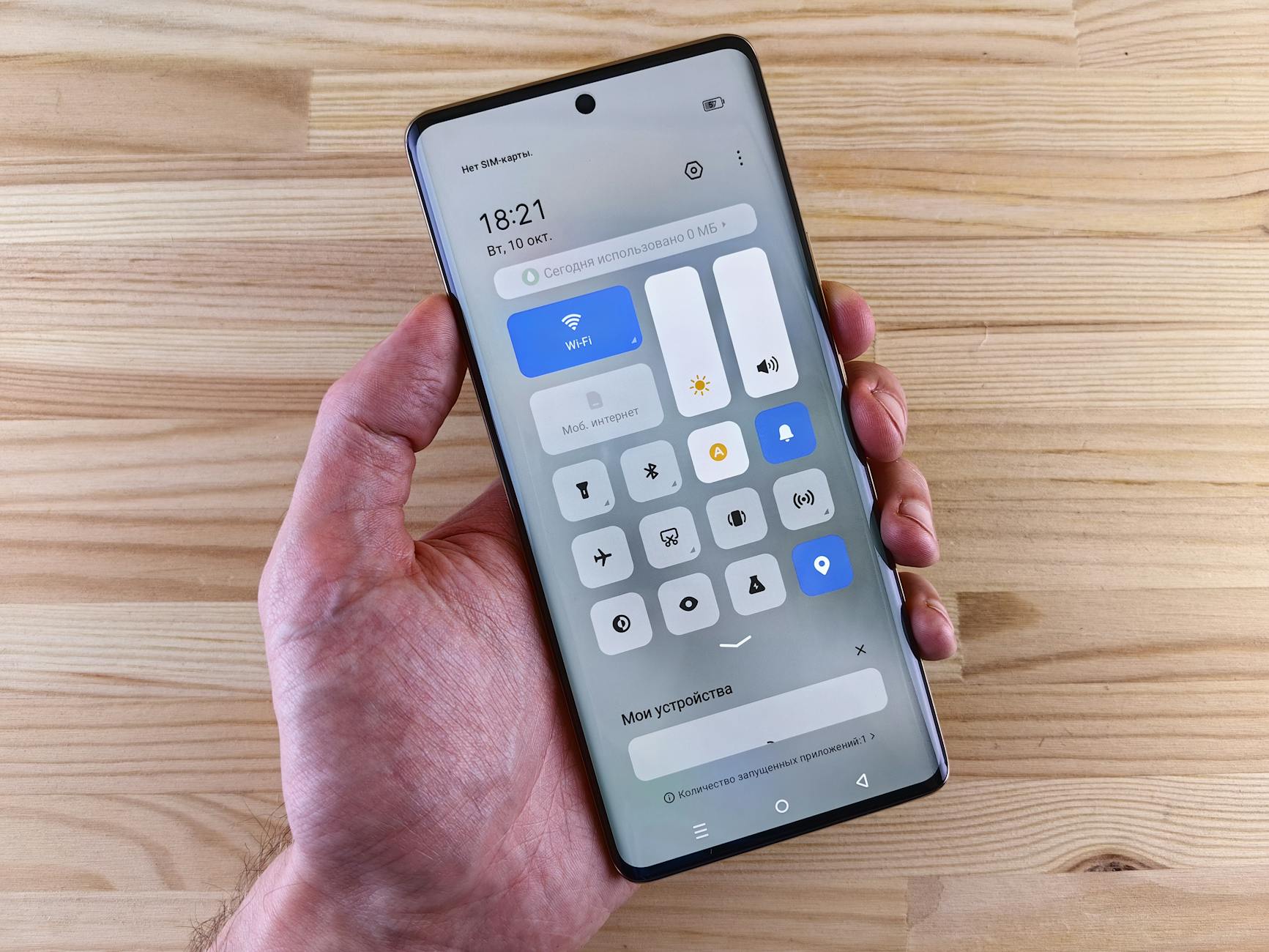 Photo by Andrey Matveev
Reset network settings and toggle controls
Start with a simple reset and a quick toggle in Control Center. Resetting network settings refreshes Wi-Fi, Bluetooth, and cellular configurations without touching your apps or data. Then use Control Center to toggle Airplane Mode off and on to wake the radios. This combination fixes many soft glitches that keep Airplane Mode active.
Update iOS and carrier settings
Software updates often fix glitches that cause Airplane Mode to misbehave. On the iPhone, check for iOS updates under Settings > General > Software Update. If an update is available, install it. Also check carrier settings by going to Settings > General > About; if a carrier update appears, install it. These updates can restore proper network behavior.
Check SIM or eSIM status
Verify your SIM or eSIM is active and properly configured. Go to Settings > General > About to confirm the carrier, network, and SIM/eSIM details. For eSIMs, open Settings > Cellular and review each plan to ensure it’s activated and linked to the correct line. If something looks off, reapply the eSIM or contact your carrier.
Restore or DFU as a last resort
A full restore may be needed only after all else fails. Backup first to iCloud or your computer. Factory restore via Settings returns the iPhone to a like-new state, while DFU mode offers a deeper reset for persistent issues. DFU is more advanced and carries higher risk; follow on-screen prompts carefully and expect data loss without a backup.
Prevention Tips and When to Get Help
Keeping your phone reliable means anticipating trouble before it surfaces. The tips below help you avoid airplane mode glitches and know when it’s time to seek professional support. A few careful habits now can save you hours of troubleshooting later, whether you’re using an Android or an iPhone.
Keep software updated and avoid flaky updates
Regular updates patch bugs that can trap your device in airplane mode. Check for updates weekly, and install them when available. Read patch notes to spot fixes for connectivity. After updating, restart and test the toggle to confirm normal behavior. Staying current reduces flaky behavior in smartphones.
Power saving and battery health
Power saving modes can alter how radios behave and may momentarily disrupt network settings. If you notice connectivity seems off, disable battery saver and recheck Airplane Mode. Keep battery health in good shape by avoiding deep discharges and replacing aging batteries when needed; this helps radios stay responsive.
Back up data regularly
Frequent backups protect your data if you need to perform resets or restores during troubleshooting. Use cloud backup or a computer to save photos, messages, and app data. With a recent backup, you can reset networks or perform a factory reset without fearing data loss.
Know when to contact support
If the issue persists after the basic steps, it’s time to reach out to support. Contact your carrier or device maker with a clear summary: when the problem started, exact steps you took, and any recent updates or app installs. Have your model, OS version, and recent network changes handy. If you’re unsure, a quick diagnostic message helps the technician triage faster.
Conclusion
Fixing a phone stuck in airplane mode is usually about simple, safe steps done in a logical order. Start with quick toggles, a soft reboot, and a quick network reset, then try updates or a deeper reset if needed. These actions address both software glitches and misconfigurations without risking your data. In most cases, you’ll regain normal connectivity in minutes, whether you’re using an Android smartphone or an iPhone.
Before any major reset, back up your data so you don’t lose preferences, photos, or messages. If the issue persists, seek help from your carrier or device maker with a clear summary of what you tried. Sharing this guide can help friends facing the same trouble get back online faster.
Keeping your device healthy and connected matters, especially when you rely on it for work, navigation, or emergencies. A well-maintained smartphone reduces downtime and adds confidence in everyday use. If you found this guide useful, please share it with others.