Having trouble with your phone not showing notification history? This feature lets you review alerts you dismissed or cleared, which can save you from missing important messages. In this quick guide, you’ll find practical steps to fix the issue on both Android and iPhone and keep you in the loop with every alert.
Why your phone might not show notification history
Notification history can be a lifesaver when you need to track past alerts. Yet on many devices it isn’t visible by default, or it only covers a short window. Here’s a clear look at how Android and iPhone handle notification history, so you can set expectations and troubleshoot effectively.
Android: how notification history works and common limits
On many Android phones, notification history is off by default. That means you won’t see a saved log unless you enable the feature. When it is on, you typically get a record of recently dismissed, snoozed, or past alerts in a single list. This is handy for recovering something you might have swiped away or cleared by accident.
The exact behavior depends on your device and the software skin. Some phones store a longer history, others only keep a brief window. The common setup is about 24 hours of history, but that can vary. If you don’t see older alerts, it may be because the history window is shorter on your model or because you recently turned the feature on. It’s worth checking Settings > Notifications > Notification history to confirm whether the feature is enabled and what window it saves.
Do Not Disturb also plays a role. DND pauses or silences alerts, but it does not automatically hide history. If history is enabled, you can still see the notifications you would have received in normal mode once DND is off. If you’ve turned on DND for an extended period, you might notice a gap in what you expect to see, but the saved history itself typically remains intact.
Different OEM skins adjust this feature in their own ways. For example:
- Google Pixel devices tend to follow stock Android closely, offering a straightforward 24 hour history window and easy access in Settings.
- Samsung devices with One UI can behave differently across updates. Some users report shorter windows or occasional glitches where only the most recent items are saved. In those cases, older entries may disappear sooner than expected even though the feature is on.
If you rely on history for important reminders, a quick habit is to keep Notification history turned on and periodically review Settings to confirm the window length. Remember, once you turn off the feature, saved history is cleared, and there’s no universal way to recover it.
Key takeaway: enable Notification history in Settings, know your device’s window, and be aware that DND does not erase history but can hide real-time alerts while it’s active.
iPhone: how Notification Center and lock screen affect history
iPhone handles notification history through the Notification Center and the lock screen. When you dismiss an alert, it doesn’t vanish from memory immediately; it lands in the Notification Center where you can revisit it later. This creates a sense of continuity that differs from Android in how the history is surfaced.
Accessing your history is simple:
- On the lock screen, you can view past alerts. iOS versions vary in how you reach them, but newer models make it easy to swipe to reveal recent notifications.
- On the home screen, pull down from the top to open the Notification Center and scroll through recent alerts.
A practical limit to keep in mind is that notifications don’t stay forever. In many iOS versions, you can expect a rolling window of roughly one week for most alerts. After that, older items are removed automatically. This helps keep the center from getting cluttered but means you won’t retrieve notifications older than about seven days unless you’ve interacted with associated app data or archives elsewhere.
When you dismiss a notification, it is considered cleared for that particular alert. It won’t reappear in the main notification stream, but you may still see a similar or related alert if the app re-sends a notification later. Customization options live under Settings > Notifications, where you can adjust how and where alerts appear and whether they show up on the lock screen or in the Notification Center.
Changes across iOS versions can alter the steps a bit. In recent releases, the process to view history on the lock screen or in the Notification Center remains intuitive, but the exact gestures or button placements may shift. The core concept stays simple: the Notification Center acts as a log, with a typical history window of about a week, and dismissed alerts generally do not reappear in that history.
Key takeaway: iPhone users generally see a shorter and more controlled history than Android users, with alerts stored mainly in the Notification Center and on the lock screen for about a week. Dismissed alerts disappear from the main view, but the Notification Center still holds recent records within that window.
Quick fixes you can try today
When notification history isn’t showing, a quick, practical approach can save hours of frustration. These fixes are lightweight, easy to do, and designed to work across Android and iPhone. Think of them as a reset for your everyday smartphone workflow. Try them in order, and you’ll likely recover access to past alerts fast.
Turn on and verify Android notification history
To start, confirm the feature is enabled and that nothing is blocking it. On most Android devices, you’ll find the history log under the Notifications settings. Here’s how to check and turn it on:
- Open Settings and go to Notifications.
- Find Notification History and switch it on.
- If you don’t see the option, your phone might use a custom UI or have the feature hidden in a different sub-menu. Look for terms like “Notification log” or check the help section of your device’s UI.
Once enabled, you can review past alerts in two common ways:
- Open the Notifications panel and tap History.
- Return to Settings > Notifications > Notification History to see the saved log.
Be mindful of the history window. Most devices store the log for about 24 hours, which is enough to catch anything you dismissed by accident. If you recently turned on the feature, the log may be sparse at first.
Do Not Disturb (DND) can quietly affect what you see. DND pauses real-time alerts, but it doesn’t erase history. If you’ve had DND enabled for a stretch, you might notice a gap in what you expect, even though the saved history remains intact once DND is off.
If you use a manufacturer’s skin, behavior can vary. Some OEMs log longer histories, others shorter. For example, Pixel devices keep a straightforward log similar to stock Android, while Samsung devices may show a shorter window on certain updates.
Key takeaway: enable Notification History in Settings, know your device’s window, and remember that DND can hide alerts while it’s active, not delete history.
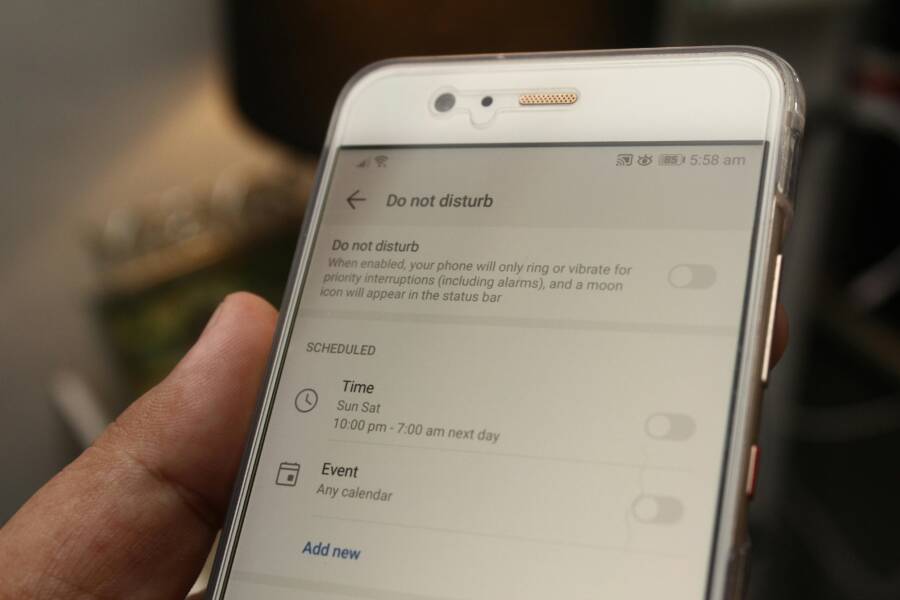
Photo by Daniel Moises Magulado on Pexels: Close-up of a smartphone displaying ‘Do Not Disturb’ settings with active options. Photo by Daniel Moises Magulado
View history on iPhone quickly
iPhone stores notification history primarily in the Notification Center and on the lock screen. To access recent alerts, use a few simple gestures and make sure alerts are enabled for the apps you care about.
- On the lock screen: wake the screen and swipe to reveal recent notifications. New alerts appear at the top of the list, and you can swipe away individual items as needed.
- In the Notification Center: from the top of the screen, swipe down to open the center and scroll through recent alerts. If your iPhone is asleep, wake it and perform the swipe gesture to access history.
Keeping alerts enabled for important apps is the simplest way to ensure you don’t miss critical messages. You can customize where alerts appear in Settings > Notifications, choosing banner styles, sounds, and whether to show previews on the lock screen.
A rolling window typically governs iPhone history. Most alerts stay visible for about a week before older entries are pruned. This keeps the feed manageable while still giving you a reasonable period to catch up on missed messages. If you rely on longer-term access, consider archiving or taking screenshots of important notifications when they arrive.
Key takeaway: use the lock screen and Notification Center to view recent alerts, and keep app alerts enabled to maintain visibility of important messages.
Check app settings and permissions
Many notification problems come down to app permissions and how apps handle background activity. An app can be allowed to post notifications but restricted in background activity, which can affect how and when you see alerts.
Use this simple checklist to verify each app:
- Permissions enabled: Make sure the app has permission to post notifications in Settings > Apps > [App] > Notifications.
- Notification banners allowed: Ensure banners are enabled so alerts appear as expected.
- Sounds on if desired: Toggle sounds if you want audible alerts.
- Background activity allowed: Verify the app can run in the background, so it can push notifications even when you’re not actively using it.
If you notice a specific app isn’t showing history, revisit its notification settings within the app itself and confirm it isn’t muted or restricted by battery or data saver options. Some devices also offer per-app Do Not Disturb exceptions—double-check these to avoid silent alerts.
When multiple apps are involved, this checklist becomes a quick routine: open each app’s settings, confirm notification permissions, ensure banners and sounds are enabled, and verify background activity is allowed. After updating these, test by sending a test notification or performing a quick action that would trigger one.
Key takeaway: correct permissions and background activity are often the missing pieces. Use the simple checklist to keep every essential app reporting its alerts reliably.
Deeper troubleshooting when history still won’t show
If you’ve checked the basics and history still won’t appear, it’s time to go deeper. This section targets stubborn issues that hide notification history behind small settings, app behavior, or system quirks. You’ll learn precise checks you can perform on both Android and iPhone to uncover hidden history you might be missing. Think of it as a deeper scan of your smartphone’s memory for alerts you dismissed or cleared.
 Photo by Daniel Moises Magulado on Pexels: Close-up of a smartphone displaying notification controls.
Update the OS and apps
Keeping the operating system and apps up to date is one of the simplest yet most effective fixes for history that won’t show. Updates fix bugs that can hide or corrupt the log, improve compatibility with notification data, and tighten security issues that affect background processes. When you stay current, you reduce the chance of encountering a mismatch between what you expect to see and what the device actually records.
- Android:
- Open Settings and go to System or Software Update.
- Tap Check for Update. If an update is available, download and install it.
- After update, restart your phone to ensure all components reset cleanly.
- Then check Settings > Notifications > Notification History to confirm the log is active and visible.
- iPhone:
- Open Settings > General > Software Update.
- If an update is available, choose Download and Install.
- After the update finishes, restart the device.
- Open Settings > Notifications and verify that the apps you care about show banners or alerts as you expect and that Notification Center can surface past alerts.
Why this matters: some history gaps come from riding on an old system that doesn’t know how to store new alert data correctly. A fresh OS and app package aligns logging with current app behavior. If you’re on a device that tends to lag on updates, consider enabling automatic updates for both the OS and apps.
Key takeaway: regular updates fix bugs that hide history and improve overall reliability. After updating, recheck the log and confirm the window length still matches your needs.
Reset app settings and clear caches
Sometimes the issue isn’t the log itself but how apps report notifications. Resetting app settings and clearing caches can resolve misconfigurations that block history from being recorded or shown correctly.
- Reset notification preferences for troublesome apps
- On Android: Settings > Apps & notifications > [App] > Notifications. Reset to default or toggle off and back on to re-enable.
- On iPhone: Settings > [App] > Notifications. Toggle Allow Notifications off, then back on. This often resets the app’s alert delivery without affecting other data.
- Clear app caches and data (Android)
- Settings > Apps & notifications > [App] > Storage & cache > Clear cache. If the app behaves oddly after clearing, you can also choose Clear storage, but note this may reset in-app preferences.
- After clearing, reopen the app and reconfigure notification preferences to your liking.
- Reconfigure alerts afterward
- Revisit each app’s notification settings to ensure banners, sounds, and lock screen visibility match your preferences.
- If you rely on notification history, keep the feature enabled and test by sending a test notification to verify that the history is recorded correctly.
Why this matters: misconfigured settings or stale caches can block new alerts from entering the history, or make the history appear incomplete. A clean slate for app notifications often restores accurate logging.
Key takeaway: reset and clear caches to remove hidden blockers. Reconfigure alert rules afterward to maintain reliable history.
Check Do Not Disturb and battery optimization
Do Not Disturb and aggressive battery optimization can mask or delay alerts in ways that make notification history appear incomplete. A quick audit helps ensure you aren’t unknowingly filtering out history.
- Do Not Disturb (DND)
- Android: Settings > Sounds > Do Not Disturb. Review your schedules and exceptions. Make sure the apps you rely on are not blocked by DND.
- iPhone: Settings > Focus > Do Not Disturb. Check which apps are allowed to send notifications during Focus modes.
- Battery optimization (background restrictions)
- Android: Settings > Apps & notifications > [App] > Battery > Allow background activity. Some OEM skins label this differently, but the idea remains the same: the app must be allowed to run in the background to push notifications reliably.
- iPhone: Settings > Battery > Low Power Mode. If enabled, some background tasks slow down, potentially impacting notification history. Disable temporarily to test.
- Testing after changes
- Send a quick notification to the affected apps and confirm it appears in the history window or Notification Center. If the log still doesn’t update, move to the next section.
Why this matters: DND and battery limits can block alerts from being logged or surfaced, even though the app still sends notifications. Clearing these obstacles helps ensure every alert is recorded.
Key takeaway: review DND and battery optimization to ensure alerts reach the history. Make necessary adjustments and test with a quick notification.
Check provider behavior and OEM differences
Device brands and software skins sometimes handle notification history in unique ways. A problem on one model may not occur on another, even with similar settings. Understanding these nuances can save you time during troubleshooting.
- Google Pixel and stock Android
- History tends to be straightforward and consistent. If history isn’t visible, double-check the exact path in Settings > Notifications > Notification History and ensure the feature is on.
- Samsung One UI
- History windows can vary by update and model. If you notice older entries vanish sooner than expected, that may be normal for your device version. Check for any available patch notes from Samsung for your OS version.
- Other OEMs (Huawei, OnePlus, x)
- Some skins offer enhanced privacy controls or alternate notification hubs. If you can’t find the History log, search for terms like “Notification log” or “Notification history” in the Settings app, or consult the manufacturer’s help center.
Why this matters: knowing your device’s behavior reduces guesswork and helps you avoid chasing a problem that isn’t there.
Key takeaway: device-specific quirks can explain history gaps. Confirm the exact flow on your model and adjust expectations or settings accordingly.
Quick recap of the deep checks
- Update OS and apps to the latest versions
- Reset app settings and clear caches, then reconfigure alerts
- Review Do Not Disturb and battery optimization settings
- Consider device-specific logging behavior and update notes
If, after these steps, history still won’t show, the issue may lie deeper in the OS or a rare app-specific bug. In that case, moving to a more comprehensive reset plan may be necessary.
What to do next if the issue persists: prepare for a broader reset or, in extreme cases, consult support channels for your device brand. Before taking drastic steps, back up important data so you can recover quickly after changes.
Key takeaway: deeper checks cover misconfigurations, background restrictions, and OEM quirks. They often uncover why notification history remains hidden and help restore reliable logging across apps.
Best practices to prevent future notification history gaps
Keeping a reliable notification history requires proactive setup and small, regular habits. This section lays out practical, easy-to-follow practices you can implement today. By understanding what gets saved, how long it stays available, and how to maintain a safety net, you won’t miss important alerts again. Think of this as a quick maintenance checklist for your smartphone that protects the record of your alerts over time.
Keep history features enabled and understand limits
Knowing the exact scope of your device’s notification history helps you set realistic expectations and avoid surprises. Here’s what generally happens on Android and iPhone, plus a few quick tips to stay ahead.
- What gets saved
- Android: When the history feature is on, recent and dismissed notifications from apps are stored for a defined window. This typically includes snoozed and cleared alerts and can be browsed from Settings > Notifications > Notification History.
- iPhone: History is surfaced mainly through the Notification Center and the lock screen. Dismissed alerts vanish from the main stream, but recent entries can still be accessed in the center for a brief window.
- How long it lasts
- Android windows vary by device and software skin, but a common baseline is about 24 hours. Some skins store longer, others shorter. Always verify the exact window on your model.
- iPhone history generally spans about a week. After that, older entries are pruned to keep the log manageable.
- Managing expectations
- DND does not erase history; it pauses real-time alerts but the saved log remains intact when DND is off.
- When you turn off notification history, stored records are cleared and cannot be recovered through the log.
- Quick tips
- Regularly confirm the feature is enabled in Settings and check the current window length.
- If you rely on long-term records, plan to archive key notifications by taking a screenshot or saving essential details.
- Use a secondary backup method if you need access to older alerts beyond the built-in windows.
- Practical reminder for users of most smartphones
- Set a recurring calendar reminder to review and confirm your notification history settings at least once a month. This keeps you aligned with any OS or app updates that might change how history is stored.
Key takeaway: enable the history feature, know your device’s window, and remember that DND affects real-time alerts but not the saved log.
Create a simple weekly check and backup plan
A short, repeatable routine is your best shield against gaps in notification history. Here’s a compact weekly plan you can adapt to both Android and iPhone.
- Step 1: Review notification settings for all essential apps
- Open Settings and skim through app lists to confirm important apps can post notifications. Ensure banners, sounds, and lock screen visibility match your needs.
- For Android, verify Notification History is on and note the current window. For iPhone, ensure the apps you rely on are allowed in Notification Center and on the lock screen.
- Step 2: Confirm history is accessible
- On Android, open the notification shade and go to History to confirm entries are being saved.
- On iPhone, pull down from the top to access the Notification Center and verify recent alerts appear as expected.
- Step 3: Back up critical data regularly
- Use built-in backups or cloud services to protect important information. A weekly backup reduces risk if you reset or replace the device.
- For Android, check that Google Backup or your device’s native backup method runs automatically. For iPhone, ensure iCloud or iTunes/Finder backups are up to date.
- Step 4: Run a quick test
- Send a test notification from a few key apps and confirm they appear in the history or Notification Center within the expected window.
- Step 5: Document your essentials
- Keep a short list of apps you must track for work or personal safety. If needed, set reminders to review these apps’ notification behavior quarterly.
- Easy-to-follow weekly routine
- Monday: Confirm history feature is on and review the window.
- Wednesday: Check a sample of three important apps to ensure notifications land where they should.
- Friday: Run a quick backup and note any changes to alert behavior.
- If you add a new critical app, add a quick test notification to that list and verify immediately.
- Why this works
- A regular check minimizes the chance of missing a setting that blocks or hides alerts.
- Backups guard against data loss from resets or device changes.
- A brief test confirms the end-to-end path from app to history or center remains intact.
Smartphone users who adopt this habit report fewer gaps in their alert records and faster resolution when something looks off. It only takes a few minutes each week, but the payoff can be substantial.
- Quick tips for a smooth routine
- Use a single note or checklist app to track your weekly steps.
- Keep a small screen widget or quick-access shortcut to jump directly to Notification settings.
- When you update an app, re-run the test notification to confirm it still logs correctly.
Key takeaway: a simple weekly routine of review, backup, and a quick test keeps history reliable and saves you time down the road.
By applying these best practices, you reduce the chances of future notification history gaps. A well-tuned setup means you can trust the log when you need to revisit past alerts, and a lightweight weekly routine keeps you in control without adding clutter to your day. This approach fits naturally into a smartphone user’s life, providing steady reliability without fuss.
Conclusion
A working notification history is within reach when you follow a few practical checks for your smartphone. Enable the history feature, verify the window length, and review Do Not Disturb and battery settings to ensure alerts are captured. If issues persist, update the OS and apps, reset per-app notification settings, and re-test with a quick alert to confirm logging is active.
If you still don’t see history, you’re not out of luck. A device-specific quirk or OEM behavior can hide logs, but applying the deep checks and weekly maintenance plan will typically fix the core problem. Regular backups and a quick test after each change protect you from losing important alerts.
Have you solved a stubborn notification history issue lately? Share your experience or ask a question below so we can troubleshoot together.