She Pressed Play on a Strange Audio Track and Within Days Her Financial Reality Started Shifting in Ways She Could Not Explain
>>> See How It Works <<<

How to Find What’s Taking Up Space on Your Phone (Android & iPhone)
Ever hit a low storage warning right when you snap a photo or try to install an app? It stops you cold, and your phone starts to lag. You’re not alone; smartphones fill up quick these days.
High-res videos, photo bursts, and app caches pile on fast. Large downloads, old messages with attachments, and even system updates eat space too. Without checks, your device slows down, apps crash, and frustration builds.
The fix starts with spotting the culprits. Check storage to speed things up and keep your phone running smooth. You’ll free space without losing what matters.
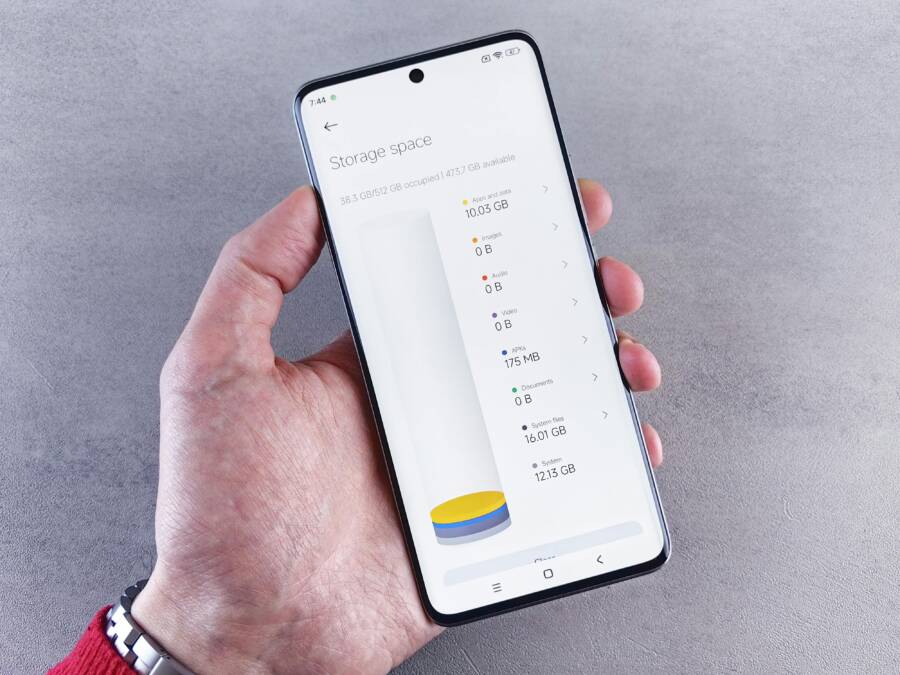
This guide shows easy built-in steps for Android and iPhone users. On Android, head to Settings, then Storage for a clear breakdown of apps, images, videos, and caches. Tap any category to see details and clear junk right there.
What If the Only Thing Between You and the Life You Deserve Is a Hidden Wealth Code Waiting to Be Activated
>>> Open the Door <<<

iPhone makes it simple too. Go to Settings, General, then iPhone Storage. It lists apps, photos, and files by size, plus tips to offload or delete extras.
These tools work on any recent model, no extra apps needed. Follow along, and you’ll reclaim gigabytes in minutes. Ready to take control?
Spot the Common Culprits Filling Your Phone Storage
Even if you think you’ve kept a tidy library, storage can fill up in surprising ways. The good news is that most space was never truly out of reach; it’s hidden in plain sight. In this section, we’ll zero in on two big culprits and show you practical steps to reclaim space without sacrificing what you value.
Photos and Videos That Pile Up Quick
Camera files are often the fastest way to drain space. A single long video can eat several gigabytes, and multiple clips stack up in a single day. Don’t assume you’re safe just because you don’t “feel” like you’re taking a lot of photos. High resolution video, live photos, and burst modes generate large files that accumulate quickly.
What to do:
- Back up first. Move your photos and videos to a cloud service or a local computer before you start cleaning. This protects memories and gives you freedom to delete.
- Prioritize large items. Sort by size to identify the biggest offenders, then trim or offload them in batches.
- Consider alternatives. For important moments, shoot in a slightly lower resolution or use a streaming backup during capture.
If you’re looking to offload your media, Google Photos offers backup and easy access across devices. Google Photos: Backup & Edit provides a seamless option for iPhone users, while cloud backups help keep your device lean. For Android users, cloud storage options paired with automatic backup can prevent future pileups. You can also explore other cloud choices like well-rated storage apps to find the right balance of price and reliability. The 11 best cloud storage apps in 2025 offers a broad view of popular choices.
Photo by Andrey Matveev
 Photo by https://www.pexels.com/@zeleboba
Apps and Their Hidden Cache Data
Apps can quietly hoard space in the form of caches, logs, and offline data. Games and social platforms are the usual suspects, but even smaller apps accumulate data if you don’t clear them regularly. The result is the same: your device feels sluggish, and space dwindles faster than you expect.
What to do:
- Focus on big apps first. Games and social apps typically store large caches that you can clear without losing essential data.
- Clear cached data periodically. Clearing cache frees up space without deleting your core app content.
- Don’t forget unused apps. Even apps you rarely open can hold onto data. Offload or delete ones you don’t use often to reclaim space.
If you need a quick primer on clearing cache, Android’s official guidance on cache and cookies is a solid starting point, and it’s applicable across many devices. For app-specific cache, it helps to check the app’s own settings or use system storage breakdowns to identify the worst culprits. For more on how cache impacts performance across platforms, you can browse trusted guides such as Android’s article on clearing cache and cookies. How to Clear Cache and Delete Cookies on Android
Photo by Andrey Matveev
Photo by https://www.pexels.com/@zeleboba
For deeper context on managing cluttered apps and caches, consider pairing your cleanup with insights from reputable sources like the guide on cloud storage apps. It helps map out long-term strategies to keep space in check while preserving access to your files. The 11 best cloud storage apps in 2025
Check Storage on Android Step by Step
If your Android device is feeling slow or warns about low space, a quick, systematic check can turn things around. This section walks you through a clear, step by step process to see exactly what’s taking up space and how to reclaim it without losing what you value. You’ll learn to interpret the storage categories and take targeted actions that make a real difference.
Use Your Phone’s Built-in Storage Tool
Android’s built-in storage view is the fastest way to understand what’s using space. Here’s how to access it and what you’ll see:
- Open Settings and tap Storage. You’ll see a breakdown of categories like Apps, Images and Videos, Audio, Documents, and Cached Data. Each category shows how much space it occupies and may offer quick actions to free up space.
- Tap a category to drill down. For example, under Apps you can view individual apps by size, then decide whether to clear cache or uninstall unused ones. In Images and Videos, you’ll often be able to delete duplicates, large files, or items you’ve already backed up.
- Review cached data and downloads. Caches can grow over time, while downloaded files you no longer need can clog space. Use the Settings view to delete or manage these items with confidence.
- Manage SD card storage if you have one. If your device supports an SD card, you’ll also see its available space and can move compatible files off the internal storage.
What you gain from this tool is a clear map of what’s filling up your phone. It’s fast, natural to use, and avoids third party apps. For a deeper dive into how Google helps you free up space, check the official guidance on clearing up space and managing storage. Free up space – Android Help
If you’d like a guided cleanup that includes app usage insights, Files by Google can be a helpful companion. It shows which apps consume the most space and lets you remove junk quickly. Learn more about how to use Files by Google for storage management. Check the storage space of the apps – Files by Google Help
Try Free Apps for Deeper Scans
If you want a deeper look beyond the built-in tools, safe, reputable cleaning apps can help you identify big offenders and junk you’ve overlooked. Use these options to scan and sort by size, then take targeted action.
- Files by Google is a trusted starting point. It analyzes storage, shows large files, and helps you clean up with a few taps. You’ll see sections for Apps, Images, and Media, and you can choose to delete items you no longer need.
- Avast Cleanup and CCleaner are popular choices that provide storage analytics, junk file cleanup, and easy offloading of unused apps. They can identify large caches, old downloads, and duplicate files so you don’t have to hunt manually.
- AVG Cleaner offers a straightforward cleanup path as well, with junk removal and a quick overview of what’s using space on your device.
How these tools identify junk works in simple terms. They scan for cache files, temporary data, duplicate media, large downloads, and unused apps. Then they present a prioritized list so you can act fast.
If you want to explore Files by Google first, it’s available in the Google Play store. This app is widely used for storage management and is considered safe for regular use. Files by Google – Apps on Google Play
For broader options and additional context on cleaning tools, you can read reviews and comparisons of popular Android cleaner apps. Best Android Cleaner Apps That Actually Work
What If the Only Thing Between You and the Life You Deserve Is a Hidden Wealth Code Waiting to Be Activated
>>> Open the Door <<<
Remember, the goal is to reclaim space without sacrificing access to the files you need. Use these tools to spot large, unnecessary items first, then back up important memories before deleting. If you hit a file you’re unsure about, err on the side of caution and back it up before removing it. This approach keeps your smartphone performing well while preserving what matters.
Find Storage Hogs on iPhone Easily
When your iPhone starts running slow or you see storage warnings, it’s a signal to identify the big space wasters. This section focuses on two practical angles: diving into iPhone storage settings to spot heavy apps and media, and quickly checking iCloud storage to see what cloud space is pulling on your device. Think of it as a quick sweep to reclaim space without losing what matters. You’ll learn where to look, what to look for, and how to take targeted actions that make a real difference.
Thousands of People Were Struggling With Money Until They Discovered This One Ancient Secret Hidden in Sound
>>> Unlock It Now <<<

Dive into iPhone Storage Settings
Full visibility starts with the built-in storage view. Here’s the path you’ll follow and what you’ll see along the way:
- Path to follow: Settings > General > iPhone Storage. This screen lists every app with its specific footprint, arranged from largest to smallest. You’ll also see a color-coded bar for each category (apps, photos, media, documents, and system data) so you can spot the loudest culprits at a glance.
- What you see: a sortable list of apps by size, with a quick look at how much space each one consumes. Tap an app for more details, including its document and data sizes, which helps you decide whether to offload or delete.
- Useful actions on the page: offload unused apps, review large attachments, and enable recommendations that Apple presents to optimize storage. If you enable offload, the app returns when you need it, while its data stays intact.
- Quick win steps: start with the largest apps first, then check Photos and Messages for large media and conversations with heavy attachments. Don’t forget to review cached files and downloads that quietly gnaw at space.
This area is your control center for a fast cleanup. For deeper guidance on managing iPhone storage and understanding each category, Apple’s guide walks you through checking storage and using offload to free space. Check your iPhone storage on Apple Support
If you want a friendlier, app-assisted cleanup, consider keeping an eye on backed up media and using a cloud backup strategy. The goal is to reduce on-device clutter while preserving access to your photos and apps when you need them. For a broader view of how storage is allocated between apps and media, Apple’s documentation on iPhone storage is a solid resource to reference as you optimize. How iPhone storage is managed
Tips to act on what you find:
- Offload strategy: offload apps you rarely use but want to keep. Your data stays safe, and the app reappears when tapped.
- Media lifecycle: backup large videos and raw files first, then prune the local copies.
- Revisit regularly: set a monthly check to keep space under control, especially if you shoot a lot of video.
Key takeaway: the iPhone Storage screen is a powerful first filter. It reveals which apps and media are the real space hogs and guides precise cleanup without guesswork.
Review iCloud for Extra Cloud Space
Cloud storage can dramatically change what you need to keep on the device. A quick check of iCloud storage helps you decide what to offload to the cloud and what to delete from the iPhone itself. Here’s how to review and act:
- Quick access steps: open Settings, tap your name, then iCloud to see a dashboard of usage. You’ll see a breakdown by apps and services using iCloud, plus how much space is left in your plan.
- What to inspect: compare iCloud usage with device storage. If photos, backups, or app data are heavy in iCloud, you can shift some burden to the cloud. This helps you clear space on the iPhone while keeping access to your content.
- Manage options: you can buy more iCloud space or adjust what backs up to iCloud. You can also enable iCloud Photos to store full-resolution media in the cloud and keep smaller, device-optimized versions on your iPhone.
- Direct actions: delete or optimize cloud backups you no longer need, turn off automatic backups for apps you don’t require, and review larger files stored in iCloud Drive.
Checking iCloud storage is straightforward and often liberating. It complements the on-device view by showing where your space is allocated in the cloud, so you can make informed decisions about what to pull off the device. Apple’s guides provide a clear path to check iCloud storage from any device and how to manage it. Check your iCloud storage on any device
If you prefer to see your iCloud needs online, iCloud.com offers a storage overview and tools to manage files directly in the cloud. For a quick look at iCloud storage online, this resource can be handy. Check your iCloud storage on iCloud.com
Smart tip: after you identify what’s consuming space in iCloud, consider a staged cleanup plan. Move older files to long-term backups, then prune what you no longer need on both the device and the cloud.
Final thought: pairing the iPhone Storage view with iCloud storage management creates a complete picture. You’ll see what’s on the device, what’s in the cloud, and the best way to balance both for peak performance. If you want deeper control, look at offloading options and how they interact with your cloud plan to keep your phone lean and responsive. For practical steps on offloading, Apple’s official guidance covers the feature in detail. Offload unused apps on iPhone
Take Action to Free Up Space Right Away
When your storage is tight, every minute counts. This section cuts straight to actionable steps you can take now to reclaim space without losing what matters. You’ll learn how to prioritize cleanup, make smart offloads, and keep your device lean going forward. Think of it as a rapid storm cleanup: grab the biggest offenders first, then seal up the gaps so you don’t slip back into crowded storage.
Clear the biggest offenders first
Start with the areas that eat space the fastest. Photos and videos usually lead the pack, followed by app caches and large document downloads. Handling these two categories first yields the quickest wins and sets a clear baseline for ongoing maintenance.
- Large media files: Identify the heaviest clips and photos, then back them up to cloud storage or a computer before deleting from the device. If you’re using Google Photos or iCloud, enable automatic backup to minimize future clutter.
- App caches and offline data: Some apps store data you don’t need every day. Clearing caches can free up substantial room without touching your essential content. For many apps, a simple in-app setting lets you remove cached files while keeping your account data intact.
A practical approach is to sort by size in your storage view and tackle the top offenders in batches. On Android, the built-in Storage view shows you where space goes, and you can drill into each category for targeted actions. On iPhone, the Storage screen in Settings highlights the apps and media taking the most space, plus recommended offload options. For deeper analysis, you can supplement with reputable clean-up apps that reveal large caches and duplicates, but always start with manual cleanup of the largest items. For a quick reference on Android cleanup, see Google’s guidance here: Free up space – Android Help. https://support.google.com/android/answer/7431795?hl=en
Offload or delete with a plan
Offloading lets you reclaim space while keeping your data intact. It’s a smart move for apps you rarely use or for large games that take up huge caches. The goal is to minimize friction when you need an app again, without the space penalties of a full reinstall.
- Offload unused apps on iPhone: offloading removes the app but preserves documents and data. When you tap the app again, it re-downloads and restores your data. This is a fast way to reclaim space without losing access to what matters.
- Offload alternatives on Android: similar options exist, and some devices offer “free up space” or “clear unused apps” features in the storage menu. Use these to prune apps you haven’t opened in a while.
If you want a guided, app-assisted cleanup, try Files by Google on Android. It highlights space hogs and helps you remove junk quickly. For Android users, this tool is particularly useful for scanning categories like Apps, Images, and Media, then deleting items with confidence. Learn more about Files by Google: Files by Google – Apps on Google Play. https://play.google.com/store/apps/details?id=com.google.android.apps.nbu.files&hl=en_US
Trim media with smart backup habits
Media is where storage pressure shows up most. A few disciplined habits can keep space under control without sacrificing memories.
- Schedule backups: set daily or weekly backups to the cloud or a local drive. This reduces the need to keep everything on the device.
- Delete after backup: once you confirm a successful backup, remove the local copy of large media files you no longer need on-device.
- Use optimized copies: for devices with limited storage, keep device-optimized versions of photos and videos if your cloud offers full-resolution options.
Cloud backups offer a safety net while keeping your phone responsive. If you’re already backing up with a cloud service, you can confidently delete local copies that you’ve stored elsewhere. For a broader look at cloud storage options, you can explore the 11 best cloud storage apps in 2025. https://zapier.com/blog/best-cloud-storage-apps/
Keep a lean app footprint even after cleanup
Once you’ve cleared the obvious culprits, set up a lightweight maintenance routine to prevent a quick relapse. Small habits add up.
- Review once a month: a brief monthly check helps you spot new space hogs before they grow.
- Uninstall unused apps: if you haven’t opened an app in a while, consider removing it or using offload if you’re on iPhone.
- Manage downloads and files: periodically purge downloads and receipts you no longer need.
On Android, you’ll often find quick wins by sorting apps by size in Settings > Storage. On iPhone, the Storage view in Settings shows a clear list and suggests offloading opportunities. If you want a deeper dive into Android cleanup workflows, a quick reference is The Verge guide on freeing up space on Android devices. https://www.theverge.com/22738302/android-phone-storage-how-to
Quick wins you can pull off in minutes
If you’re in a rush, aim for fast, high-impact actions that don’t require a lot of planning.
- Delete duplicate photos and videos: many people accumulate duplicates across your camera gallery and cloud backups. A quick pass can free gigabytes.
- Remove large downloads: music, video, or file downloads you no longer need can instantly free space.
- Clear browser data: cache and offline data from your browser can add up, especially if you use it heavily.
If you want to use a practical, guided approach on Android, the Android Help article Free up space provides step by step actions and options. https://support.google.com/android/answer/7431795?hl=en
When you should consider professional-level cleanup
If you’ve tried the basics and still see space creeping up, consider a deeper, structured approach.
- Reset and refresh: in extreme cases, a factory reset followed by a careful restore from backups can help, but only after you’ve backed up everything essential.
- Review storage distribution: look at system data and app data to understand where space is being allocated. This can reveal hidden caches that need a more deliberate purge.
In most cases, a well-timed cleanup of media, caches, and unused apps, paired with a reliable backup plan, will restore performance without trade-offs. For iPhone users, Apple’s guidance on offloading unused apps provides a straightforward, one-tap solution when you need it. Check out Offload unused apps on iPhone. https://discussions.apple.com/thread/256051014
Key takeaway: Action now, not later. Start with the biggest space hogs, offload what you can, and back up before you delete. A disciplined, repeatable process keeps your device responsive and your memories intact.
Conclusion
You now have a clear, practical path to reclaim space on your smartphone without sacrificing what matters. Revisit the big culprits first—media large files and app caches—then use built in tools and safe cleaning apps to prune intelligently. A steady routine keeps storage under control and your device responsive.
Summarizing key steps helps you act fast: back up media, sort by size, and delete or offload the biggest items; use built in storage views to identify top offenders; apply cloud backups to move data off device when possible; finish with a monthly check to keep space in check. These steps apply whether you use Android or iPhone, and they work on most recent devices.
The goal is a lean, reliable smartphone that serves you well every day. A small, repeatable process beats big cleanups that take hours. Keep your most used apps and memories within easy reach, and push cloud backups to handle the rest. A little discipline now prevents future clutter and slowdowns.
If you found this guide helpful, share your own tips or questions in the comments. Tell us what space hog surprised you the most, or which cleanup habit you’ll start this week. Your experience helps others.
There Is a Frequency That the Wealthiest Families Have Used for Generations and Most People Will Never Know It Exists
>>> Open the Door <<<
