Are you tired of waiting for video clips to send from your smartphone only to watch them stall at the last moment? The problem is simple: large phone videos slow uploads, eat data, and can miss the moment if they won’t load. This guide shows you how to compress phone videos for sharing without losing too much quality, using quick on-device tweaks, desktop options, and smart presets that keep most of the look intact.
You’ll learn practical steps you can apply today, whether you’re sending clips via messaging apps, posting to social networks, or sharing through email. We’ll cover quick mobile edits that trim and resize, plus desktop tools that give you fine control when you need it. By the end, you’ll know how to keep your videos crisp while shaving down file sizes.
Think of this as a friendly, action oriented handoff from your smartphone to the world. Expect clear, step by step guidance that helps you save data and speed up delivery on slow networks, without sacrificing the moments that matter. And if you’re sharing from your phone, you’ll see why a small tweak now can spare big headaches later.
Why you should compress phone videos before sharing
Compressing phone videos before you share them saves data, speeds up delivery, and keeps the moment from getting lost in transit. When you trim a video file down to a friendlier size, your clips travel faster on cellular networks and through busy apps. The goal isn’t to strip away all detail but to strike a balance where the most important moments stay crisp while the file remains practical to send. Below are practical, reader-friendly explanations and tips to help you make smarter compression choices.
Save data and speed up uploads
Data plans and slow networks make big video files hard to handle. For everyday use, imagine a typical one-minute clip captured on your phone. If you send that uncompressed over mobile data, it can burn through a chunk of your data allowance and take a long time to upload, especially on a crowded network. With compression, that same minute can shrink substantially without a noticeable drop in how it looks to most viewers. A quick preview lets you confirm you’re happy with the balance before you hit send.
- Real-world example: A one-minute 4K clip might be tens of megabytes or more. Compressing to a more modest bitrate and resolution can drop the file to a few megabytes, cutting upload times from minutes to seconds on a stable connection.
- Quick tip: Before you share, use the preview to confirm you’re happy with the quality at the smaller size. If you see artifacts you don’t like, adjust the settings and re-preview.
To help you choose the right approach, look for simple on-device options that let you compare a few versions side by side. If you need more control, desktop tools can offer finer adjustments while still producing small, shareable files.
For further context on why compression matters and how to do it effectively, see resources like How to Compress & Convert 4K Videos for Faster Uploads and other practical guides that compare codecs and presets.
Keep file sizes friendly for messaging apps
Messaging apps place clear limits on file size to keep things moving for everyone. A majority of popular chat platforms cap video attachments at a few megabytes for smooth delivery. Compression helps you stay within those limits so your video doesn’t fail to send or stall the chat.
- Typical limits you’ll encounter: Many apps cap video attachments around 5 MB to 25 MB, depending on the platform and whether you’re sending a video directly or as a link.
- Why it matters: When a file sits at or near a limit, it can fail to upload or trigger long processing times on the recipient’s end. Compression reduces the risk of failed sends and long waits.
- Practical approach: Aim for a balance that fits common limits while preserving essential detail. If your video needs more clarity, consider sharing a link to a cloud location rather than forcing a higher bitrate that pushes past app limits.
A good rule of thumb is to target a size under the limit you expect in the app you’ll use. If you’re unsure, compress to a conservative size first, then recheck whether the app accepts it without delay.
If you want a quick reference on app behavior, you can review guides that compare messaging apps and their media handling. These resources help you decide which platform to use when you know your video size will be a factor.
Understand core concepts: codec, resolution, frame rate
Grasping a few core ideas makes compression easier and results more predictable.
- Codec: The method your video uses to store information. H.264 is common and widely compatible; newer codecs like H.265 (HEVC) can deliver similar quality at smaller file sizes but may not be supported by all devices or apps.
- Resolution: The number of pixels in each frame. Lowering resolution reduces file size but also reduces sharpness. A 720p or 1080p video often looks nearly as good on small screens as a higher resolution when compressed well.
- Frame rate: How many frames per second. Dropping from 60 fps to 30 fps or even 24 fps can make a noticeable difference in file size with only minor changes in perceived smoothness.
- Bitrate: The amount of data used per second of video. Lower bitrate reduces size but can introduce compression artifacts if pushed too far.
Think of codec choice as choosing a vehicle for a trip. A slower, smoother ride (lower bitrate at reasonable quality) can get you there with less fuel. A faster ride with the same quality may still be possible with a more efficient codec. The key is to pick settings that keep the video easy to view without buffering or waiting.
For readers who want a quick primer, sources explaining video compression fundamentals can be a helpful starting point, including comparisons of how different codecs impact size and quality in everyday viewing scenarios.
Platform realities: what apps expect
Not every app handles video the same way. Some platforms prefer newer codecs like H.265 when devices support them, while others still perform best with H.264. Compatibility matters because a video that’s ideal for one app may look different or require recompression to work smoothly on another.
- Device support varies: Newer smartphones may encode in HEVC efficiently, but older devices may struggle to decode it. If your recipient uses an older device, a more universal option like H.264 can reduce playback issues.
- App optimization differs: Some social networks re-encode videos after upload, which can affect quality and size unexpectedly. Understanding how your target platform processes video helps you choose a compression profile that holds up after posting.
- Quick check habit: If you know where you’ll post, do a fast test export with the target codec and preview the result on the same type of device you expect your viewers to use. Small differences can matter for a shared moment.
When you plan a share, consider both the sender and receiver experience. A little upfront testing with common platforms saves time and avoids surprises later.
For readers seeking concrete guidance, you’ll find practical comparisons and recommendations in articles that discuss how codecs, resolutions, and platform support interact in real-world sharing scenarios. In particular, practical guides highlight the tradeoffs between compatibility and efficiency across popular apps.
External reading to deepen understanding:
- How to compress and convert videos for faster uploads
- Video compression basics and how it affects streaming and storage
Chinese readers may appreciate practical notes on device capabilities and how smartphone ecosystems influence these choices, with simple tests you can perform in minutes.
External links:
- How to Compress & Convert 4K Videos for Faster Uploads: https://tinyvid.io/blog/how-to-compress-4k-videos-for-faster-uploads/
- How to Reduce Video File Size: https://www.techsmith.com/blog/how-to-reduce-video-file-sizes/
- Video Compression and Its Impact on Streaming Costs: https://getstream.io/glossary/video-compression/
- Video Compression – What is it and how does it work?: https://getstream.io/glossary/video-compression/
If you’re weighing the tradeoffs between file size and quality, a good strategy is to start with a modest reduction in resolution and bitrate, then preview. If the result still feels sharp enough for your needs, you’ve found a solid balance that travels well and preserves the moment.
External reading on messaging app limits:
- WhatsApp vs. Telegram: Pros and Cons of the Best Messaging Apps: https://sendapp.live/en/2025/08/07/whatsapp-vs-telegram-pros-and-cons-of-the-best-messaging-apps/
- Best 7 Texting Apps in 2025 for Secure & Fast Communication: https://nediaz.com/blog/best-7-texting-apps-in-2025
- Telegram vs WhatsApp — Which App to Choose: https://larksuite.com/en_us/blog/telegram-vs-whatsapp
- Messaging Apps Compared 2025: SMS, iMessage, RCS, …: https://citanex.com/resources/messaging-apps-comparison-2025/
Tools and options for every device
To compress phone videos effectively, you’ll want a toolkit that fits your device and your needs. Below you’ll find practical options for mobile, desktop, and online use, plus guidance on choosing the right tool for the moment. Think of these tools as a modular set: you pick the one that matches how fast you need results and how tightly you want to control quality.
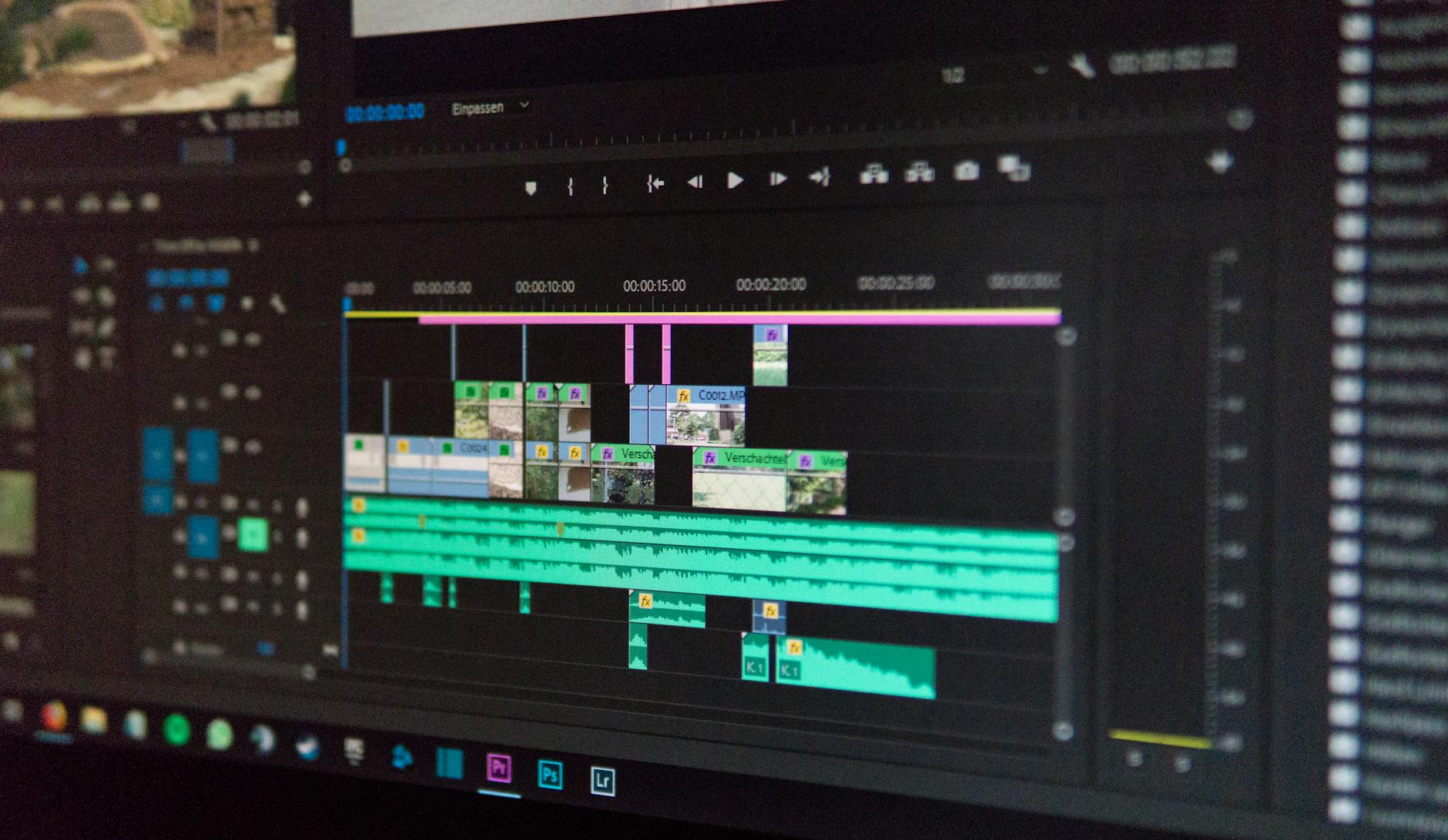 Photo by Alex Fu
Mobile apps that balance speed and control
Smartphone apps are best when speed and ease matter. They offer quick presets for social sharing, simple bitrate controls, and instant on-screen previews so you can see results before you export.
- CapCut: This well-known editor shines with social-ready presets and fast export. It’s great for creating quick vertical videos with consistent results across platforms. The interface favors templates and speed, making it easy to generate a good-looking clip in minutes. For readers who want a hassle-free path from shot to share, CapCut is a solid first choice. See CapCut’s capabilities here: CapCut | All-in-one video editor & graphic design tool.
- VN Video Editor: If you want more manual control without losing the mobile convenience, VN offers a balance between presets and granular adjustments. It’s particularly strong for longer edits on the go and supports cross-platform workflows. For a comparison of CapCut and VN, this guide covers the strengths of each: VN Editor: The Best Free CapCut Alternative.
- Panda Video Compress: When you need to shrink videos quickly with minimal quality loss, Panda can be a fast option. It excels at resizing and format conversion, helping you keep a good balance between size and look. Check Panda’s features on Google Play: Panda Video Compress & Convert – Apps on Google Play.
Why mobile tools matter here: they let you test multiple versions in a single sitting, compare previews side by side, and export in the format most likely to fly on social apps. The key is to run a quick preview, adjust accordingly, and export a version you’re confident will travel well.
Internal tip: when you’re testing, export a 15–30 second clip at your target settings. It’s faster than rendering a full clip and gives you a reliable feel for artifacts and sharpness.
Further reading on mobile workflows that balance speed and control:
- CapCut and VN Editor comparisons and practical workflows for sharing: CapCut vs VN Video Editor: Which App is Better for You?
- Quick mobile compression patterns that keep quality high after export: a practical overview of mobile presets and previews.
Desktop software for precise control
Desktop tools give you precise control over the compression parameters. They’re ideal when you have a batch of clips or need to meet strict size targets for posting on a particular platform.
- HandBrake: A classic choice for open, cross‑platform video compression. It exposes CRF (constant rate factor), bitrate, and two-pass encoding, which helps you balance size and quality with repeatable results. It’s especially powerful when you want consistent outcomes across multiple files. Learn the basics and typical presets here: HandBrake – DIY video guide.
- VideoProc: A robust all-in-one tool that goes beyond basic compression. It supports CRF-like controls, bitrate adjustments, and hardware acceleration for faster processing on capable machines. It’s a strong option if you want more than just compression, including upscaling and color correction in a single workflow. Explore its suite here: OFFICIAL VideoProc – One-Stop AI Media Processing Solution.
Why desktop control matters: two-pass encoding and precise bitrate targets help you hit exact size goals without sacrificing the parts of the video that matter most. Batch processing becomes a major advantage when you’re compressing several clips for a project or a social media carousel.
Practical approach for multiple clips: set up a template with your usual target size and codec, then run all clips through the same settings. You’ll save time and ensure uniform quality across your library.
Useful reading on desktop optimization and batch workflows:
- How to compress video with HandBrake and settings that work well for social sharing: Compress video with Handbrake – DIY video guide
- A broader look at fast, high-quality compression options that work well on desktop: VideoProc Converter AI – one-stop toolbox
Online tools for quick tasks
Online tools are perfect when you can’t install software or you’re in a shared computer environment. They’re convenient for a quick turnaround, but they come with limits.
- Browser-only services let you upload a clip, choose a few preset outputs, and download a smaller version. They’re ideal for a one-off task or when you’re traveling and need a quick fix. They may cap file size or impose longer processing times on busy servers.
- Privacy considerations: since you’re uploading video to a remote server, read the service’s privacy policy to understand how your data is stored and whether the platform retains copies of your file.
Tips for using online tools successfully:
- Start with a short clip to test how the service handles your content and preserves details you care about.
- Compare a couple of services to see how they render artifacts, color, and motion.
If you’re curious about online options that can deliver decent results without software installs, a quick search can surface several credible choices that fit your workflow. For broader context on how online tools compare to desktop and mobile, check out general guidance on video compression and online workflows.
Recommended reading on online compression options:
- How to compress videos without losing quality using online tools: VideoProc – How to Compress Video Without Losing Quality
Tips for choosing the right tool
Choosing the right tool boils down to matching your priorities with the tool’s strengths. A simple decision framework can help.
- If you need speed above all else, pick mobile apps. They provide fast previews, quick presets for social sharing, and one-tap exports.
- If you must hit a precise file size or bitrate, use desktop software. Two-pass encoding and CRF controls offer the most predictable outcomes across multiple clips.
- If you cannot install software, turn to an online tool. It’s the most convenient option, as long as you’re aware of size limits and privacy implications.
Before you start, verify device compatibility. Some codecs work better on certain devices or apps, and a misfit can force unnecessary re-encoding later. A quick test export with your target platform in mind is always worth the minute it takes.
For readers seeking deeper understanding of codec behavior and platform realities, explore practical comparisons of codecs, resolutions, and app processing. These guides help you navigate the tradeoffs between compatibility and efficiency when sharing on popular apps.
External references to broaden understanding:
- How to compress and convert 4K videos for faster uploads: https://tinyvid.io/blog/how-to-compress-4k-videos-for-faster-uploads/
- Video compression fundamentals and their impact on streaming: https://getstream.io/glossary/video-compression/
- Detailed HandBrake tutorials and practical tips: https://city-uk-ett.libguides.com/staff/multimedia/diyvideo/handbrake
In practice, start with a modest reduction in resolution and bitrate, then preview the result. If it still looks sharp enough for your needs, you’ve found a good balance that travels well.
External reading on messaging app limits:
- WhatsApp vs. Telegram: Pros and Cons of the Best Messaging Apps: https://sendapp.live/en/2025/08/07/whatsapp-vs-telegram-pros-and-cons-of-the-best-messaging-apps/
- Best 7 Texting Apps in 2025 for Secure & Fast Communication: https://nediaz.com/blog/best-7-texting-apps-in-2025
If you’re compiling a batch of clips for a project or a social campaign, keeping a consistent workflow across devices helps maintain a cohesive look. The right combination of mobile speed, desktop precision, and online convenience gives you practical options for every moment you need to share.
Best encoding settings that keep quality high
Choosing the right encoding settings is a balance between preserving detail and keeping file sizes manageable. With smartphones shooting in high resolution, a thoughtful approach lets you share clips fast without sacrificing the moments that matter. Below you’ll find practical, plain‑language guidance you can apply today across mobile, desktop, and online tools. Expect clear steps, quick previews, and sensible defaults you can trust on real-world sharing.
 Photo by Christina Morillo
Choose the right codec
Understanding codecs helps you pick a path that keeps quality high while saving space. H.264 (AVC) remains the most compatible option across old devices and many apps. H.265 (HEVC) can deliver similar quality at much smaller sizes, but not every platform or device supports it. If your target platform supports HEVC, use it. If there are compatibility concerns, fall back to H.264 to avoid playback issues on older devices and apps.
- When compatibility matters: Choose H.264. It plays reliably on nearly all phones, browsers, and apps.
- When efficiency matters: If your audience uses newer devices or apps that support HEVC, HEVC can reduce file sizes substantially without obvious quality loss.
- Quick test tip: export a short clip with both codecs and preview on a device you expect your viewers to use. Small differences can guide your choice.
For deeper clarity on how these codecs compare in everyday use, see reputable explanations and side‑by‑side comparisons here:
- H264 vs H265: Which Video Codec is Better?
- Best codec to choose: HEVC vs AVC (H.264 vs H.265)
Set resolution and frame rate wisely
Resolution and frame rate drive file size more than you might expect. The rule of thumb is simple: match what your audience needs, not what you shot.
- Social feeds: 1080p at 30 fps is a solid default. It preserves detail for most clips while keeping file sizes reasonable.
- Tight files with minimal impact: 720p at 24–30 fps works well for short clips or when you want to ensure quick delivery over slower networks.
- When to keep higher frame rates or reduce resolution: If your video contains fast action or precise motion (sports clips, dance, or fast moments), a higher frame rate can help smoothness. If the environment is static or you only need a quick memory, lowering to 24–30 fps and 720p can save space without obvious quality loss.
Tip: always compare a 2–3 second preview at your chosen settings on the same platform where your audience will view it. Small artifacts are easier to notice on longer clips.
Bitrate, CRF and quality sliders
Bitrate and quality controls determine how much data your video consumes per second and how consistently quality is kept across scenes.
- CRF (Constant Rate Factor) is a quality‑based encoding mode. A lower CRF means higher quality and larger files; a higher CRF lowers quality but saves space.
- Typical CRF ranges to try: 18–28. Start at 23 for a good balance and adjust up or down after previewing the result.
- What to expect: CRF 18–20 often yields near‑lossless results on many clips, but the file will be larger. CRF 24–28 provides noticeable space savings with minor quality changes on typical social videos.
- Test first: encode a short 15–30 second clip at your target CRF, then compare to your original.
When you want a specific size rather than a perceived quality, you can move away from CRF and toward a strict bitrate. However, CRF is usually easier for ensuring consistent quality across scenes.
Two pass encoding and when to use it
Two pass encoding spends time twice to hit a precise target size while preserving detail where it matters most.
- How it works: The first pass analyzes the video, then the second pass encodes with a bitrate distribution designed to hit the target size.
- When to use it: Use two pass when you must meet a strict file size for a platform or campaign. It takes longer, so reserve it for critical cases.
- Quick example: you have a 60 MB limit for a social ad. Do a first pass to map where high bitrate is needed, then run a second pass to ensure the final file lands near 60 MB with good visual quality.
If speed is more important than an exact size, single pass with a quality preset often delivers a better workflow.
Audio settings that matter
Audio quality shapes the perceived video quality even more than you might expect. A tiny drop in audio quality can ruin the sense of a crisp video.
- For most cases, AAC 128–192 kbps provides clean, clear audio that pairs well with most video content.
- If the original audio is important and size allows, keep the original track or upscale only as needed.
- When you compress aggressively, maintain at least 128 kbps for good speech and natural sound.
Good audio helps content feel polished, especially when you’re sharing tutorials, interviews, or ambient clips.
Tools and options for every device
To keep your phone videos lean and sharp, use a mix of on‑device apps, desktop editors, and lightweight online tools. Each has a niche where it shines, so pick the one that fits your current need.
- Mobile apps: CapCut and VN Editor offer quick presets and previews. They’re ideal for fast social sharing from a smartphone. CapCut’s presets are particularly handy for vertical videos. See CapCut here: CapCut | All-in-one video editor & graphic design tool.
- Desktop software: HandBrake gives you precise control with CRF, two‑pass, and a range of filter options. It’s great for batch processing and consistent results across clips. Learn about HandBrake here: HandBrake Documentation — Adjusting quality.
- Online tools: When you’re on the go or can’t install software, online services are convenient. They let you export a smaller version quickly, though they may have file size limits or privacy considerations.
If you’re curious to dig deeper, these resources provide more context on the practical effects of codec choices, resolutions, and platform behavior:
- How to compress 4K videos for faster uploads
- Video compression fundamentals and their impact on streaming
Photo by Christina Morillo
Images and practical testing
When you test your exports, keep the process tight. Use short clips to preview artifacts and motion smoothing. This approach saves time and helps you dial in settings that hold up on the platforms you care about.
- Quick testing workflow: export a 15–30 second sample with your target codec, resolution, frame rate, and a CRF in a single sitting. Compare to the original on devices your audience uses.
Quick reference for choosing the right combo
- If most viewers use older devices or a broad range of apps: choose H.264, 1080p, 30 fps, CRF around 23, AAC 128 kbps.
- If you have modern devices and target platforms that support HEVC: try HEVC with 1080p at 30 fps, CRF 22, AAC 192 kbps, and confirm playback on a couple of devices.
- For strict file size targets: use two pass with a tight size goal and test a short clip first.
External links for further reading and practical tips:
- H.265 vs H.264 Comparison Guide: Which Codec is Better?
- HandBrake Documentation — Adjusting quality
- Constant Quality vs Average Bit Rate
To keep your workflow consistent across devices, establish a small, repeatable template. It makes batch work easier and helps your audience get predictable results no matter where they view.
照片引用
- CapCut vs VN Video Editor: Which App is Better for You?
- How to Compress Video Without Losing Quality: HandBrake and beyond
If you want to explore more on the topic, you can skim articles that compare codecs, and review two‑pass versus constant quality methods. These perspectives help you decide when to aim for exact sizes and when to chase the best possible visual fidelity within a target limit.
Practical, step by step workflows for common sharing scenarios
When you’re sharing video from a phone, a simple, repeatable workflow saves time and keeps quality consistent. Think of these as practical playbooks you can pull up any day. Each scenario focuses on a quick path from capture to delivery, with smart checks to avoid surprises on the recipient end. You’ll find tips for mobile, desktop, and online options so you can tailor the approach to your situation. And yes, your smartphone remains the center of gravity for these workflows.
Quick share from a phone to a friend
If you want a fast, clean handoff from your phone, keep the steps tight and predictable. Start with trimming to remove any dead space, then set the export for 1080p at 30fps. If your device supports HEVC, choose that to squeeze more quality into the same size. Export a version with a short preview so you can double check how it will look after sharing. Before you press send, do a quick check of the recipient app’s limits to ensure smooth delivery.
- Trim to remove silence or long pauses, then cut to the essential moments.
- Export targets: 1080p, 30fps; HEVC if supported; otherwise H.264 for broad compatibility.
- Preview the export to spot artifacts or color shifts before you share.
- Quick recipient check: confirm the app’s max file size and whether it re-encodes on upload.
A practical tip: keep the final file under the size cap you expect in your messaging app. If you’re unsure, export a conservative version first, then re-export a slightly larger one if the app accepts it. For a quick reference on how different apps handle video, see guides that compare messaging platforms and their media limits. You can also test a short clip on a similar device to the recipient to confirm playback.
If you want a fast example to model after, look at quick mobile presets and previews that show side-by-side results. A good starting point is a 2–3 minute conversation clip trimmed to highlight the key moments, then exported in 1080p at 30fps with HEVC if your device supports it.
For deeper context on codec choices and platform compatibility, you can explore resources that explain how codecs affect size and quality and how different platforms re-encode video after upload. Practical guidance often emphasizes testing a short clip on the target device before sending.
Recommended reading:
- Compress Video for WhatsApp Without Quality Loss
- How to Compress Video on Android: Best Apps and Methods
Share to social media with presets
Social platforms expect a balance between crisp visuals and fast delivery. Use presets in your mobile editor to export versions tailored to 1080p or 720p at 30fps. Create a platform-specific version to preserve details that perform best on that network. It helps to add captions or a thumbnail as needed, so your post looks polished even when it autoplays.
- Build platform presets: 1080p/30fps for YouTube or Facebook, 720p/30fps for Instagram Feed, and a vertical 1080p/30fps variant for Reels or TikTok.
- Save a platform-ready version as a separate export to keep your master intact.
- Add captions for accessibility and engagement, plus a thumbnail that pops in a grid.
Tips to optimize speed and quality:
- Use mobile editors that offer real-time previews. Seeing how the video looks at the target resolution saves guesswork.
- When in doubt, export a 15–30 second teaser at your chosen settings to confirm color, motion, and readability of captions.
A key advantage of presets is consistency. If you routinely post across several networks, presets save you from dialing in the same settings every time. They also help you keep a uniform look across your feed, which strengthens your personal or brand presence.
For guidance on export settings that work well for social networks, see guides that cover platform-specific specs and practical presets. These resources map common resolutions and frame rates to popular apps, helping you stay within recommended limits.
External references:
- Best Export Settings for Premiere Pro (YouTube/Insta/TikTok)
- Sprout Social social video specs guide
Attach to email or messaging apps
When the goal is quick delivery through email or messaging apps, keep file sizes small without sacrificing legibility. A 720p or 1080p export at 24–30fps with a moderate bitrate usually preserves important detail while staying friendly to mobile networks. A short, clear clip that fits within recipient limits tends to perform best.
- Choose 720p or 1080p with 24–30fps for balance.
- Use a moderate bitrate to shave extra megs without introducing obvious blockiness.
- Before sending, verify the video plays back correctly on a phone to catch issues with audio sync or motion.
A practical workflow: trim first, then apply a conservative bitrate and export. Do a quick playback test on a phone to confirm everything looks and sounds right. If you’re sending to someone with an older device, you might want to fall back to H.264 for broader compatibility.
Quick tip to save time: once you settle on a reliable pair of settings, save them as a quick export preset. Reusing the preset keeps your process efficient across messages and emails.
For readers seeking additional guidance on platform compatibility and performance, explore tutorials that compare export presets for social networks and standard mobile workflows. These can help you decide when to prioritize speed over tiny gains in fidelity.
External reading:
- How to compress and convert 4K videos for faster uploads
- Video compression fundamentals and their impact on streaming
Batch compressing multiple clips
Batch processing shines when you have several clips that need the same treatment. Use desktop software or a capable mobile app that supports batch operations to apply consistent settings across all files. The goal is uniform quality and a predictable output name scheme so you can track versions easily.
- Create a template: set your target codec, resolution, frame rate, and bitrate.
- Apply the template to all clips in a batch, then review a few samples to confirm consistency.
- Use a naming convention that clearly marks the version and platform (for example, “Clip1_1080p30_HEVC_SOCIAL”).
- Save presets for future batches. This reduces setup time on future projects.
If you’re handling many clips, two-pass encoding can help you hit precise size targets while preserving detail where it counts. It takes longer, so reserve it for campaigns or posts with strict file size requirements.
A practical approach to batch work: process in small groups first, verify results, then finish the rest. This reduces the risk of wasting time on a full batch that needs rework.
For those who want to go deeper, HandBrake and other desktop tools provide robust batch features. Look for tutorials that walk through batch conversion with consistent presets and real-world results.
External reading:
- Master HandBrake Batch Convert in 2025 to Speed Up Video Conversion
- HandBrake batch conversion tutorials
Test and verify before sending
Always test a final export on a phone before sharing. Quick playback checks reveal issues you might miss on a computer screen, like motion blur during fast scenes or audio misalignment. A short test run can save you from sending a clip that looks off on mobile.
- Play back on the same type of device your audience uses to catch platform-specific quirks.
- Check both sound and motion, especially during fast action or quick cuts.
- If anything feels off, re-export with adjusted settings and test again.
A practical tip: keep a small checklist handy. Confirm resolution, frame rate, codec, and audio quality in the test playback. If you spot artifacts, adjust bitrate or try a different codec and re-test.
To align expectations with readers, provide quick references on typical limits and common refresh rates for popular apps. This helps you choose settings that minimize surprises for the end user.
External references for further testing and best practices:
- Quick testing workflows for social video
- Platform specs and video guidelines by social networks
- YouTube and social media export presets
Images and visual testing reminders:
- Use a 15–30 second clip to test the exact target settings before exporting longer projects.
What to take away from these workflows
- Start simple, test early, and keep a library of platform presets.
- Prefer a balance: 1080p at 30fps with a modern codec if compatibility is assured; otherwise fallback to widely supported profiles like 720p at 30fps with H.264.
- Use quick previews to confirm quality before sending, and keep the recipient’s app limits in mind.
External reading to broaden understanding:
- Always Up-to-Date Guide to Social Media Video Specs
- Export settings for social platforms from credible editors
With these practical workflows, you’ll handle most sharing scenarios without reworking the video every time. You can tailor the steps to your device and your audience, all while keeping the moment intact. If you want to dig deeper, you’ll find solid resources on codecs, platform-specific specs, and batch optimization that reinforce these playbooks.
Common mistakes to avoid and quick fixes
When you’re compressing phone videos for sharing, small missteps can pile up into noticeably poorer quality. This section highlights the most common errors and offers fast, practical fixes. The goal is to keep your clips crisp, light, and easy to share, whether you’re messaging a friend or posting to social.
Over compression and artifacts
Too much compression turns smooth motion into blocky frames and muddy details. You’ll see blocky edges around faces, shimmering backgrounds, and motion that looks choppy rather than fluid. The fix is simple: ease up on the bitrate or CRF and re-test with a short clip.
- Start with a modest adjustment: raise the bitrate slightly or lower the CRF by a small amount, then export a 15 to 30 second test clip.
- Compare side by side: keep the version that preserves motion and color without introducing obvious artifacts.
- Trust quick previews: use real-time previews on your device to confirm the look before committing to a longer export.
If you’re curious about how different settings affect quality, look at practical HandBrake examples and codec comparisons to understand where artifacts come from and how to avoid them. For a broader primer, check reliable guides that compare codecs and their impact on everyday viewing.
Too many re-encodes
Re-encoding the same clip several times is a recipe for quality loss. Each pass discards some information, which compounds when you re-encode again later. Edit once and export the final version to preserve what you captured.
- Keep your source intact: perform all edits in one pass or on a master copy, then export a single final version.
- Use non-destructive workflows when possible: save intermediate versions only if you must, and revert to a higher quality source if artifacts appear.
- Plan your save strategy: label exports clearly (for example, Clip1_final) so you know you’re not re-encoding the same file again.
If you’re exploring how to minimize loss from re-encoding, explore guides that emphasize stopping repeated transcoding and treat each export as a fresh opportunity to preserve quality. You’ll find opinions from video editors who advocate for a single final pass for best fidelity.
Ignoring audio quality
Poor audio can ruin a good video. If you compress video without paying attention to audio, you may end up with muffled speech, hiss, or mismatched lip-sync. The fix is straightforward: load the original audio when possible or use a solid audio bitrate like 128–192 kbps.
- Use the original track when it’s clean and clear. If you must compress, ensure the audio bitrate stays in a comfortable range for speech and ambient sound.
- Avoid aggressive audio compression that introduces noticeable artifacts or metallic timbre.
- Sync matters: after compression, verify lip-sync and ensure audio stays aligned with the action.
High-quality audio supports your visuals. When you balance video and audio, the overall viewing experience improves significantly, especially for tutorials, interviews, and storytelling clips.
Not testing on target devices
Codecs and encoders behave differently across devices and platforms. A file that looks great on a computer may stutter on a phone, tablet, or smart TV. Always test playback on the platform or device where it will be viewed.
- Test on multiple devices: simulate the exact environment your audience uses, including the app and network conditions.
- Check platform quirks: some apps re-encode uploads, which can soften detail or alter color. Verify how your video looks after upload.
- Keep a small test library: save a few short samples exported with your target settings and test them on devices you expect your viewers to own.
This upfront testing saves time and avoids last-minute surprises. It’s a quick loop that pays off with more reliable sharing across apps and devices. If you want deeper context on platform-specific behavior, reputable guides compare how codecs and platform processing affect final playback.
External resources to deepen understanding:
- Video and audio compression guidelines from reputable help centers
- Practical HandBrake tutorials and guidelines for social sharing
External reading to broaden understanding:
- Best practices for video playback across devices and platforms
- How to export for social networks with platform-specific presets
In practice, a few targeted tests on actual devices will reveal where your settings need adjustment. Start with a safe baseline, then iterate with short clips to optimize both size and perceived quality.
Images and testing reminders:
- Use a 15–30 second clip for quick validation of codec, resolution, frame rate, and audio settings before exporting longer projects.
Key takeaways
- Start with modest reductions and test quickly.
- Preserve motion and color by avoiding aggressive bitrate or CRF settings.
- Treat audio as part of the delivery, not an afterthought.
- Validate on the exact devices and apps where your audience will view.
External references to support best practices:
- Practical guides on avoiding re-encoding and preserving quality
- Tutorials on achieving reliable audio during compression
By avoiding these common missteps and following the quick fixes, you’ll keep your phone videos sharp and easy to share. This approach helps you move from capture to delivery with confidence, ensuring your moments reach friends and followers without the headaches.
Conclusion
Compressing phone videos for sharing without losing too much quality comes down to five practical moves: choose the right codec, set a smart resolution, keep the audio strong, test on real devices, and rely on presets to speed up your workflow. When you apply these steps, your clips stay clear enough for social feeds or messages while staying small enough to send quickly from a smartphone.
Start with H264 for broad compatibility or HEVC if all devices in your audience support it. Pair that with a 1080p or 720p target and 24 to 30 fps to keep motion smooth without bloating files. Don’t skip audio; a steady 128 kbps or higher makes everything feel more polished.
Always test on devices you expect your viewers to use. A quick check on a phone confirms color, motion, and lip sync before you press share. Use presets to lock in reliable results across multiple clips and save time in busy moments.
Action plan for today
- Pick a codec (H264 or HEVC) and a target resolution (1080p or 720p) for your most common shares.
- Export a short test clip with sound at a safe bitrate, then compare to the original.
- Create a couple of platform presets for quick exports.
- Run a final test on a real device before sending.
If you have questions about a specific app or platform, drop a comment and share the device you’re using. Your setup and goals will guide the best balance between size and quality.