Ever feel overwhelmed by the pile of files piling up on your smartphone after a busy day of downloads? You’re not alone. There isn’t a single switch that changes every app’s save location, because each app controls its own downloads.
In this post you’ll learn how downloads are managed on Android and iPhone, how to set a default location per app in popular browsers like Chrome and Firefox, and how to set a dedicated download folder that keeps things tidy. We’ll also cover simple file organization tips for keeping your phone’s storage under control.
By the end, you’ll know how to choose a practical location for your downloads, keep Android downloads and iPhone downloads orderly, and build a quick, repeatable system for file organization on your phone.
Why changing the default download location matters
When you download a file on your phone, the app saves it somewhere. If you don’t set a clear default location, files pile up in a generic spot and become hard to find. A dedicated download folder keeps things organized from the start, making it easier to locate PDFs, receipts, photos, and work files later. It also helps you manage storage more effectively on devices with limited space.

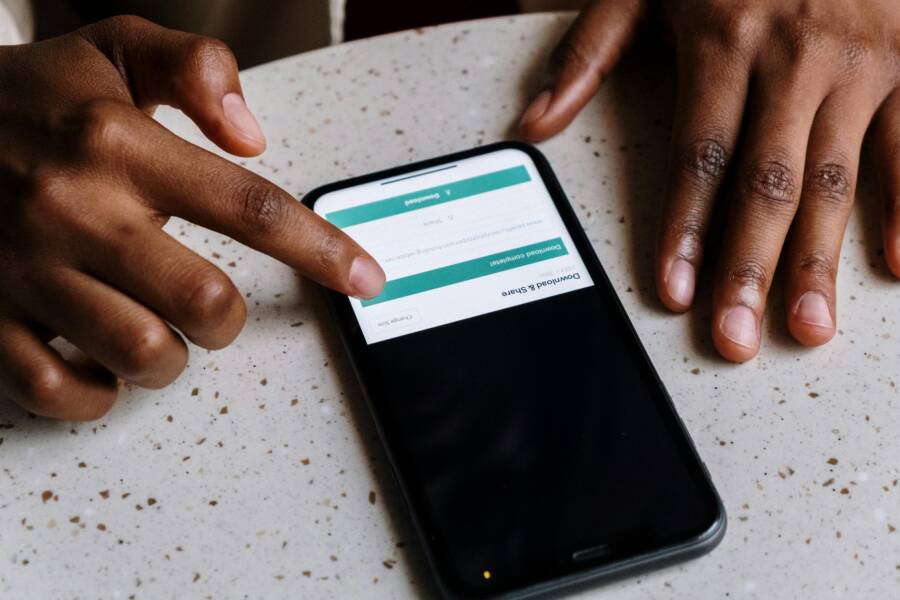
Photo by cottonbro studio
What happens when you don’t change it
If you skip setting a default, you’ll likely end up with a chaotic mix of files. Imagine a month of downloads: PDFs from work, shopping receipts, travel PDFs, app screenshots, and mystery files all dropped into Downloads. When you need a specific document, you waste time digging through a long list or scrolling endlessly. Mistakes happen too, like saving the same file multiple times or losing track of important items.
Common scenarios
- A busy week adds dozens of PDFs to Downloads. You save a contract here, a project brief there, and a coupon code somewhere else. Later, you can’t quickly separate work files from personal ones.
- Photos and screenshots from multiple apps end up in the same folder. Finding a specific image becomes a scavenger hunt.
- Receipts pile up with other documents. When tax time arrives, you spend extra hours sorting and labeling.
These patterns waste storage space and mental energy. A scattered download setup makes it harder to stay organized and reply to urgent messages or requests.
Benefits of a dedicated download folder
Setting a specific place for new downloads delivers immediate, practical gains. Each benefit helps you stay on top of files without constant cleanup.
- Easier retrieval: You know exactly where new downloads land. No more hunting through folders to find a single file.
- Safer backups: A single, predictable location makes backups faster and less error prone. You can copy or sync this folder to cloud storage with confidence.
- Cleaner home screen: Fewer files show up in general folders, so your phone stays tidy and easier to navigate.
- Better space management: For devices with limited storage, you can monitor the Downloads folder separately and decide what to keep or remove first.
- Smoother cloud syncing: When you choose a dedicated folder, cloud backups and syncing work more predictably. Files go to the right place, not random spots.
Actionable tips
- Pick a folder you already use for related work, like “Downloads” or a dedicated subfolder such as “Downloads/Work” or “Downloads/Receipts.”
- In your browser and app settings, set the default save location to this folder. If an app supports it, enable auto-move to the dedicated folder after download.
- Regularly review the folder. A quick weekly sweep keeps storage healthy and retrieval fast.
How apps handle downloads differently
Android does not use a single global download location. Each app has its own behavior, and understanding this helps you manage files more effectively.
Key differences to know
- Shared vs app-specific: Some apps save files to a common area like Downloads, while others store content in an app-specific folder. This matters if you want a universal place to check for new files.
- Prompted saves: Many apps ask you where to save the file each time, while others remember a last-used location. If you always want control, choose to be prompted; if you want automation, pick a stable default.
- File access: Some apps save to the Files app by default, while others place files directly in their internal folders. This can affect how easily you can back up or move files later.
- Browser behavior: Chrome and Firefox typically default to the Downloads folder but may let you choose a different path. If you rely on a consistent location, set it in the browser settings.
- App redundancy: Third-party apps may use their own folders. If you want a clean overview, create and designate a single family of folders and move files when needed.
On iPhone, the landscape is a bit different. iOS tends to route downloads through the Files app, with Safari behaving as a primary example. Other apps may surface downloads in their own lists, then sync with Files or Photos as appropriate. The key is to understand where each app stores content and set preferences accordingly.
Practical takeaways
- For Android, decide on a primary folder like Downloads or a dedicated subfolder and align app settings to this choice where possible.
- For iPhone, use the Files app as the central hub for downloads, and choose local storage versus cloud storage options based on how you work with files.
- In both ecosystems, knowing where files land saves time, reduces duplication, and makes backups more reliable.
By focusing on a sensible default and configuring apps to respect it, you create a reliable foundation for file organization. This makes future downloads quicker to locate and easier to back up, no matter how busy your smartphone gets.
Change download location on Android devices
Downloading files on Android can be a bit fragmented. There is no system wide switch to set one default location for every app. Instead, you adjust per app or per browser whenever possible. Chrome and Firefox offer straightforward ways to pick where you want future downloads to land. Other apps may store files in their own folders or use the system picker, so it pays to check each app’s settings. Use the Files app to move files later if needed, and make sure your SD card is mounted if you want to save there.
Is there a system wide default on Android?
There isn’t a universal switch to change all downloads at once. Some apps may offer their own default locations, but per-app settings are the norm on Android as of December 2025. In practice, most downloads still land in a common area like Internal Storage > Download, but that is not a guaranteed global setting. If you want more control, adjust the destination inside the app or browser you’re using.
Chrome: set download location
Follow these steps to direct Chrome downloads to a chosen folder:
- Open the Chrome app on your Android phone.
- Tap the three-dot menu (⋮) in the upper right corner.
- Select Downloads.
- Tap the gear icon (Settings).
- Choose Download location.
- Pick a folder, such as Device storage or SD card, or select Ask every time to prompt you each time you save a file.
Why it helps: saving to a specific folder keeps internal storage free for apps that need it and makes files easier to manage. After setting this, test by downloading a file to confirm it goes to the new place.
Firefox: set download location
Here is how to set a preferred download location in Firefox:
- Open the Firefox app.
- Tap the three dots to access the menu.
- Go to Settings.
- Find Downloads.
- Select Download location or Save files to.
- Choose a preferred folder like Downloads or a personal folder on internal storage or SD card.
Note: Android device models and Firefox versions can influence where you can store downloads. If you don’t see the exact options described, look for a similar setting under Downloads or Storage within Settings.
Other apps and general tips
Many apps have their own download settings or use the system file picker. Here’s how to approach it:
- Check each app’s Settings and look for a Downloads or Storage option. Some apps label it as Default download location or Save files to.
- If an app doesn’t offer a location option, expect downloads to land in the default Downloads folder.
- Use the Files app to move files later. This is handy if you decide to reorganize after a download.
- Ensure the SD card is mounted if you want to save there. Some apps will offer direct to SD card options, while others require the system picker.
Quick practical tip: when prompted for storage permission, grant it. Without permission, some apps may not be able to access the location you want or move files as needed. This small step prevents unnecessary friction during downloads.
Change download location on iPhone and iPad
On iPhone and iPad, there isn’t a single switch that sets one global download location. iOS handles downloads app by app, with Safari using a default path inside the Files app. After a download, you can move files with the Files app to keep everything tidy. This section explains where downloads land and how you can steer them toward a consistent organizational system.
Does iOS offer a system wide default?
iOS does not provide one global default for all downloads. Each app can decide where to save files, which means you’ll see variation from app to app. The Files app remains the central hub, so use it to organize after you download. If you want to keep things orderly, create a dedicated folder structure inside Files and move items there as needed.
Using the Files app to organize downloads
Start with a simple, repeatable setup in Files:
- Create a dedicated Downloads folder, then add subfolders like Documents, Media, and Receipts.
- After downloading, use the Move or Copy options to place files into the appropriate subfolders.
- Quick tips for easy search: name files clearly and consider tagging or including a short code in the filename (for example, “Invoice_2025-04-12.pdf” or “PhotoEvent_May2025.jpg”).
Practical workflow example:
- Save all web downloads to Downloads by default.
- Move PDFs to Documents, receipts to Receipts, and media to Media.
- When you need to back up, sync the entire Downloads folder to iCloud Drive or another cloud service.
Safari and other apps
Safari is the primary example of how downloads appear on iPhone and iPad. By default, Safari saves files to the Downloads area inside the Files app. You can switch this path if you prefer cloud storage or local storage on the device.
- Safari: Downloads land in the Downloads folder in Files by default, but you can change the destination in Settings.
- Other apps: Some apps save files in their own folders or offer a direct save to Files. Always check each app’s settings to see where downloads go.
- Third party apps: Many have their own save locations. If you rely on a consistent location, set your preferences in each app or plan to move files later via Files.
Organisation tip for this section:
- After downloading, open Files, tap Browse, and verify the location. If needed, move the file to a more suitable folder so future searches stay fast and predictable.
Key takeaway:
- The Files app is your central tool. Rely on it to unify where downloads land and to keep a clean, searchable structure across iPhone and iPad. This approach makes backups easier and reduces time spent hunting for documents, receipts, and media.
Smart organization tips to stay on top of downloads
Downloads on a phone can pile up quickly, especially after a busy day. A solid system keeps new files from getting lost and makes backups and sharing a breeze. This section lays out practical, easy-to-implement tips you can apply today. You’ll learn to create a scalable folder structure, pick the right file management tools, and set up light automation that runs in the background. Think of it as building a small filing cabinet in your pocket that never squeaks under pressure.
Create a clear folder structure
A simple, scalable structure acts like a map for your files. Start with a few broad folders and add subfolders only when you need more granularity. For most users, a practical setup looks like this:
- Downloads
- Documents
- Media
- Receipts
- Screenshots
Sticking to a small set of top folders helps you locate files faster. If you download a mix of items in a week, you’ll still be able to drill down quickly without opening dozens of folders. Clear naming conventions are equally powerful. Consider including dates and project names in file names, for example:
- Invoice_2025-04-12_ClientA.pdf
- MeetingNotes_2025-04-12.txt
- EventPhoto_May2025.jpg
Why this works: consistent folders and naming reduce search time and avoid duplicates. You’ll thank yourself when you need to pull a receipt from last quarter or find a contract draft from a specific project.
Tips to get started
- Use a dedicated top folder like Downloads for anything new, then move items to their final subfolders.
- When you save a file, add a short, meaningful name right away. If you’re in a hurry, add a date stamp and a one or two word descriptor.
- Reserve a small “Archives” folder for items you want to keep but don’t access often. Move older files there to keep the main folders lean.
How to keep it consistent across devices
- If you share files between Android and iPhone, mirror the same folder names in the Files app on iOS. This makes future transfers or cloud backups smoother.
- When you install new apps, take a minute to check where they save files. If possible, point them to the right subfolder to maintain consistency.
Use file management apps
Built-in tools plus reputable third party managers can dramatically simplify handling downloads. On Android, two strong built in options are the Files app and the system file picker. On iPhone, the Files app is your central hub, with Safari defaulting to a Downloads area inside Files. In addition, several third party apps excel at organizing downloads and keeping files tidy.
Recommended built in options
- Android Files: A reliable way to browse, move, and organize files from one place. It can help you spot large files and quick cleanups.
- iOS Files: Acts as a central library for documents, media, and more. You can move items between folders, rename, and share with ease.
Reputable third party file managers worth considering
- Solid Explorer (Android): A top pick for its two panel view, cloud connections, and live folder sizes. Great for moving files between local storage and cloud services.
- FX File Explorer (Android): A strong dual pane design that makes dragging and dropping files between folders effortless. It also supports many cloud services.
- FileMaster (iOS and Android): Simple to use for fast organization of downloads, with built in viewers for PDFs, videos, and more.
- File Manager & Browser (iOS): A solid option for viewing and sorting content from downloads, with a straightforward interface.
How these apps help in practice
- Moving and renaming files becomes quick with drag and drop or long press menus.
- They provide quick access to cloud backups, so important items get mirrored to the cloud without extra steps.
- Some apps offer automated sorting by type or category, which saves time during a busy day.
Cloud backups to consider
- For important files, set up automatic backups to a cloud service you already use. This reduces the risk of losing documents if something happens to your device.
- If you’re using multiple devices, enable syncing for your key folders so a file you download on your phone also appears on your tablet or computer.
Smartphone users often appreciate a workflow that minimizes taps. A good practice is to open your file manager once a week, review the Downloads folder, and move items into their final places. It’s a quick habit that yields big rewards when you need a specific document later.
Automate cleanup and archiving
Automation helps you keep a clean, organized phone without manual fuss. The goal is lightweight, reliable routines that run in the background or at set times. Start with small, repeatable steps and scale up as you gain confidence.
Simple automation ideas
- Weekly cleanup: Set a reminder to review Downloads every Sunday evening. Move older files that haven’t been opened in the last 90 days to Archives.
- Auto move after download: Use a routine that places new downloads into a designated subfolder like Downloads/Media or Downloads/Documents as soon as they finish.
- Archive rotation: Create an Archive folder and move files older than a certain date to it automatically. Keep your active folders lean for faster access.
Basic steps to set up a reliable weekly automation
- Pick a trigger: a time-based trigger works well (every Sunday at 8 PM) or after a download completes.
- Define actions: move files matching a simple rule (for example, files older than 30 days or files in Downloads that aren’t opened in 60 days) to Archives.
- Add safeguards: exclude important file types (like work documents) from automatic movement. Include a quick manual check step in the automation flow.
- Test the workflow: run it once on a small sample of files to confirm behavior, then schedule it weekly.
- Review and adjust: every month, tweak the rules as your workflow changes.
Practical setup tips
- Use built in automation tools when possible. Android users can employ quick settings or minor automation apps to handle basic moves. iPhone users can set up Shortcuts that run weekly checks and move files to designated folders.
- Keep automation simple. A simple, reliable rule beats a complex one that breaks often.
- Document your system: a short note in your Notes app can remind you what each folder is for and what the automation does.
Benefits of automated cleanup
- Time saved: less manual sorting frees you to focus on tasks that matter.
- Consistency: files end up in predictable places, so back ups and sharing are easier.
- Reduced clutter: a lean main folder means faster searches and faster downloads next time.
Wrap up
- A practical folder structure gives you a fast path to any file.
- File management apps provide a clean, intuitive way to keep downloads organized and backed up.
- Light automation keeps your system tidy without adding friction.
In the next sections, you’ll see how these ideas apply to Android and iPhone in concrete steps, plus a quick checklist you can print or save as a reference. This approach helps you stay on top of downloads even on busy days, and it scales as your file habits evolve.