Fix Screenshots Not Appearing in Phone Gallery (Android & iPhone)
If you’ve ever snapped a perfect screenshot only to discover it vanished from your phone gallery, you’re not alone. It’s a frustrating issue that happens for a few simple reasons, from storage hiccups to app quirks. This quick intro flags why it occurs and what you’ll gain from the full guide.
First, you’ll learn the most common culprits: storage space running out, the screenshots folder getting hidden or renamed, and sync or backup settings that skip local photos. These factors can sneak past you, even on a well cared for device. By understanding the why, you’ll know exactly where to look first.
Next, this post walks you through clear, step by step fixes for both Android and iPhone users. You’ll see how to check available space, locate or restore the correct gallery folder, and adjust camera or cloud sync options. We’ll keep the steps practical and easy to follow so you can fix the issue quickly.
Finally, you’ll come away with a simple checklist you can reuse whenever a new screenshot goes missing. The techniques here apply to everyday scenarios and help you prevent future gaps in your library. If you’re ready to reclaim your missing images, this guide will get you there fast, with practical, straightforward advice. screenshots not appearing in your phone gallery can be solved, and you’ll have your gallery back in minutes.
Check These Basics First to Find Hidden Screenshots
When screenshots refuse to show up in your phone gallery, it can feel like the file vanished into thin air. Before you dive into deeper fixes, there are quick checks that catch most issues. This section helps you start with the basics, so you don’t waste time hunting in the wrong place. The goal is to confirm where new screenshots are saved and ensure nothing blocks them from appearing in the gallery.
 Photo by Andrey Matveev
Free Up Space on Your Phone
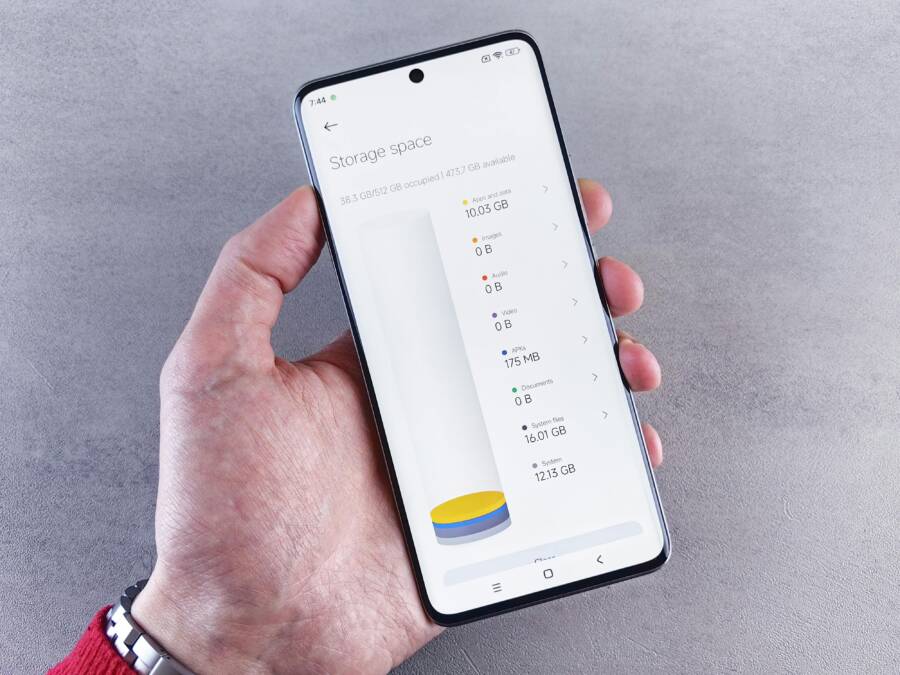
Low storage is a silent culprit that makes new screenshots disappear from the gallery. Start by checking available space in Settings > Storage. Delete junk files, cache, and unused apps you never open. Offload large apps you rarely use and move photos to the cloud or an external drive if possible. After freeing space, take a fresh screenshot to verify it saves correctly in the gallery. A quick space boost can unlock missing images fast.
Scan the Right Folders and Apps
Screenshots live in specific folders, and hidden or misnamed directories can hide them from view. On Android, open the Files app and search for “Screenshots” to locate the folder. On iPhone, the Recents album in the Photos app often holds the latest saves. It’s also worth checking third party gallery apps, which can conflict with the system gallery and hide new images. If you find them elsewhere, move or duplicate to the main gallery for consistency.
Toggle Permissions for Camera and Storage
Permissions shape where screenshots are saved and whether they appear in the gallery. Go to Settings > Apps, then select the Gallery app and any camera or screenshot tools. Ensure storage access is granted; if needed, revoke and regrant it. Repeat for both Android and iPhone where relevant. After adjusting, try taking a new screenshot to confirm it saves to the expected location.
Android Fixes: Make Screenshots Appear in Gallery
If screenshots aren’t showing up in your gallery, you’re likely dealing with small glitches rather than a bigger problem. This section brings you practical, no-nonsense fixes you can apply quickly. Each step targets a common cause, from cached data to software bugs. Follow these proven tips to restore visibility to newly saved images and keep your library accurate going forward. By the end, you’ll have a reliable process for reunifying screenshots with your gallery, so you don’t waste time hunting for them in the wrong place. Let’s tackle the issue one solid fix at a time.
Clear Cache and Data for Gallery App
Steps: Settings > Apps > Gallery > Storage > Clear Cache/Data. Then restart your phone to ensure changes take effect. This method works because a corrupted cache can hide new files or misreport their location. Clearing the cache resets temporary data that might be obstructing the gallery’s indexing, while clearing data returns the app to its default state. After rebooting, take a fresh screenshot and check if it appears in the gallery. If it does, you’ve eliminated a cache related obstacle and reduced the chance of future misplacements.
Update System Software and Apps
Check for Android updates in Settings > System > Update. Install any available updates for the OS and for the Gallery app or Google Photos if you use it as your default viewer. System updates often include bug fixes and improved media handling that directly affect how new screenshots are saved and indexed. After updating, restart your device and capture a test screenshot. Confirm it lands in the gallery as expected. Regular maintenance with updates helps prevent lingering issues and keeps your photo workflow smooth.
Reset Screenshot Button Combo
Power plus Volume Down is the standard combo for taking a screenshot, but some devices or launcher apps change this behavior. Verify the current gesture by going to Settings > Gestures or Accessibility, and look for the screenshot shortcut. If the combo has been altered, restore it to the default or set a configuration you remember works reliably. Test the shortcut a few times, then try saving a new screenshot. Consistency in the button sequence helps ensure the image is created and saved in the right folder for future access.
iPhone Solutions: Screenshots Stuck or Missing
When screenshots vanish or fail to appear in your gallery, it can be frustrating. The fix lies in simple, practical checks that address common culprits like quick glitches, cloud syncing quirks, and app permissions. This section focuses on straightforward iPhone specific steps. You’ll learn reliable methods to trigger a fresh start for the system, reset how photos sync with iCloud, and ensure your device isn’t blocking captures from saving locally. Follow these targeted actions to reclaim missing screenshots and keep your photo library complete, clean, and easy to navigate, whether you’re using an iPhone SE or a latest model.
Force Restart Your iPhone
Button combos by model: iPhone 8 and later use a quick sequence of volume up, volume down, then press and hold the side button. This process clears temporary glitches that can block new screenshots from saving. It’s a gentle reset that doesn’t erase data. After the restart, open the Photos app and check the Recents or Screenshots album for new images. If the issue persists, try another quick capture to verify results. A force restart often resolves minor software hiccups and returns normal saving behavior to your iPhone.
Disable and Re-enable iCloud Photos
Sometimes a gap in your gallery comes from cloud syncing. Turning iCloud Photo Library off and back on can reestablish the link between your device and the cloud, allowing new screenshots to appear in the local gallery again. Go to Settings, tap your name, select iCloud, and open Photos. Turn off iCloud Photos, wait a moment, then re-enable it. Let the library sync again, which may take some time depending on your connection and library size. After the sync finishes, verify that new screenshots show up in Photos.
Update iOS and Restart Screen Time Limits
A software update often fixes bugs that affect saving media. Check Settings > General > Software Update and install any available updates. While you’re here, review Screen Time restrictions, especially any blocks on app saves or photo access. If you see restrictions in place, adjust them to allow saving screenshots to the gallery. After updating and tightening settings, restart the device. Capture a test screenshot to confirm it saves correctly and shows in the Photos app. Regular updates keep the workflow smooth.
Advanced Steps When Simple Fixes Fail
When basic checks don’t restore missing screenshots, it’s time to escalate carefully. These advanced steps target underlying issues that small repairs might miss. They help you isolate problems, verify data integrity, and protect your photos from future gaps. You’ll learn to test with minimal risk, then decide whether you can fix it yourself or should seek professional help. Think of this as a methodical funnel: rule out simple causes, then move to more targeted actions that address deeper system behavior. A calm, systematic approach saves time and keeps your smartphone photography workflow reliable.
Boot into Safe Mode and Test
Android: press and hold the power button, then tap Restart in Safe Mode. This disables third party apps that could be obstructing the Gallery. Use the device normally for a while and take a few test screenshots. If they appear in the Gallery, a third party app is the likely culprit. Uninstall or disable suspicious apps one by one, retesting after each uninstall. If the issue persists, Safe Mode helps you confirm a system level problem rather than an app conflict. On iPhone, force restart to achieve a similar clean state, then test again.
 Photo by Kelvin Valerio
Reinstall Gallery or Photos App
If a simple refresh doesn’t fix the problem, reinstalling the gallery app can clear stubborn glitches. On Android, go to Settings > Apps, select Gallery or Google Photos, then choose Uninstall updates if available. Reboot and check if new screenshots save correctly; if not, install the latest version again from the Play Store. On iPhone, you can offload the Photos app (Settings > General > iPhone Storage > Photos > Offload App) and then reinstall. If you prefer, switch temporarily to Google Photos for viewing and storage while you troubleshoot the default gallery. This preserves your existing library while you test the core saving behavior.
Factory Reset as Final Option
A factory reset is a last resort and requires careful preparation. Before you reset, back up everything: photos, contacts, messages, and app data. For Android, perform a full reset from Settings > System > Reset > Factory data reset, then restore from your backup. For iPhone, use Settings > General > Transfer or Reset iPhone > Erase All Content and Settings, and restore from iCloud or iTunes backup. This step resolves deeply rooted software conflicts but wipes device settings and preferences. If you’re unsure, consider pro repair first or running a diagnostic with your carrier or manufacturer support.
Prevent Screenshots from Vanishing Again
Sometimes a simple screenshot saves fine, only to disappear from your gallery later. This section explains why that happens and how to stop it from happening in the future. You’ll learn practical steps you can apply right away, so new captures stay where you expect them and are easy to find in your library.
Common causes and quick prevention
A missing screenshot often comes down to four culprits: storage pressure, mislocated folders, app conflicts, and sync quirks. When your phone runs low on space, the system may deprioritize new files. Hidden or renamed folders can hide the new images from the gallery view. Third party gallery apps or camera tools can interfere with the default index. Cloud or backup settings might move or remove local copies. Quick prevention is simple: keep some free space, keep screenshots in the standard folder, use the built in gallery as a primary viewer, and review your sync rules to avoid automatic removals.
Set up reliable save paths and folders
Consistency matters. On most devices, screenshots land in a standard folder named “Screenshots.” If you use a custom camera or screenshot tool, ensure it saves to the same folder or duplicates to the main gallery. Periodically check that the folder is not hidden or renamed by mistake. If you use a third party gallery, consider keeping the default gallery as the primary source of truth for your new captures. A little organization now saves a lot of digging later.
Manage permissions and launcher shortcuts
Permissions determine where screenshots end up and who can see them. Verify storage access for the gallery and camera apps on Android. On iPhone, ensure Photos has full access where needed. If you have a launcher that changes shortcuts or gestures, confirm it isn’t redirecting saves away from the default path. After adjusting, make a test screenshot to confirm it saves to the expected location.
Enable reliable backups without losing local copies
Backups are essential but they can create confusion if they move files out of view. Enable cloud backups that keep copies without removing local files, and avoid auto deleting of local media. In practice, set up a backup rule that preserves originals in place while syncing to the cloud. Periodically review both the local gallery and the cloud to ensure you have a complete set of screenshots.
Android fixes that reinforce visibility
Android devices often suffer from cached indexing issues or mixed storage setups. The following practices help you keep new screenshots visible in the gallery.
- Monitor storage health: aim to keep at least 10–15% free space. Delete or move large or unused files.
- Verify default save location: ensure the screenshot tool saves to the standard “Screenshots” folder.
- Keep the gallery updated: use the built in Gallery app as your primary viewer and minimize reliance on multiple third party apps.
iPhone fixes that reinforce visibility
iPhone users benefit from a tight integration between the camera, Photos, and iCloud. The focus is on local visibility plus predictable cloud syncing.
- Check Photos settings: ensure “All Photos” is enabled and that new items saved to device are included in the local library.
- Review iCloud Photos: if you use iCloud, confirm that new screenshots sync smoothly and that you aren’t relying on a mis configured optimize storage setting.
- Test after changes: take a screenshot, then open Photos and verify it appears in Recents or Screenshots.
Quick checklist you can reuse
- Free space: is there enough room for new captures?
- Save location: are new screenshots saved to the standard folder or a known path?
- Permissions: do Gallery and Camera have storage access?
- Backups: is there a backup plan that preserves local copies?
- App conflicts: have you disabled or removed conflicting third party apps recently?
- Cloud syncing: is iCloud or Google Photos configured to avoid removing local copies?
When to seek deeper help
If you still can’t locate new screenshots after trying these steps, consider a deeper check. Look for system level issues such as file system errors or corrupted metadata. A quick diagnostic with your device manufacturer support can identify problems beyond user controls. In many cases, a simple reset of app preferences or a clean gallery replacement resolves stubborn cases without a full device reset. If you’re unsure, start with the least invasive steps and move forward carefully.
Conclusion
If screenshots not appearing in your phone gallery, follow the steps in order to uncover and fix the root cause. Start with quick basics like freeing space, checking the standard save folder, and confirming app permissions. If the issue persists, apply the Android or iPhone fixes one by one, then move to the advanced steps only if needed.
A simple, repeatable routine keeps your smartphone library accurate. Maintain reliable save paths, monitor storage health, and verify backups so new captures stay visible. Consistency in settings and practices prevents gaps in your gallery over time.
If you try these tips and still see missing images, share what you did in the comments to help others. Subscribe for more smartphone tips and practical guides that keep your device running smoothly. Your experiences can help shape faster, clearer fixes for everyone.
Key idea to remember is to tackle the issue in the smallest, safest steps first. That approach saves time and protects your photo library.