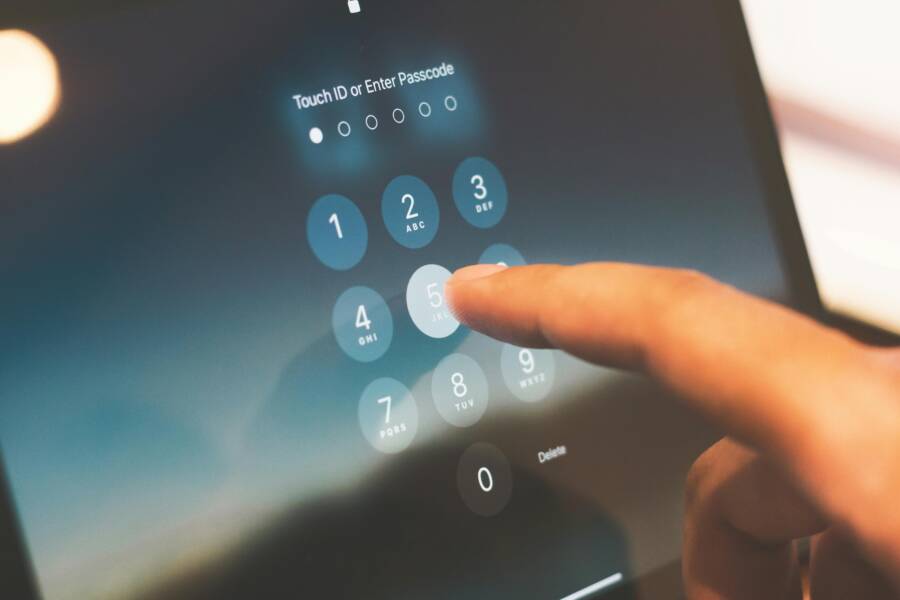
Why does it feel like your saved passwords vanish the moment you switch from laptop to phone? The truth is simple: when passwords don’t sync, autofill stops working and you waste time typing the same logins again. This guide shows how to fix the problem fast and get back to a smooth, secure login flow.
Saved passwords power autofill across devices through tools like iCloud Keychain for Apple users and Google Password Manager for Android fans. When these services aren’t syncing, you’ll see missing logins, empty fields, or prompts to create new passwords. The fix is usually practical and quick, not a tech overhaul.
This post breaks the fix into clear steps you can follow today. We’ll cover common causes like account mismatches, switching accounts, and sync settings that got turned off by a recent update. You’ll learn exactly what to check on both iPhone and Android so you don’t chase issues that aren’t there.
Expect straightforward steps you can copy into your routine. You’ll see how to verify your account, confirm that sync is enabled, and test with a quick login on your smartphone. We’ll also share a few advanced tips to prevent future glitches and keep your passwords safe across devices.
If you’ve ever sighed at a missing autofill when you grab your smartphone, this guide helps. Follow along as we walk through each fix, then adopt a simple preventive habit so your saved passwords stay in sync and ready when you need them. You’ve got this, and your login experience will feel noticeably easier.
Check Basic Settings Before Anything Else
If your saved passwords aren’t syncing, the quickest fix is to start with the basics. Verify that all devices use the same account and that the connection and software are up to date. These checks prevent wasted time chasing deeper issues and lay a solid foundation for reliable password syncing across your devices, including your smartphone. Below are three focused sub-sections you can follow step by step.
Make Sure You Use the Same Account on All Devices
Start by confirming that your accounts match across devices. On iPhone or Mac, open Settings, tap your name, and review Sign-In & Security to ensure the correct Apple ID is active. If needed, sign out and sign back in with the right account. On Android or Chrome, go to Settings > Google > Manage account to confirm you are using the same Google account across devices. If you ever switch accounts, update the saved passwords to the correct profile. Remember two factor authentication prompts as a reminder to complete sign-in if required.
Test Your Internet Connection and VPN Settings
A stable connection is essential for cloud based password syncing. Check whether you are on Wi-Fi or cellular data and switch between them to rule out network issues. Restart your router if the connection feels slow or unstable. If you use a VPN, disable any that block or slow down sync traffic. You can toggle airplane mode on and off to refresh the device’s network state. A reliable connection helps the cloud keep passwords in sync without delay.
Update Your Phone and Apps to the Latest Version
Software updates fix bugs that block password sync and improve overall reliability. On iOS devices, go to Settings > General > Software Update to install available updates. On Android devices, open Settings > System > System Update to check for new versions. Don’t forget to keep your browser up to date, including Chrome, since password managers often integrate there. Updates also enhance security, which protects your saved logins across devices.
Fix Password Sync on iPhone Step by Step
If your saved passwords aren’t syncing to your iPhone, you’re not alone. A quick, targeted fix can bring back autofill across apps and websites, saving you from retyping logins. This section breaks down practical steps you can take today. Each sub-section offers a clear action, what to expect after, and when to move to the next fix if you still see issues. Keep in mind that the goal is reliable sync across all your devices, including your smartphone. Let’s start with the simplest setting check and move toward a more thorough refresh if needed.
Turn On iCloud Keychain in Settings
The first and often the easiest fix is to enable iCloud Keychain on your iPhone. Exact path: Settings > [name] > iCloud > Passwords > Sync this iPhone. Turn the toggle on. Once enabled, iCloud starts sharing saved logins with your device so autofill can work across apps and Safari. If the option appears grayed out, it usually means the account sign-in is incomplete or there is a network issue. Try signing out of iCloud, then signing back in. A quick reboot can also refresh the connection. If you have multiple Apple devices, verify that iCloud Keychain is enabled on each one to ensure consistent syncing. After turning it on, test by logging into a familiar site to confirm the password appears automatically. If it still doesn’t sync, proceed to the next step.
Restart iCloud Sync Process
When the simple toggle doesn’t resolve the problem, restarting the iCloud sync process can help. Start by signing out of iCloud on the iPhone while choosing to keep data on the device. Then restart the phone and sign back in. This clears partial sync sessions that may be stuck. If you want a more thorough reset, you can perform an advanced iCloud reset via the Apple account page on a computer: remove the device from the account, then re-add it after signing back in. Use this approach when you notice persistent mismatches between devices. Try a quick login test on your iPhone after signing in to confirm the fix. If passwords still won’t sync, consider checking account security settings or contacting support for a deeper check.
Clear Safari Passwords and Resync
If duplicates or conflicts prevent smooth syncing, clearing Safari passwords on the iPhone and forcing a resync can help. Go to Settings > Passwords and delete saved entries that duplicate or appear out of date. Before you delete, consider backing up your data through iCloud or a local backup, just in case. After clearing, sign out of iCloud and back in, then open Safari and sign into a site where you previously saved a password. The login should prompt to save again, triggering a fresh sync. This method is safe for most users, but it’s wise to keep backups. If you run into issues with duplicates after resync, repeat the steps for any affected accounts and recheck the iCloud Keychain setting on all devices. This small cleanup can clear up stubborn sync problems and restore a smooth autofill experience for your smartphone.
Solve Password Sync Problems on Android Phones
When password syncing stalls, autofill stops working and you end up typing the same logins again. This section focuses on practical steps that solve the most common Android password sync issues. You’ll learn how to verify your Google account, confirm that syncing is active, and perform a clean reset if necessary. Each sub section is designed to be followed quickly, so you can get your passwords to flow again across devices including your smartphone.
Enable Sync in Google Account Settings
Start by confirming that password syncing is turned on in your Google account settings. Path: Settings > Google > All services > Sync > Turn on Passwords. This ensures your saved logins travel from the cloud to your phone and to Chrome on any device. Also check that Chrome itself is syncing passwords by opening the Chrome app and verifying that Sync is enabled for passwords there as well. If you still don’t see passwords appearing, visit chrome.google.com and sign in with the same Google account to confirm the data is available in your account. If the toggle is off or grayed out, sign out of your Google account on the device and sign back in. A quick reboot can help refresh the connection. After you enable syncing, test by logging into a familiar site on your smartphone to see if the password autopopulates. If it doesn’t, move to the next step to rule out other causes.
Check Chrome and Password Manager Apps
Sometimes the issue is a mismatch or an out of date app. Start by opening Chrome and going to Settings > Sync and Google services > Manage sync. Make sure Passwords is set to Sync and that you aren’t restricting it by a global data setting. Update Chrome to the latest version, then verify the password manager app on your phone is up to date. If you use a third party password manager, confirm it is linked to your Google account and set to sync passwords automatically. Disable any battery optimization rules that might pause background syncing for either Chrome or the password manager. After updating and rechecking settings, run a quick login in a private or incognito window to test if passwords appear as expected. If the issue persists, continue with a broader reset to clear stubborn sync problems.
Reset Google Sync from Scratch
If the above steps don’t fix the problem, a clean slate can resolve stubborn mismatches. Begin by removing the Google account from the device, then add it back. Before you start, back up any locally stored passwords or notes that you might lose during the process. After removing the account, restart the phone and add the Google account again, signing in with the same credentials. This effectively resets the sync pipeline and can fix ongoing issues caused by partial or corrupted sync sessions. If you have multiple devices, repeat the process on each one to ensure consistency. A final test should involve signing into a known site on your smartphone and checking that the password autofill works across apps and browsers. If you still encounter problems after a full reset, consider contacting Google support for a deeper review of your account security settings.
Try These Advanced Fixes if Sync Still Fails
If basic checks don’t bring back automatic password filling, it’s time to try a few advanced fixes. These steps address deeper issues like account mismatches, lingering cache data, and service outages. Follow along in order, and test after each tip to see if autofill returns across your devices. A quick reboot after each major change can help clear stuck processes and refresh the connection between your phone and the cloud.

Photo by indra projects
Reset Network Settings on Your Phone
When sync problems persist, a network reset can clear stubborn connection issues without wiping your apps or data. This step is especially useful if the problem started after a network change or a software update. On iOS, go to Settings > General > Transfer or Reset > Reset > Reset Network Settings. Android users can follow a similar path in Settings. After the reset, reconnect to your Wi-Fi or cellular network and sign back into your accounts. Expect a brief delay as the phone re-establishes its network configuration. If the issue remains, move to the next advanced fix.
Contact Support or Use Built-in Diagnostics
If the problem still isn’t resolved, it’s time to bring in a higher level of help. Apple Diagnostics can assess iPhone health and identify iCloud Keychain issues, while Google’s support chat can guide Android users through account and sync checks. Escalate if you see repeated authentication prompts, odd account mismatches, or data loss after updates. Self-help links from Apple and Google provide targeted steps and can speed up resolution. A quick note: gather details like device model, iOS or Android version, and the exact steps you took when you first noticed the issue. This helps support teams pinpoint the cause faster.
Prevent Password Sync Issues from Happening Again
When passwords don’t sync across devices, autofill can feel broken. This section provides two practical paths to keep your logins in harmony so you can unlock apps and sites on your smartphone without typing repeatedly. Follow these tips to build a reliable cross‑device flow and reduce the odds of future glitches.
Set Up Automatic Backups and Updates
Automatic backups and timely updates form the backbone of smooth password sync. Enable device backups so your saved logins are preserved if a device is lost or reset. On Apple devices, turn on iCloud Backup and ensure iCloud Keychain is active. On Android devices, use Google One or a similar backup option alongside Google Password Manager. Keep your apps, including the browser and password manager, up to date; updates often fix sync bugs and improve compatibility with cloud services. A simple habit worth forming is checking for updates weekly and confirming backups run automatically after the update completes. Regular backups mean you can restore a consistent password set across your smartphone and other devices, reducing manual re-entry and frustration when you switch devices.
Use a Password Manager App for Extra Safety
A dedicated password manager offers stronger safeguards and clearer sync paths than relying on built‑in features alone. Built‑in options like iCloud Keychain or Google Password Manager are solid, but a multi‑device manager such as LastPass provides cross‑platform compatibility, stricter sharing controls, and unified password health checks. The advantage is centralized storage, easier recovery if you forget a master password, and reliable autofill across apps and websites on your smartphone. Transition smoothly by exporting saved passwords from the built‑in manager to the new app, then enable auto‑sync in the manager settings. Give yourself a quick verification pass: log into a familiar site on the phone and confirm autofill completes without prompts. Once set, monitor for any sync delays and adjust backup intervals as needed.
Conclusion
This guide covered the basics first, then the platform specifics, and finally the advanced fixes. Start by confirming the same account on all devices and a solid internet connection, then update the relevant apps. These simple steps fix most syncing hiccups fast so your saved passwords show up when you need them on your smartphone.
If the basics don’t solve the problem, switch to the iPhone or Android specific steps. On iPhone, enable iCloud Keychain and perform a quick sync check after each change. On Android, verify that Google Passwords and Chrome are both syncing, then test across sites. A targeted reset or re signing in often resolves stubborn mismatches without risking data loss.
Only move to advanced fixes if necessary. Reset network settings, re sign into your accounts, or reset Google Sync to clear lingering problems. When issues persist, professional help from Apple or Google support can save time and protect your data. Always back up passwords and keep backups up to date.
Try these fixes now and watch for smoother cross device logins. Share your experience in the comments to help others and subscribe for more practical tech fixes. Keeping your passwords in sync reduces friction and builds trust in your daily routine, especially on a busy smartphone. If you stay proactive, future updates won’t derail your login flow.