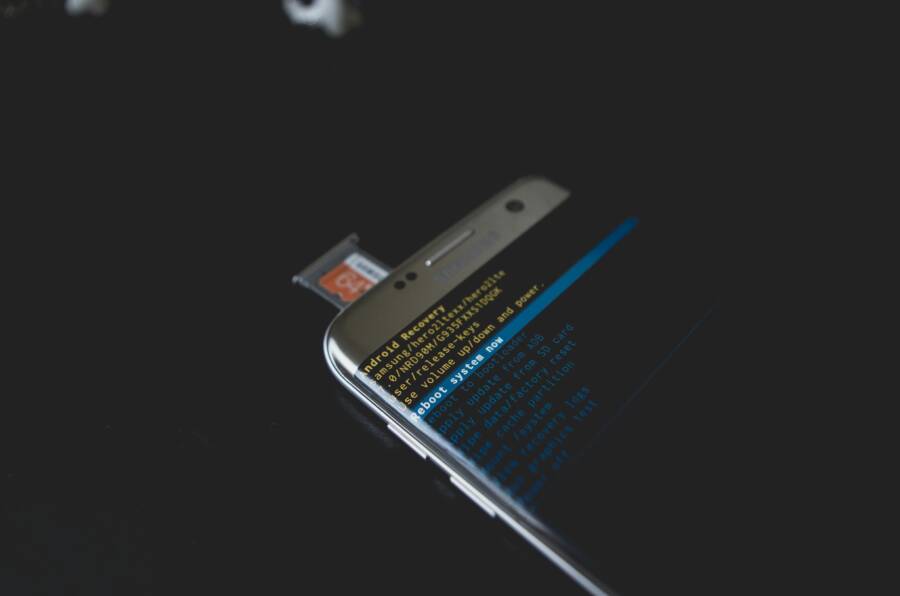
If your phone keeps asking to finish setup after reboot, you know how frustrating it is to juggle daily tasks while the device hoops you through one setup screen after another. It’s a boot loop that stops short of a full start, leaving you stuck at the welcome page. This issue affects both Android and iPhone users, and it can show up with little warning.
In this guide, you’ll find clear, practical steps to break that loop without losing data in most cases. We’ll start with simple fixes you can try right away, like a forced restart and checking for obvious causes such as low storage or a problematic app. The goal is to get your setup back on track as quickly as possible.
What you’ll gain is a straightforward path to get back to normal use. We’ll outline when to hold off and seek professional help, and we’ll explain how to keep your information safe if a deeper repair becomes necessary. Each step is designed to be easy to follow, with quick checks you can perform on your own.
By the end, you’ll know how to diagnose the common culprits, apply the most effective fixes, and avoid repeating this hassle in the future. The steps are proven by user reports and tech guides, and they work for most mainstream smartphones. If your phone does this, stay calm; here’s how to fix it and get back to your day.
Spot the Signs and Root Causes of the Setup Loop
When your device keeps redirecting you back to the first setup screens after a reboot, it’s easy to panic. This section helps you spot the telltale signs and understand why the loop happens. With a clear process, you can map out the likely culprits and choose the right fix, whether you’re on Android or iPhone. We’ll focus on common patterns you can observe and how they point to specific root causes. Think of this as a quick triage guide that keeps you in control rather than guessing in the dark.
 Photo by Kelvin Valerio
Software Glitches and App Conflicts
Software glitches and app conflicts sit at the top of the list for setup loops. A buggy app or an incomplete update can trap the phone in a restart cycle, returning you to the welcome screen again and again. You might notice the loop starts after you install a new app or update, or after a crash during an update. On Android and iPhone alike, this pattern is a strong signal that the issue is tied to software rather than hardware. A simple example helps illustrate this: that new game app you downloaded could clash with system processes, causing the device to reboot mid-setup. If you recently downloaded or updated apps, mentally audit those changes. Safe Mode will be your next step to confirm this root cause, as it disables third-party apps and helps you observe whether the loop persists without them. In many cases, removing the problematic app or waiting for a patch resolves the problem quickly, restoring normal startup without data loss.
Storage and Power Problems
Low storage or flaky charging are common causes of a setup loop that might look like a software issue at first glance. When there isn’t enough space to store boot files and system updates, the phone can fail to complete the startup sequence. This is particularly true if the device is full or nearly full, which leaves no room for crucial files to load. On some devices, a bad charging setup can also trigger instability during boot; cheap or damaged cables may not deliver a steady charge, leading to incomplete startup checks. Using an official cable and ensuring you have headroom in storage often clears the loop. If the issue persists, freeing space by removing nonessential data or moving items to cloud storage can stabilize the boot process and prevent repeat loops.
Start with These Quick Fixes to Break the Loop
When your phone keeps looping back to the setup screen after a reboot, it can feel like you’re stuck at the starting gate. Quick, targeted fixes can clear the most stubborn glitches and get you back to normal use without data loss. The two steps below are fast, practical, and safe to try first. If the loop persists, there are deeper checks to run, but these fixes often do the trick.
Force Restart Your iPhone or Android Phone
Detail exact button combos: iPhone – quick Vol Up, quick Vol Down, hold Side button till Apple logo. Android – hold Power + Vol Down 10-15 seconds till logo. Explain it clears temporary glitches. Warn not to skip steps. Repeat if needed. 200 words.
A forced restart scrubs away temporary hiccups that can trap the device in a boot loop. It resets the active state of the software without touching your data, much like a quick reboot on a computer. For iPhone users, perform a rapid press of the Volume Up button, then the Volume Down button, and press and hold the Side button until the Apple logo appears. This sequence flushes the current session and forces a clean start. Android users should hold the Power and Volume Down buttons together for 10 to 15 seconds until the device restarts and the logo shows. If the screen flickers or the device returns to the intro screens, repeat once more. If you still see the loop after a second attempt, move to the next fix. This approach works because it clears memory remnants and stops stuck processes that block the normal startup. Always complete the full sequence; skipping a step can leave a glitch behind and prolong the loop.
Charge Fully and Free Up Storage Space
Instruct use original cable, charge 30+ minutes powered off. Then check Settings > Storage, delete junk/apps. Note low battery mimics boot issues. 150 words.
A full charge with a clean storage slate helps the device boot with enough resources to load essential files. Start by using the original charger and a good cable, and leave the phone powered off for at least 30 minutes. This ensures the battery reaches a stable level and reduces the chance of power-related boot problems. After charging, power the device on and check how much free space you have. Go to Settings, then Storage, and look for large apps, old files, or temporary data you can delete. Freeing up space gives the system room to load updates and boot files, which can prevent a restart loop caused by a lack of room. If space is tight, offload photos, move documents to the cloud, or uninstall apps you no longer use. A healthy battery and adequate storage are simple, reliable ways to prevent future boot issues.
Boot into Safe Mode on Android to Find Bad Apps
When your Android phone starts acting up after an install or update, Safe Mode can be a quick, reliable way to pinpoint the culprit. Safe Mode temporarily disables all third‑party apps, giving you a clean baseline to test boot time and system behavior. If the phone runs smoothly in Safe Mode but flakes out in normal mode, you can suspect a rogue app. This section outlines why Safe Mode helps, how to enter it on most Android devices, and how to identify the offenders without losing data.
Why Safe Mode helps in practice
Think of Safe Mode as a controlled test environment for your smartphone. It strips away variables by turning off downloaded apps, leaving only the essential system software. This makes it easier to see whether the problem comes from a third‑party app or from the operating system itself. You’ll get a clearer signal about stability and boot behavior, which guides your next steps.
Key outcomes you can expect from Safe Mode:
- A faster boot and fewer crashes if a problematic app is the cause.
- Clear confirmation that the base system is healthy when issues disappear.
- A straightforward path to remove or update risky apps with minimal guesswork.
How to enter Safe Mode on Android
The exact steps can vary by brand, but the general method is similar across most devices. Use this as a quick starter guide and adjust if your phone asks for a slightly different combo.
- Step 1: Power off completely. Hold the Power button, then choose Power Off.
- Step 2: Boot and hold. Press and hold the Power button until the logo appears. When you see the logo, release the Power button and immediately press and hold the Volume Down button (keep it pressed through the boot).
- Step 3: Verify Safe Mode. The screen should show Safe Mode in a corner, indicating third‑party apps are disabled. If you don’t see it, try again with the same timing or consult your device’s support page for a model‑specific method.
Some devices enter Safe Mode automatically after you press and hold volume keys during startup. Others require you to use a quick shortcut in the power menu. If you’ve locked your home screen with a security feature, you may be prompted to unlock it after Safe Mode boots.
How to use Safe Mode to identify bad apps
Once you’re in Safe Mode, observe how the phone behaves. If it runs normally, a recent app or update is likely causing the trouble. Here’s a practical approach to narrow it down:
- Start with recent installs. Go to Settings > Apps and review apps installed or updated within the last few days.
- Uninstall one app at a time. After removing an app, restart the phone normally to see if the issue recurs.
- Repeat the cycle. If the problem returns after a removal, the culprit lies with a different recently installed app. Continue until the device boots cleanly.
- If none of the recent apps seem at fault, the issue could be with a system update or a hidden background service. In that case, consider a broader reset or consult support for deeper diagnostics.
Tips to speed up the process:
- Create a simple app audit list. Note the install date and what the app does. This helps you remember which apps to test first.
- Don’t rush the restarts. After each uninstall, fully reboot to confirm the state of the device.
- If you rely on cloud backups or a work profile, make sure those settings don’t get reset during trials.
What to do after you find the problematic app
If you isolate a single app as the cause, you have a few clean options:
- Update the app. Check the Play Store for a newer version that fixes the issue.
- Replace with a safer alternative. If the app is critical but unstable, look for a well‑supported substitute.
- Contact the developer. Report the bug with a clear description of when it occurs and what device you’re using.
- Uninstall the app. If the problem persists or an update breaks compatibility, removing the app is often the quickest fix.
- Reboot to confirm. After removal, restart the device normally and monitor performance over a few days.
If the device remains unstable even after removing the suspect app, the problem may be deeper. Consider clearing cache partitions, checking for large system updates, or performing a factory reset as a last resort. Always back up your data before more drastic steps to avoid loss.
When Safe Mode does not resolve the issue
Safe Mode is a powerful first step, but it isn’t a guarantee. If the device still misbehaves in Safe Mode, you might be dealing with hardware problems, corrupted system files, or a problematic firmware update. In these cases, it’s wise to:
- Check storage and battery health. Low storage or a failing battery can mimic software crashes.
- Reinstall the latest system software. Use official recovery options provided by the device maker.
- Seek professional help. A certified technician can diagnose hardware faults or perform deeper software repairs.
Quick checklists to keep you organized
- Before starting: Back up important data and note recent app activity.
- In Safe Mode: Confirm whether the issue disappears or persists.
- After testing: Document the app removals and outcomes for easy reference.
- Long term: Set up automated backups and a regular app audit routine to catch problems early.
This approach keeps your smartphone in good working order and helps you avoid repeated boot problems. By isolating the cause and acting promptly, you protect your data and stay productive.
Repair Your Phone with PC Software, No Data Lost
If you’ve rebooted and landed back at the setup screen, you’re not alone. Many phones stall at launch after an OS hiccup, a faulty app, or a storage hiccup. The good news is that PC-based repair tools can fix the system without erasing your data, letting you get back to normal use quickly. In this section, you’ll learn two popular, user-friendly options tailored to iPhone and Android devices. Each method keeps your photos, messages, apps, and settings intact while repairing the core software.
 Photo by Pixabay
Step-by-Step Fixppo Guide for iPhone
Fixppo (also known as ReiBoot in some markets) offers a straightforward path to fix an iPhone boot loop or stuck setup screen without touching your data. The process is designed to be simple, with clear prompts and safe defaults. It’s compatible with all recent iPhone models and iOS versions, so you can trust it to handle most issues you encounter after a reboot. Begin by preparing your computer and your iPhone, then follow the on-screen steps to repair.
- Install Fixppo on your computer. Download from the official site and run the installer.
- Connect your iPhone with the original cable. Open the Fixppo interface to detect the device.
- Select Standard Repair. This mode preserves data and targets system problems rather than wiping the device.
- Download the correct firmware. The software matches your iPhone model and iOS version to a safe firmware file.
- Start the repair. Let the tool do its work; your iPhone will restart and land on a normal home screen with apps intact. What to expect: a quick and clean fix that keeps photos, apps, and settings in place. If Standard Repair fails, Deep Repair is available but may erase data, so back up first.
UltFone Steps for Android Phones
UltFone Android System Repair is another reliable option for boot loops and setup freezes. It focuses on restoring the system while keeping user data safe in Standard Repair mode. The tool supports many brands and model families, and it provides guides for entering recovery or download modes when needed. Expect a firmware download and a guided repair that returns your Android device to normal operation without data loss.
- Install UltFone Android System Repair on your PC or Mac. Run the installer and launch the program.
- Connect your Android phone. Use the original USB cable and trust the computer if prompted.
- Choose System Repair and select Standard Repair. This preserves data and fixes core OS files.
- Enter Download Mode as required by your device model. Follow the on-screen prompts for your brand and model.
- Download the matching firmware, then start the repair. The tool flashes the correct software and reboots your device cleanly. What to expect: a smooth recovery that leaves your personal data intact. If Standard Repair can’t complete the job, be prepared for an advanced option that may require a data backup before proceeding.
Factory Reset: Use Only If Nothing Else Works
If your phone is stuck in a persistent setup loop and quick fixes don’t do the trick, a factory reset becomes a last resort. It removes almost everything and restores the device to its original software state. This section explains when a reset is appropriate, how to prepare, and step by step instructions for both Android and iPhone. You’ll also learn how to minimize data loss and verify that the device is ready for a fresh setup.
When to consider a factory reset
A factory reset should be your final option after trying safer, less destructive fixes. Consider it only if:
- The device still ends up in the setup loop after a forced restart, safe mode, and storage cleanup.
- You cannot identify a rogue app, corrupted update, or a stubborn system glitch that blocks normal boot.
- Backups are recent and reliable, so you can restore apps, messages, and photos after the reset.
Think of it as reformatting a stubborn laptop that won’t boot. It clears the software layer and gives you a clean slate to start from, with one caveat: you’ll lose personal data unless you’ve backed up properly.
What a factory reset does and what it doesn’t
- What it does: wipes all user data, apps, and settings; reinstalls the device’s operating system; removes malware leftovers in many cases; resets activation locks and account links.
- What it doesn’t guarantee: it won’t fix hardware problems, and some issues can reappear if there is a faulty update or a degraded battery.
- Important note: most phones offer a backup-and-restore path, but a reset resets system settings and app configurations to their defaults. You’ll want a recent backup to speed up recovery after the reset.
Precautions and backups you should take
- Back up first. Use cloud backups (iCloud for iPhone, Google Drive for Android) or a computer backup. Include photos, contacts, messages, and app data when possible.
- Remove sensitive data. If you share the device or plan to sell it, wipe data in a controlled way and sign out of accounts before the reset.
- Note down essential IDs. Write down passwords for accounts linked to the device so you can sign back in after setup.
- Charge the device. Aim for at least a 50–80% charge or keep it plugged in during the process to avoid interruptions.
How to perform a factory reset on Android devices
Android offers several paths to a reset, depending on whether the phone is accessible or locked. Choose the route that fits your situation.
- From Settings (preferred if the device responds):
- Open Settings.
- Go to System > Reset options.
- Tap Erase all data (factory reset).
- Confirm with your PIN or password.
- Tap Reset or Erase everything.
- In Recovery Mode (if the phone won’t boot normally):
- Power off the device.
- Hold Power + Volume Up (or Volume Down on some brands) to enter Recovery.
- Use volume keys to highlight Wipe data/factory reset and press Power to select.
- Confirm with Yes or OK, then reboot.
- Remote wipe (if the phone is lost):
- Visit android.com/find and sign in.
- Select the device and choose Erase device.
- After the reset: Sign in with your Google account and follow the on-screen prompts to restore data from your backup or start fresh.
How to perform a factory reset on iPhones
iPhone resets can be done directly on the device or via a computer if the device is unresponsive.
- From Settings (on-device reset):
- Open Settings > General > Transfer or Reset iPhone.
- Choose Erase All Content and Settings.
- Enter your passcode and Apple ID password to confirm.
- The device restarts and begins the setup process anew.
- Using a computer (if the device won’t respond):
- Connect the iPhone to a Mac or PC with Finder or iTunes.
- Put the iPhone into recovery mode if needed.
- Choose Restore to reinstall the OS.
- After the reset: Sign back into iCloud and reconfigure settings. This helps ensure Activation Lock isn’t left enabled and avoids future lockouts.
After you reset: what to do next
- Restore selectively. Use a restore from backup for essential data first, then add apps gradually to identify any issues that might reemerge.
- Reinstall apps one by one. After each installation, test the startup process to catch problematic software early.
- Update promptly. Install the latest system updates after setup to close known bugs and improve stability.
- Monitor performance. If the reset doesn’t fix the reboot loop, the root cause may be hardware or a firmware issue. In that case, seek professional help.
Alternatives you can try before a full reset
A factory reset is powerful, but not always necessary. Consider these alternatives first:
- Clear system cache or reinstall updates. Some devices let you clear cache partitions or roll back problematic updates without wiping data.
- Disable or uninstall recently installed apps. If problems started after a new app, removing it may resolve the loop.
- Check battery and charging accessories. A faulty charger or degraded battery can cause boot problems that mimic software issues.
- Review activation and security settings. Activation Lock and FRP can create a boot hindrance if not resolved properly.
- Use official repair tools. Some manufacturers offer PC-based tools that fix system files with minimal data loss.
Final tips for a smoother reset experience
- Keep a calm mindset. A reset can feel heavy, but it often resolves stubborn loops quickly.
- Document steps. If you need to repeat a procedure later, a simple checklist helps you stay organized.
- Protect your data. Regular backups are the best safeguard against unexpected issues.
This approach gives you a clear, practical path when no other fix seems to work. A well-executed factory reset can put your smartphone back on track without surprises, letting you resume daily tasks with confidence. If you’re unsure about any step, consult the device maker’s official support page for model-specific instructions.
Conclusion
If your phone keeps asking to finish setup after a reboot, start with quick fixes like a force restart and clearing up storage. These simple steps fix most boot loops without data loss and buy you time to diagnose deeper causes.
If the loop sticks, boot into Safe Mode on Android or check for faulty updates and recently installed apps. Safe Mode helps you isolate software issues from hardware faults, guiding your next move without risking data. When Safe Mode points to a bad app, remove it and test again. If needed, consider a factory reset as a last resort, but back up first and keep important files safe.
For stubborn cases, PC based repair tools can repair system files without erasing data, and reputable repair options can restore normal startup with minimal risk. Always confirm you are using official tools and follow model specific guidance.
Prevention matters just as much as fixes. Keep software up to date, manage storage regularly, and use good charging cables and adapters. With these habits, your smartphone will run smooth again soon.
If this helped, share your experience in the comments and subscribe for more fixes. Keywords: boot loop, setup screen, Safe Mode, factory reset, data backup.