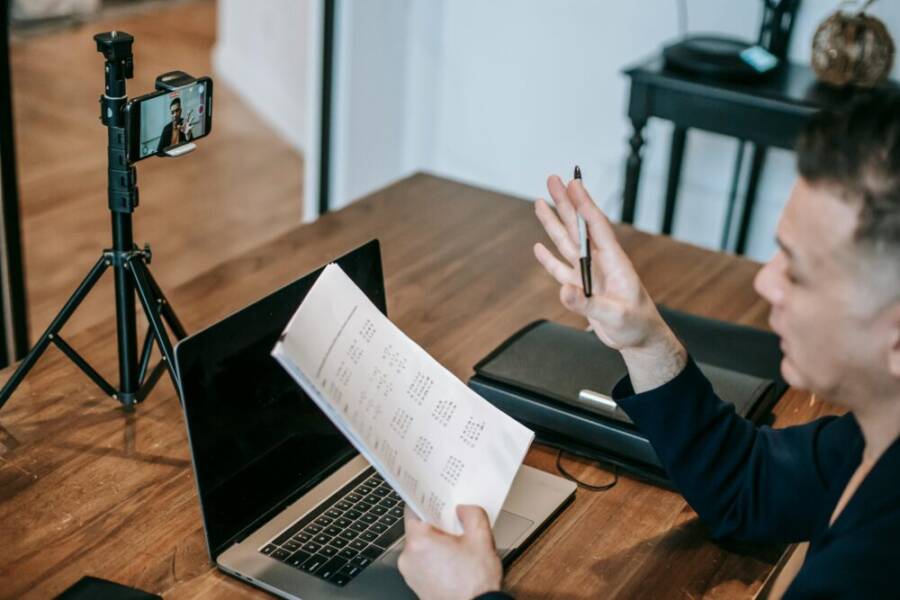
Are online classes running smoothly depends as much on your phone as your lesson plan. The right device ensures clear video, crisp audio, and the power to run Zoom, classroom apps, and notes without stalling. For teachers who teach online, a reliable phone is a essential tool.
When choosing the best phone for online teachers, focus on the front camera, microphone quality, and long battery life. Essential also are multitasking performance, app compatibility, and budget. This guide highlights phones that balance these factors so you can teach with confidence, whether you’re streaming a live session or sharing materials with students.
Top picks keep your classroom on the move. The Google Pixel 9a offers solid camera quality, strong battery life, and smooth Android app support at a friendly price, making it a standout for most online teachers. For premium needs, the iPhone 17 Pro Max or Galaxy S25 Ultra provide best-in-class front cameras and superior mic quality with reliable Zoom performance.
Key features that matter for online teaching
Choosing the right phone for online teaching means more than chasing the newest model. It’s about a balanced toolkit: a sharp front camera for clear video, reliable microphone and speakers, solid battery life, smooth performance for multitasking, and robust data security. Below, you’ll find practical guidance on what to look for in each area, plus actionable tips to test and optimize your device for daily Zoom calls and classroom apps.
Front camera quality for clear video calls
A sharp front camera keeps you visible and engaging during live sessions. When students can clearly see your facial expressions and handwriting on a shared screen, attention stays focused and responses stay accurate. Here’s what to prioritize:
- Megapixels aren’t everything. Look for at least a 8MP front camera as a baseline, but prioritize image processing and facial recognition features that improve lighting and skin tones in real time. More important than megapixels is how the camera handles exposure, contrast, and noise in varied lighting.
- Autofocus and face detection. A camera with reliable autofocus and face-tracking helps keep you sharp as you move or lean into the screen. This is especially useful when you use whiteboards, share documents, or demonstrate with gesture.
- Lighting handling. Phones with strong HDR and good dynamic range perform better in rooms with mixed light. If you teach from a dimly lit room, consider a model known for better low-light performance or pair with a compact ring light.
- Testing tips. Do a quick test before your first live class: record a 60-second video of you speaking, then review for exposure, sharpness, and color balance. Simulate common teaching scenarios like you standing at a whiteboard, sitting at a desk, and sharing a screen.
For reference, current top camera phones are praised for their video quality and reliable performance across apps. For a broader comparison of recent options, you can check in-depth reviews such as The Best Camera Phones We’ve Tested for 2025, which highlights how devices perform in real-world video tasks. A detailed roundup from a major tech site also covers when camera quality varies by model and use case, such as camera performance across flagship and midrange selections. These sources provide concrete, model-specific insights you can apply when selecting your next device. The Best Camera Phones We’ve Tested for 2025 | Best Camera Phone of 2025 | The best camera phones – tried and tested
If you’re shopping on a tighter budget, consider models highlighted for strong front-facing imaging in midrange tiers. They often deliver solid video quality without the premium price, which helps keep your overall teaching setup affordable.
Clear microphone and speaker setup
Your voice carries your presence in a virtual classroom. A clear microphone and reliable speakers reduce fatigue for you and ensure students hear you without constant adjustments. Focus on these aspects:
- Microphone quality. Look for devices with good signal-to-noise ratio and minimal echo. Built-in mics can work well, but you can improve clarity with a small external mic if needed. A lapel or clip-on mic can dramatically improve voice clarity in larger rooms or when you’re moving around.
- Noise suppression. Software-based noise reduction helps trim room hums, keyboard clicks, and distant talkers. Many modern phones handle background noise well, and some external mics include directional pickup to focus on your voice.
- Speaker quality. Clear, loud, and balanced speakers make it easier to monitor student questions in a group chat or a breakout session. While you primarily rely on headphones for best voice clarity, reliable built-in speakers help during quick voice messages or when you’re presenting to a small audience.
- Practical tips. Use a consistent microphone placement—near your mouth but not in front of it. If you notice muffled sound or background noise, enable the device’s noise cancellation features or switch to a dedicated mic. When possible, test audio levels during a practice session and calibrate the input volume to avoid clipping or distortion.
If you want a deeper dive into practical mic options for online teaching, check out reviews and practical recommendations from teachers and creators discussing noise cancellation mics and their setups. For example, a guide on top noise cancellation mics for online teaching gathers options that work well with a variety of devices, including smartphones and laptops. It’s a handy companion to the built-in mic guidance. Best noise cancellation mics for online teaching You can also explore user discussions about noise cancellation tools like Krisp, which works across conferencing apps and can substantially reduce background noise in busy environments. Krisp noise cancellation tool discussions
Tip: If you use a separate microphone or a lavalier mic, test proximity and wind noise in your teaching space. Small changes, like clipping the mic at chest height and keeping a slight distance from the mouth, can dramatically improve intelligibility.
All-day battery life for a full teaching day
A teaching day can stretch from the first student check-in to the last assignment upload. Long battery life reduces interruptions and keeps you focused on students rather than the charger.
- Realistic expectations. A capable phone should deliver a full teaching day on typical use: video calls, screen sharing, a few classroom apps running in the background, and periodic note-taking. Expect at least 6–8 hours of screen-on time with video calls, depending on brightness and network conditions.
- How to estimate. Start with the manufacturer’s rated uptime, then factor in your real workflow: video streaming uses more power than reading text. If you run multiple apps, assume a 20–30% hit to the base estimate.
- Battery saving tips. Dim the display when possible, enable battery saver modes during long sessions, and limit high-drain features like always-on location services. Close unused apps, keep OS and apps updated, and consider charging during breaks so you don’t run low during class.
- Quick-charge and power management. If your day runs long, choose a phone with fast charging or wireless charging, and keep a spare charger or power bank handy for back-to-back sessions.
For context on battery longevity in teaching devices, look to independent reviews that compare endurance across phones and use cases. These sources often highlight how real-world usage affects battery life in education scenarios. The Best Camera Phones We’ve Tested for 2025 If you want a broader take on camera and battery trade-offs, a general tech roundup covers how different models balance power and efficiency for daily tasks. Best Camera Phone of 2025
Pro tip: Keep your teaching schedule aligned with your charging plan. A mid-day top-up, even for a short period, can prevent a mid-class power crash. Consider a USB-C PD charger that can top up quickly between sessions.
Smooth performance for multitasking with teaching apps
Online teachers juggle Zoom, classroom apps, notes, and sometimes a browser for research or assignment sharing. A phone that handles multitasking without lag keeps sessions smooth and reduces disruptions.
- CPU and RAM. Look for a solid multi-core processor and ample RAM. For most online teaching, 6–8GB of RAM is a comfortable baseline; 8–12GB is better if you frequently run heavier apps or multiple tasks at once.
- Operating system and updates. A recent OS version with ongoing security updates matters for privacy and app compatibility. Consistent updates help ensure Zoom and classroom apps run without sudden compatibility issues.
- App ecosystem and compatibility. Ensure your preferred apps (Zoom, learning management systems, document editors) run reliably on your chosen OS. Check release notes or user reviews for any known issues with multitasking.
- Practical multitasking strategies. Use split-screen where supported to keep a video call on one pane while taking notes or sharing a document on another. Close background apps you don’t need, and consider a lightweight launcher to speed up access to your teaching tools.
- Performance testing. Before an important session, run a quick test with all essential apps open to gauge responsiveness. If you notice lag, prioritize background task management and reduce live effects that tax the GPU.
If you want to compare real-world performance across popular devices, look for hands-on tests that benchmark multitasking with video conferencing apps and classroom tools. A general camera and performance roundup can help confirm a device’s all-around capability in teaching contexts. The Best Camera Phones We’ve Tested for 2025 Best Camera Phone of 2025
Data security and privacy for student information
Student data demands careful handling. A phone used for teaching should protect both your information and your students’ data, with sensible permissions and solid device security.
- App permissions. Review app permissions regularly. Grant only what is necessary for function, and revoke access to sensitive data when it’s not needed. Pay attention to location, contacts, and storage permissions for classroom apps.
- Device security. Use a screen lock, strong password, or biometric protection. Enable auto-lock after a short period of inactivity and keep the device encrypted. Regularly install security updates and patches.
- Data handling practices. Avoid storing sensitive student data on the device. Use secure cloud storage or your school’s approved platforms for materials and grades. Be mindful of screenshots or screen-sharing that might expose private information.
- Safe sharing habits. When sharing links, files, or boards, confirm that students access only what you intend. Use classroom account credentials and restricted teacher views when possible.
- External tools with care. If you use third-party tools for noise suppression or note transcription, review their privacy policies and data handling practices. Choose solutions with transparent data protection measures.
To support privacy decisions, consult credible resources on mobile security for educators and best practices for safeguarding student information. For example, look for guidance on app permissions and device security from reputable tech sites and education-focused resources. Best practices for mobile security in education You can also find practical discussions about safe online teaching tools that emphasize privacy, such as how to avoid leaking sensitive data when using shared devices or classroom apps. Safe online teaching tools and privacy
Takeaways for quick reference:
- Regularly audit app permissions and update settings.
- Use a strong lock, encrypted storage, and trusted classroom apps.
- Keep student data off the device whenever possible and rely on secure cloud services.
If you want to explore more about testing devices and optimizing for teaching workflows, check out independent reviews and practical guides that compare front camera performance, mic quality, battery endurance, and multitasking behavior across current smartphones. These resources offer hands-on tests and straightforward tips you can apply today. The Best Camera Phones We’ve Tested for 2025
Best Phone for Online Teachers by Category
Choosing the right phone is more than picking the latest model. For online teachers, the device must deliver clear video, dependable audio, long battery life, and strong multitasking. In this section, we break down top picks by category so you can pick a device that fits your teaching style and budget. Each option highlights the features that matter most for Zoom calls, classroom apps, and on‑the‑go lesson planning. As you read, consider how these phones handle front camera performance, mic quality, and ease of use in real teaching scenarios.
iPhone 17 Pro Max for teachers who want top performance
If your days hinge on flawless video meetings and fast app switching, the iPhone 17 Pro Max delivers. The front camera is engineered for sharp portraits and stable exposure, ensuring you look professional during back-to-back classes. Battery life remains strong across long teaching sessions, so you can stream, multitask, and annotate materials without constant recharging. Inside, Apple’s latest core performance and thermal efficiency keep Zoom, notes apps, and classroom platforms running smoothly even when you juggle multiple tasks.
- Camera and video: Expect accurate skin tones, steady autofocus, and reliable HDR in varied lighting. The device handles whiteboard demonstrations and screen sharing without dramatic dips in quality.
- Battery and charging: A long-lasting cell that gets you through a full teaching day, with fast charging options to top up during short breaks.
- Performance and multitasking: The A-series or equivalent chip provides ample headroom for multi-app sessions, document editing, and live collaboration without noticeable lag.
- Practical tip: Run a quick pre-class test by recording a 60-second teaching snippet to verify exposure and color balance before your first live session.
For more details on camera performance and overall capabilities of flagship iPhones, check out in-depth specs and reviews from trusted outlets. Apple iPhone 17 Pro Max – Full phone specifications
Samsung Galaxy S25 Ultra for multitasking and productivity
Multitasking is the name of the game for online teachers who juggle Zoom, Teams, LMS apps, and note apps. The Galaxy S25 Ultra shines here with features that boost productivity in and out of class. The S Pen enables quick handwriting on slides or notes, while DeX mode turns the phone into a desktop-like workspace for preparing lessons and reviewing student work. Teams integration is seamless, so you can join meetings with fewer app clashes and smoother transitions between chats and document sharing.
- S Pen and DeX: Use handwriting for quick feedback on worksheets and doodle notes during a live session. DeX offers a larger workspace for lesson planning.
- Teams and app ecosystem: Optimized for enterprise-grade collaboration with robust file sharing and calendar integration.
- Front camera and mic: The device provides a solid camera setup and strong audio pickup for clear classroom sessions.
- Quick tip: Pair the phone with a compact stand and a wireless keyboard for a laptop-like feel during long planning periods.
Explore hands-on impressions and performance comparisons across Samsung’s flagship devices and their productivity features in trusted reviews and roundups. Samsung Galaxy S25 Ultra review highlights and features
Google Pixel 10 for smart AI features and value
Pixel devices bring useful AI features that help teachers save time and stay organized. The Pixel 10 emphasizes practical AI tools that streamline lesson planning, quick translation, and smart photo management. When you’re shaping a lesson plan, these features can accelerate tasks like handwriting recognition, note summarization, and quick image search for classroom imagery. The value proposition is clear: solid performance, helpful AI capabilities, and a price that leaves room for accessories or teaching tools.
- AI-assisted learning tools: Features like smart prompts, assistant functions for quick search and organization, and enhanced shot processing help you assemble teaching materials faster.
- Value proposition: Competitive pricing combined with reliable software support and a strong ecosystem across Google Classroom, Meet, and Drive.
- Front camera and audio: Solid image quality and dependable mic behavior support smooth video calls and screen sharing.
- Quick tip: Use AI helpers to draft slide notes or summarize student questions after a session, then share a concise recap with your class.
For a closer look at Pixel 10 AI features and practical usability, see expert hands-on testing and coverage from reputable outlets. I Tried the Pixel 10 Series and I’m in Love With AI Tricks Pixel 10 hands-on impressions Magic Cue Might Be Pixel 10’s Most Helpful Feature
Google Pixel 9a as a budget-friendly option
The 9a proves you don’t have to pay flagship prices to teach effectively online. It delivers reliable performance, good camera quality for face-to-face sessions, and long enough battery life for most teaching days. The 9a balances essential features with affordability, making it a sensible choice for budget-minded teachers or classrooms with limited device budgets.
- Balance of features and price: Solid front camera, dependable mic quality, and a clean Android experience with timely updates.
- App compatibility: Works well with Zoom, Meet, Google Classroom, and common classroom add-ons without nagging compatibility issues.
- Battery and reliability: Good all-day battery life that supports back-to-back sessions with careful charging discipline.
- Practical note: If you teach in larger rooms or typically present from a distance, consider a compact external microphone to boost voice clarity.
For value-focused guidance, compare midrange devices and how they handle daily teaching tasks. Practical reviews and roundups often highlight trade-offs between camera quality, speed, and battery life at this price point. Pixel 9a review and performance notes Pixel 9a camera and performance roundup
iPhone 16 as a mid-range Apple option
The iPhone 16 sits nicely in the mid-range space, offering a balanced mix of performance and price. It provides a familiar iOS experience, strong ecosystem compatibility, and dependable camera quality for teaching scenarios. If you want Apple reliability without paying flagship-level sums, the 16 hits the sweet spot for many online teachers.
- Performance balance: Capable chipset that handles Zoom, classroom apps, and note sharing without noticeable slowdowns.
- Camera and mic quality: Consistent front camera performance for video calls and clear audio capture in standard teaching rooms.
- Value and longevity: A solid device with a longer software support window, which helps protect your investment over several school years.
- Practical takeaway: Pair with AirPods or a good headset to maximize mic clarity during Q&A sessions and breakout activities.
For readers exploring Apple’s mid-range options, consider reviews that compare battery endurance and camera performance alongside price. iPhone 16 review and features
How to choose the right phone for your online class setup
Choosing the right phone for teaching online is not about chasing the newest model. It’s about pairing dependable performance with the tools you rely on every day. In this section, you’ll get a practical, field-tested approach to selecting a device that keeps Zoom meetings smooth, classroom apps responsive, and your workflow uninterrupted from first bell to final takeaway.
Identify the teaching platforms you rely on
Before selecting a phone, list the apps you use most for teaching. This usually includes video conferencing (Zoom, Google Meet, or Teams), a learning management system (LMS) like Google Classroom or other school platforms, and note-taking or presentation tools. Confirm compatibility by checking each app’s official system requirements and user reviews for mobile behavior.
- Task: write down your top five apps and note the platform (Android or iOS) they perform best on.
- Quick compatibility check: ensure your chosen device runs the minimum OS version supported by your essential apps.
- Practical tip: if you use Google Classroom, verify that your current Android or iOS version supports all classroom features without extra permission prompts. Google Classroom compatibility considerations
If you want a broader sense of how apps behave on different phones, look for recent hands-on testing that compares common teaching tools on various models. This helps you spot potential bottlenecks before they affect a live class. For example, zoom compatibility and app behavior across devices is covered in service guides and user discussions. Zoom system requirements and mobile testing guidance
Match camera and mic to your teaching needs
Video and audio quality make a big difference in student engagement. Start with the front camera and microphone, then test how well the device handles background noise and room acoustics. A few practical steps:
- Test quick recordings in your typical teaching spaces, noting exposure, color balance, and sharpness. Record a 60-second session with you at a whiteboard, then at a desk, and while sharing a screen to see how the camera adapts.
- Microphone placement matters. Keep the mic near your mouth but not directly in front of it to avoid pops and wind noise. If the room is noisy, consider a clip-on mic or a small external mic that plugs into the phone.
- Noise suppression helps. Many phones and apps offer built-in noise cancellation. If you frequently teach in a busy space, a dedicated mic paired with Krisp or similar software can dramatically improve clarity.
- Testing steps you can run: use Zoom’s built-in “Test Speaker and Microphone” feature, then schedule a short practice meeting to confirm audio and video stability. Testing audio and video in Zoom Join a Test Meeting
If you want more context, reviewers often compare front camera performance and microphone behavior across flagship and midrange models to show how small differences in hardware translate to real teaching scenarios. These comparisons help you choose a device that suits your voice and presence in class. Zoom testing and device compatibility guidance
Plan for power and charging during the day
A typical teaching day is power-intensive. You need a phone that can keep up with back-to-back sessions, screen sharing, and constant app use. Plan your charging routine so you’re never caught with a low battery during a live class.
- Set a realistic baseline. Expect 6–8 hours of screen-on time with video calls on a capable device, but your mileage varies with brightness, network, and background tasks.
- Create a charging cadence. Top up during breaks or between sessions with a fast charger. A USB-C PD charger can refill quickly, and a compact power bank is handy for long teaching days.
- Optimize power use. Dim the display when possible, enable battery saver modes during long sessions, and close unused apps to reduce drain.
- Quick-start tip: keep a dedicated charger at your teaching station so you can top up quickly between lessons. For ongoing guidance, see battery optimization tips from independent reviews. Six tips to make your phone last longer
If you often teach in locations with limited outlets, consider a model known for efficient battery management and fast charging. You may also want to carry a compact wireless charger or a portable power bank for days when you teach in multiple rooms or at off-campus sites. Studies and roundups on battery endurance across devices can help you compare expected day-long performance. Best charging practices for mobile devices
Smooth performance for multitasking with teaching apps
Your phone should juggle Zoom, LMS apps, note apps, and a browser without stalling. Multitasking capability depends on processor speed, RAM, and how well the OS manages background tasks.
- RAM and processor. A baseline of 6–8 GB of RAM works well for most teachers. If you frequently run heavy apps or multiple tasks, 8–12 GB provides extra headroom.
- OS updates. A recent OS with ongoing security updates helps keep apps compatible and secure.
- App ecosystem. Ensure your go-to apps run reliably on your chosen OS and that there are no known issues with multitasking on your model.
- Practical workflow tips. Use split-screen where supported to keep a video call on one pane while taking notes or presenting on another. Close unused apps and consider a lightweight launcher for faster access to tools.
- Pre-class test: open all essential apps and run a short mock class to gauge responsiveness. If you notice lag, simplify the task set for live sessions and avoid heavy UI effects during class.
- Real-world references: hands-on tests often show how phones perform with video conferencing and classroom tasks side-by-side. Camera and performance roundup for teaching devices Best camera phone performance overview
If you want to explore real-world comparisons, look for reviews that benchmark multitasking between video calls, LMS, and note apps. This helps you select a phone that stays responsive under typical teaching loads. The Best Camera Phones We’ve Tested for 2025
Data security and privacy for student information
Protecting student data is essential. A phone used for teaching should be secure by default and easy to audit.
- App permissions. Regularly review and limit permissions to what is strictly needed for each app.
- Device security. Use a strong lock and enable auto-lock after a short interval. Keep the device encrypted and update it regularly.
- Data handling. Avoid storing sensitive student data locally. Favor secure cloud storage or your school’s approved platforms for materials and grades.
- Safe sharing. When sharing links or boards, ensure students access only what you intend. Use classroom accounts and restricted teacher views when possible.
- Third-party tools. If you use external tools for noise suppression or transcription, read their privacy policies and data practices. Choose options with transparent protections.
For deeper guidance, consult credible mobile security resources that address educators and student privacy. Best practices for mobile security in education You can also find practical discussions about safe online teaching tools that protect privacy. Safe online teaching tools and privacy
Takeaways for quick reference:
- Regularly audit app permissions and update settings.
- Use a strong lock, encrypted storage, and trusted classroom apps.
- Keep student data off the device whenever possible and rely on secure cloud services.
If you want to explore more about testing devices and optimizing for teaching workflows, seek out independent reviews that compare front camera performance, mic quality, battery endurance, and multitasking. These insights help you pick a device you can rely on for months of teaching. The Best Camera Phones We’ve Tested for 2025
If you’re ready to pick a device, below are top options tailored to different teaching styles and budgets. Each choice focuses on front camera quality, mic performance, battery life, and how well the phone plays with Zoom and classroom apps. You’ll find practical takeaways you can apply today, whether you’re streaming live sessions or preparing materials for students.
- [iPhone 17 Pro Max] and [Galaxy S25 Ultra] deliver flagship convenience with top-tier front cameras and reliable mics.
- Mid-range choices like the Pixel 9a and iPhone 16 strike a balance between price and performance.
- Budget options still offer solid teaching utility, especially when paired with a compact external mic.
Remember to test in your actual teaching spaces, since lighting and acoustics change how a camera reads color and depth. A quick in-person test can reveal gaps you don’t see in spec sheets.
If you’d like, I can tailor this section to align more tightly with your preferred devices or add a quick checklist you can reuse before every class.
Tips to get the most from your phone in online teaching
Setting up your phone for online teaching is as important as your lesson plan. A well-optimized device helps you present clearly, stay connected, and keep students engaged throughout back-to-back classes. In this section, you’ll find practical, field-tested tips to maximize video quality, audio clarity, and overall performance using a smartphone. We’ll cover lighting and sound foundations, then show how smart accessories can lift your classroom presence without breaking the bank.
Optimize lighting and sound in your teaching space
Good lighting and clean audio are non negotiable for online teaching. The right setup makes you look confident and your board work easy to follow. Here are simple room setup tips that yield noticeable improvements.
- Position lighting in front of you. A light source should illuminate your face from slightly above eye level. If the light comes from behind you, you’ll appear silhouetted and dull. A ring light or a small LED panel can transform image quality without creating glare on slides.
- Control ambient light. Avoid mixed color temperatures from windows and lamps. If possible, aim for a steady, neutral white light to keep skin tones natural and text legible on screen.
- Reduce shadows. Place a secondary light at a lower angle to fill in shadows on your face and hands when you write or point to a whiteboard.
- Create a quiet space. Use soft furnishings to dampen echo, and consider a low-cost sound blanket or rug near your desk. Keep fan noise, keyboard clacks, and hallway chatter to a minimum.
- Test before class. Do a quick 60-second recording in your normal teaching space. Check exposure, white balance, and whether your voice is clear without distortion.
Accessories can further improve your lighting and sound without complicating your workflow. A compact ring light paired with a stand keeps you consistently well lit, while a directional microphone can dramatically improve voice clarity in larger rooms or if you move around. For a few trusted gear options, see guides from reputable outlets and educator communities that compare lighting and mic setups. The 3 Best Ring Lights of 2025 | Wirecutter The best ring lights in 2025 Also consider an external mic that plugs into your phone for clearer voice when you’re away from the desk. A small lapel mic can reduce room noise and improve intelligibility during breakout sessions. Learn more about mic choices in education setups and how to position mics for best results. Best noise cancellation mics for online teaching
Image suggestion
 Photo by Vanessa Garcia
Use accessories to improve video and audio
Accessories are your friends when you want to raise the quality of video and audio without buying a full studio. The right tripod, microphone, and lighting can make the difference between a good session and a great one.
- Tripod or mount. A stable tripod keeps your phone steady during demonstrations and screen shares. Look for a model with a phone clamp and a small ball mount so you can tilt and swivel to catch your best angle.
- External microphone. A compact USB-C or 3.5 mm mic gives you a crisper voice with less room echo. If your phone lacks a headphone jack, choose a USB-C mic that plugs directly into the port or a wireless option.
- Ring light. A lighting upgrade helps you maintain consistent exposure as you move. A compact ring light on a desk stand often pairs well with a phone mount and can be adjusted to avoid glare on slides.
- Simple setup idea. Mount your phone at eye level on a tripod, position a ring light slightly off to the side, and run a clip-on mic or small USB-C mic to your voice. This setup minimizes shadows while keeping your hands free for writing on a whiteboard or holding up materials.
If you want to explore gear options in depth, handy guides compare popular accessories for online teaching. They cover budget-friendly tripods, compact mics, and how to choose the right lighting for small rooms. Andoer Multifunctional Smartphone Video Kit Including Universal Phone Tripod Mount The 3 Best Ring Lights of 2025 | Wirecutter The best ring lights in 2025
Tip: If you’re streaming from a shared or bright space, a neutral backdrop helps students focus. A simple background wall or a clean digital backdrop reduces distractions and keeps attention on you and your content.
Optional image
Photo by Vanessa Garcia
Key takeaway: Small lighting and mic upgrades can yield big gains in video clarity and student engagement. Start with a stable mount, add a clear mic, then layer in lighting as needed. Your smartphone becomes a more reliable teaching tool with these essentials in place. For quick reference on lighting and space design, check out design-focused guidance from educators and studios. Design a professional virtual classroom How to design your ideal online teaching setup
If you’d like more concrete product picks, I can tailor recommendations to your space and budget. The goal is to deliver clean video and clear audio with minimal fuss.
Image sources and usage notes
- Use images that illustrate a phone at eye level with good lighting.
- Credit photographers when required and ensure image rights align with your publishing standards.
- Prefer images that show a simple, professional teaching setup rather than cluttered spaces.
Would you like me to tailor this section to a specific budget range or space type, such as a small apartment, classroom corner, or shared studio?
Conclusion
A reliable phone for online teaching blends a sharp front camera, clear microphone, long battery life, and smooth multitasking. Your best picks depend on budget and needs, whether you want flagship reliability or value with solid performance. For many teachers, a smartphone like the iPhone 17 Pro Max or Galaxy S25 Ultra offers top video and audio quality, while midrange models such as the Pixel 9a or iPhone 16 deliver dependable results at a friendlier price; even budget options can work well with a compact external mic.
Actionable takeaway: test your top two choices in your actual teaching spaces, focusing on lighting, mic placement, and app performance during a mock class. If you teach across multiple apps, plan a quick pre‑class check to confirm Zoom or Meet runs smoothly and that your notes stay in sync. If you have a smartphone you trust, share your setup in the comments so readers can learn from real world tests.