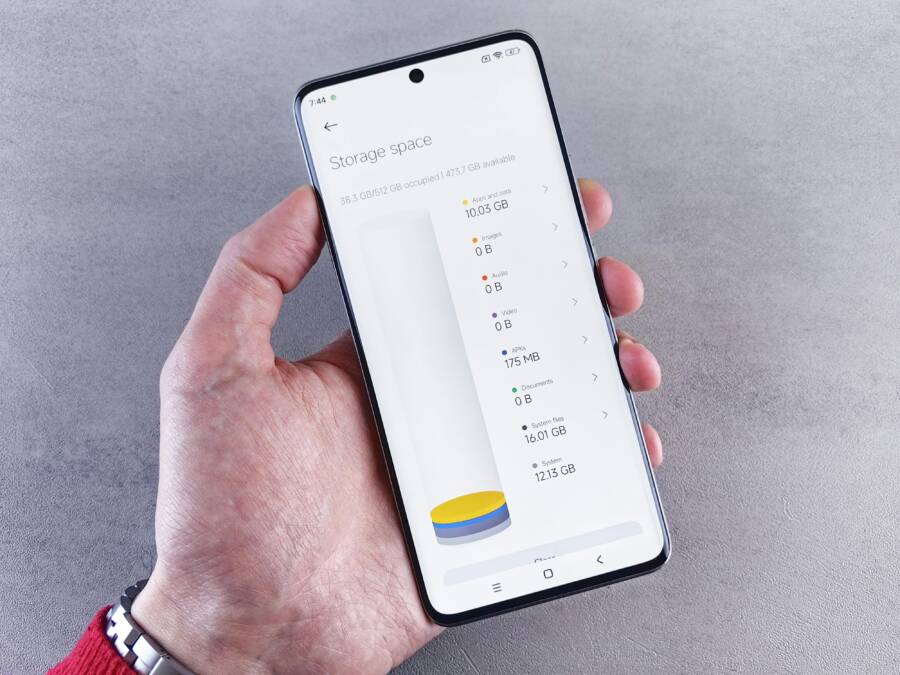
Ever delete a photo, remove an app, and still see your phone saying storage is full the next day? Sound familiar. You think you freed up space, but the numbers creep back and nothing seems different.
This post explains why that happens and what you can do right now. Simple deletes don’t remove hidden data like cache, backups, and app data. These tiny bits add up over time and fill up fast, even after you clear storage. We’ll walk through the main causes and simple fixes for both iPhone and Android users.
First, four common culprits tend to sneak back space. Cache and junk files pile up in the background. Cloud backups and synced folders can hide large items you forgot about. Messages and media often keep copies in apps. System files or app updates can also reserve space you didn’t realize. Each cause has a straightforward fix, from clearing caches to managing backups and offloading unused apps.
This guide gives you quick, practical steps you can take today. We’ll show you how to spot what’s using space, decide what to delete or move, and keep it from filling up again. If you’re dealing with the frustration of storage not freeing up, this plan will help you reclaim real, usable space without losing what you value.
Top Reasons Phone Storage Fills Up After You Delete Files
When you delete files on your phone, it can still feel like the storage bar is stuck. The issue is usually not a missing delete, but hidden data that keeps taking space. In this section, we break down the main culprits and what to watch for so you can reclaim real usable space. Each subsection focuses on a specific category, with practical examples and quick tips you can apply today.
Cache and Temporary Files Build Up Quickly
Cache is the stash of small, fast-access data apps save to make things run smoother. Think of it like snack crumbs left behind after a meal; you don’t notice them until they start to pile up. Browsers save copies of web pages, images, and scripts so pages load faster on revisit. Social apps store thumbnails, story previews, and pre-fetched content to keep feeds snappy. Over days and weeks, these tiny bits add up, especially if you’re a heavy browser user or someone who chats a lot on social apps.
On Android and iPhone the behavior differs a bit. Android tends to accumulate more system and app cache in background, while iOS sometimes limits visible cache but still stores cached data within app containers. To spot cache growth, look for settings labeled as “Storage” or “Clear cache” in individual apps, and monitor how much space is taken by cached data versus actual files. If you notice a jump after minor deletions, cache is likely the culprit.
Tips you can use now:
- Regularly check your browser and app settings for cache options.
- Use quick checks like “clear phone cache” or similar within apps when space looks tight.
- Look for large cache folders in the file explorer and review what’s inside.
Caption: Cache and temp files can quietly consume space. Photo by Andrey Matveev on Pexels.
Backups and Sync Data Hide in Plain Sight
Backups protect your information, but they can fill your drive faster than you expect. iPhone users rely on iCloud for automatic backups, while Android users lean on Google Drive. These backups often include content you deleted on the device, because backups capture the state of apps and data at a given moment. Local copies or older backups can linger and quietly eat space. A good example is WhatsApp backups, which can accumulate months of chat history and media if not managed.
Backups can get large when your devices are frequently synced, or when you enable automatic backups for multiple apps. Even if you delete a photo from the gallery, a backup copy might still exist in the cloud. This is why your storage can refill after you think you’ve freed up space. Simple preview checks help you gauge what’s stored where: open the backup settings, review recent backup sizes, and see when the last backup occurred.
Important note: you don’t need to perform a fix in this section; the goal is awareness. If you see large backups, plan how you want to manage them, whether by turning off certain backups or adjusting their frequency.
Caption: Cloud backups can quietly reclaim space from your device. Photo by Andrey Matveev on Pexels.
App Data and Offloaded Content Sticks Around
Apps hold data that can outlive the files you delete. Messages, logs, and downloaded content stay in the app’s storage space. Streaming services like Netflix may store offline videos for quick viewing, and social apps cache photos to speed up feeds. On iOS, offloading a rarely used app removes the app binary but keeps user data, so when you reinstall, your data is ready. This can leave a quick space gain to vanish as the app re-creates its data.
A real-life example is game saves. You might delete a game to free space, only to find that a saved game file remains somewhere in the app’s data folder. This is why you can think you’ve cleared out more space than you actually have. When you’re dealing with app data storage full, it often comes from these hidden app containers rather than visible files.
Tips to manage app data:
- Review each app’s storage usage under Settings > Apps and look for large data chunks.
- Consider offloading or clearing data within the app if the option exists.
- For streaming apps, periodically remove offline downloads you no longer need.
Caption: App data stores more than you expect, even after you delete files. Photo by Andrey Matveev on Pexels.
Downloads, Messages, and Large Files Sneak Back
Downloads and media from messages can reappear due to automatic syncing or cloud re-downloads. Picture attachments and video previews sent in chats often remain accessible even after you think you deleted them. WhatsApp and Telegram frequently store received media in dedicated folders, which can refill storage quickly if not managed. Browser downloads also accumulate as you save files from the web or email attachments.
Another common pattern is cloud-synced documents. If you delete a file on your device but have cloud syncing enabled, the cloud version remains and may re-download when you reconnect to the internet. This can make it seem like you’re back to square one, even though you just cleared space.
What to check:
- Inspect chat apps for downloaded media and delete what you don’t need.
- Review the browser’s download folder and clear old files.
- Check cloud-synced docs or notes and decide what to keep locally versus in the cloud.
Caption: Synced downloads and chat media can bounce back after deletion. Photo by Andrey Matveev on Pexels.
How to Check What’s Really Using Your Phone Storage
If your phone shows full storage after you delete files, you’re not imagining it. Hidden data, caches, backups, and app containers can keep consuming space. This section gives you two clear, practical paths to see what’s really taking up room and what you can do about it. We’ll break it down for iPhone users and Android users, with quick checks you can perform today. Think of it as a flashlight for your smartphone storage.
Step-by-Step Guide for iPhone Users
On iPhone, the path to reclaim space starts with a precise look at what apps and system data eat. Open Settings and go to General > iPhone Storage. Here you’ll see a color coded bar and a list of apps by how much space they use. This is your first real glimpse into the storage puzzle. Tap an app to review its data and offload options. Some apps offer a direct Clear Cache or Reinstall to reclaim space without losing important data.
Key areas to inspect:
- System Data and Documents & Data: This category can hide large chunks; don’t assume it’s harmless.
- Large apps with substantial local content: Video editors, maps, and offline music can surprise you.
- Messages and attachments: Old conversations with heavy media may sit quietly in the chat thread.
What to do next:
- Offload unused apps when space is tight and free up space from within apps that store a lot of data.
- Review iCloud backups and manage backup settings to prevent duplications.
- Regularly delete or move large media files you no longer need.
Common surprises:
- Cached data that isn’t shown as a file you can delete directly.
- Offline maps and media saved by apps for quick access.
- App data that remains after you uninstall the app.
Caption: iPhone Storage view helps you target space hogs quickly. Photo by Andrey Matveev on Pexels.
Easy Steps for Android Phone Owners
Androids usually present a more granular breakdown of storage usage, which makes it easier to pinpoint space hogs. Start in Settings > Storage. You’ll see a breakdown by apps, media, and other. Tap each section to see the biggest contributors. If you’re unsure where to start, use the Free up space option if your device offers it, or clear cache for individual apps.
Things to check by category:
- Apps: Look for large apps or apps with a lot of cached data.
- Media: Photos, videos, and music can pile up, especially if you auto download media files.
- Cache and temporary files: These often hide under a storage or maintenance section.
Brand differences you might notice:
- Samsung devices often show separate categories for Gallery, Documents, and other data with a clear Remove or Clear option.
- Google Pixel phones tend to present a straightforward app-by-app breakdown with a quick Cache clear button.
What to do next:
- Delete or move large media files to cloud storage or a computer.
- Use the built in Free up space function to remove cached data from apps you rarely use.
- Uninstall apps that are heavy on local content and reinstall only if needed.
Common surprises:
- Offline content saved by streaming apps that you forgot about.
- Dual copies of media created by cloud backups.
- WhatsApp or Messenger backups stored locally alongside your chat history.
Caption: Android storage tools help you zero in on the biggest space wasters. Photo by Andrey Matveev on Pexels.
Simple Fixes to Free Up Storage and Stop It Filling Again
If your phone keeps filling up after you delete items, you’re not imagining it. Hidden caches, backups, and app data quietly reclaim space. These fixes focus on quick, reliable ways to reclaim usable storage and keep it from creeping back. You’ll learn practical steps you can take today, with clear cautions so you don’t lose anything important.
Clear Cache and Delete Temp Files Safely
Per app, caches can balloon on Android as background apps fetch images, scripts, and preloads. On iPhone, cache behavior is managed differently, but apps still store temporary data inside their containers. Clear browser caches too, as web pages and media can hide in plain sight. Expect to gain anywhere from 1 to 5 GB, depending on usage and the number of apps you use daily.
How to do it:
- Android: Settings > Apps > [App] > Storage > Clear Cache. Repeat for apps that show large cache sizes.
- iPhone: Settings > General > iPhone Storage. Look for apps with large data, then offload or reinstall if the app offers a Clear Cache option.
- Browser caches: In each browser, navigate to Privacy or History settings and choose Clear Cache or Clear Data.
Cautions:
- Clearing cache may log you out of some apps. Have passwords handy.
- Don’t delete app data unless you’re sure you won’t need it immediately.
- If an app uses offline content, you might lose downloaded files when you clear its cache.
Caption: Cache and temp files can quietly drain space. Photo by Andrey Matveev on Pexels.

Photo by Andrey Matveev
Manage Backups and Stop Auto-Sync Waste
Backups protect your data but can consume space faster than you expect. iPhone users lean on iCloud, Android users rely on Google Drive. They may include content you deleted on the device, and local copies or older backups can linger. WhatsApp backups often accumulate months of media if not managed.
What to do:
- Review backup settings: iPhone Settings > [your name] > iCloud > Manage Backups; Android: Settings > Backup or Google Drive > Backups.
- Delete old backups you no longer need. For WhatsApp, go to WhatsApp > Settings > Chats > Chat backup and remove or reduce backup frequency.
- Turn off auto-backup for large apps or data categories you don’t need saved locally.
Notes:
- Backups are convenient but not free. Decide what you truly need kept.
- If you need a backup, consider saving critical files to a computer or cloud archive rather than keeping everything in the cloud.
Caption: Cloud backups can quietly reclaim space from your device. Photo by Andrey Matveev on Pexels.
Offload Apps and Trim Large Files
Offloading frees space by removing the app binary while preserving user data. On iOS, this can yield a quick gain when you’re tight on space. Android users can force stop and uninstall large apps, then reinstall later if needed. Don’t overlook large downloads and message libraries that linger in apps.
What to do:
- iPhone: Settings > General > iPhone Storage > Enable Offload Unused Apps. Review candidate apps and offload those you rarely use.
- Android: Settings > Apps > [App] > Force Stop, then Uninstall. Reinstall later if necessary.
- Big files: Search for large downloads in your Files app or Downloads folder. Remove old offline videos, large PDFs, or stale media.
- Messages: In apps like WhatsApp, delete old chats with heavy media or use the export option to save important content elsewhere.
Tips:
- For streaming apps, remove offline content you no longer need.
- Use a storage manager or file explorer to identify large, unused files spreading across folders.
Caption: Offloading apps and trimming large files can unlock solid space gains. Photo by Andrey Matveev on Pexels.
Handle System Data and Updates
System data and updates can claim space that isn’t obvious at first glance. iOS devices sometimes clean up during a major update, while Android may require a manual pass to clear cached system files or to recover space after updates.
What to consider:
- Update wait times: On iPhone, let a pending iOS update complete before trying aggressive cleanup; OS processes often reclaim space during installation.
- Safe deletes: Remove old update files and system caches only if you’re confident they won’t affect stability.
- Recovery options: If you’re feeling stuck, a restart can sometimes trigger a clean slate where the system reclaims space more efficiently.
Caution:
- Don’t remove critical system files. Stick to cache and temporary data or use built-in tools designed for safe cleanup.
Caption: System updates can free up space when they complete, but manual cleanup helps when you’re in a bind. Photo by Andrey Matveev on Pexels.
Smart Tips to Keep Your Phone Storage Free Long-Term
Keeping storage free for the long haul isn’t a one-and-done task. It’s a habit you develop, a few smart tweaks that prevent space from creeping back. Think of your phone like a closet: you can keep it tidy with regular checks, smart organization, and a little restraint on what you bring in. Below are practical, battle-tested tips you can apply today to stay ahead of storage creep in both everyday use and busy weeks.
Photo by Andrey Matveev
Regular Audits of Storage
Set a simple cadence for checking what’s taking up space. A monthly quick audit gives you a baseline and helps catch surprises early.
- Start with built-in tools: On iPhone, check Settings > General > iPhone Storage. On Android, Settings > Storage. Note which categories eat the most space.
- Prioritize the big offenders: large apps, offline media, and hidden app data. If something hasn’t been used in weeks, question its necessity.
- Create a short action list: delete or move large files to the cloud, offload unused apps, and clear caches where possible.
Why this works: small, consistent checks prevent clutter from turning into a crisis. It also helps you spot patterns, like automatic downloads or persistent caches that accumulate after updates.
Automate Cleanups Without Losing Data
Automation can keep your space in check without requiring daily manual work.
- Offload unused apps on iPhone: turn on Offload Unused Apps so the app is removed but data stays. You can reinstall later if you need it.
- Clear caches with care: automate a monthly cache purge for apps that offer it, but avoid removing data you might need for offline use.
- Use cloud-first defaults for media: set to back up to the cloud and keep only the essentials on-device.
Practical tip: create a simple reminder to review large apps and downloads every 30 days. This keeps you proactive rather than reactive.
Manage Backups Smartly
Backups are a blessing and a potential space hog. Plan backups with intention rather than letting them run unchecked.
- Review what’s backed up: confirm which apps and data are included in iCloud or Google Drive backups.
- Trim older backups: delete outdated snapshots you no longer need, especially for apps that store heavy media.
- Adjust frequency for large categories: if you rarely need offline media, reduce the backup cadence or exclude certain folders.
Key benefit: you reclaim space while still protecting the things you value. A thoughtful backup plan gives you freedom to free up device storage without fearing data loss.
Optimize Media Management
Photos and videos are the main culprits, but you don’t have to delete memories to gain space.
- Use high efficiency formats: enable HEIF/HEVC where supported for stills and video to save space without noticeable quality loss.
- Enable cloud sync with selective offline access: keep originals in the cloud and keep only what you need on-device.
- Delete duplicates and stale files: run a quick sweep for duplicate photos, blurry shots, or old videos you never rewatch.
Tips to stay organized:
- Regularly export favorites to a computer or cloud album for long-term storage.
- Review the offline video library every few months and remove ones you’ve already watched.
Beware of Hidden Space Snoopers
Some space hogs aren’t obvious at first glance. They hide in plain sight inside apps or the system.
- System data and caches: these can grow with updates and app activity. Don’t assume they’re harmless.
- Offline content: apps like streaming services store data for quick viewing. It’s easy to forget, but you can trim these downloads.
- Cloud re-downloads: when you delete a file but cloud syncing is on, a fresh copy might reappear when you reconnect.
Quick check actions:
- In Settings, review per-app storage and clear cached data only when you’re sure you won’t need it immediately.
- Periodically revisit offline media lists in streaming apps and remove what you don’t plan to watch again.
Best Practices for Long-Term Health
Create a simple, repeatable routine that fits your life. Consistency beats intensity.
- Reserve free space: keep a buffer of 10–20% of total storage free for smooth operation and app updates.
- Make better intake decisions: before downloading or saving large files, ask if you’ll truly use them later.
- Use a cross-device strategy: store memories and documents in the cloud or on a computer whenever possible to keep your phone lean.
Rounding out your routine with these habits ensures your smartphone stays responsive and reliable. It also reduces the chance you’ll run into the dreaded full storage warning right when you need your device most.
Conclusion
If your storage fills up after you delete files, it is common and fixable. The main culprits are caches, backups, and app data that hide in plain sight. Clearing caches, managing cloud backups, and trimming large app data usually frees real space fast. A quick win is offloading unused apps and removing offline media you no longer need.
Take action now. Check what uses the most space in Settings on your iPhone or Android phone, then tackle the biggest offenders first. Regular tidy-ups keep space available for new photos, chats, and updates. A small habit today prevents a bigger headache tomorrow.
Try one tip today and see results. Clear a few large caches or delete old offline media, then monitor the change over a few days. If you share your results in the comments, others can learn from your approach. This pattern of small, steady cleanups makes a big difference.
Want more guidance? Sign up for our newsletter for quick checks, expert tips, and links to related posts. You can also explore our deeper guides on backups, offloading, and media management. Enjoy clutter-free storage on your smartphone and keep your essential data ready at hand.