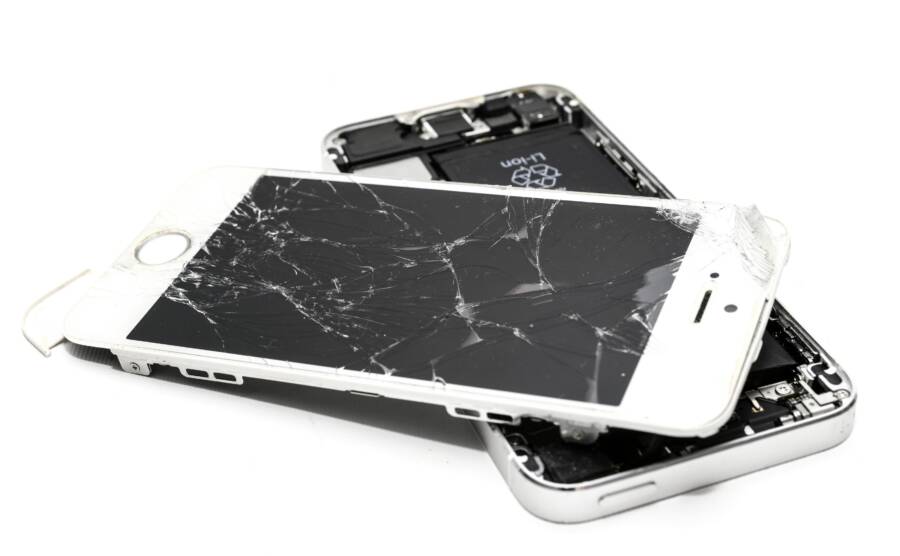
Touches not registering in games on a smartphone can wreck a session in seconds. This guide covers the common causes, quick fixes, deeper tweaks, and when to seek hardware help. You’ll get practical steps to test after each fix, and most issues clear up with a few simple checks.
What causes touches not registering in games on a phone
When your thumbs fly across the screen in a mobile game, you expect instant response. If touches don’t register, it breaks the flow and can ruin a session. This section breaks down the most common causes and how to spot them quickly. After trying each fix, test in a game to see if input feels more responsive.
Dirt, oil, and moisture on the screen
Grime on the screen can form a barrier between your finger and the touchscreen sensor. Fingerprints, dust, or sweat can mute touch input, making taps feel delayed or missed entirely. Simple tests help you pinpoint this issue.
- Quick wipe: clean the screen with a microfiber cloth, then dry any remaining moisture.
- Sweat check: if you’ve been sweating or working out, wipe the screen and wait a moment for it to dry.
- Test in a game: perform rapid taps and short swipes in a fast-paced action scene to see if inputs now register consistently.
If you still notice miss taps after cleaning, it could be a combination issue with a protector or case, which is covered in the next subsection.
Screen protectors, cases, and other accessories
Some protections and accessories can interfere with touch sensitivity, especially if they sit near the edges or have air bubbles. A thick case or a rough edge around the screen can create dead zones where the sensor doesn’t react as quickly.
- Quick checks: remove the screen protector temporarily and test input in a game. If it improves, the protector is likely the culprit.
- Edge checks: run your finger along the edges; if you notice delayed or missed touches near the bezel, you may need a different protector or case.
- Clean build: grime can collect at the edges under a protector. Clean the edges and reapply carefully if you plan to keep using the accessory.
If removing the protector or adjusting the case improves responsiveness, consider a thinner protector or a minimal case designed for gaming.
Software glitches and app conflicts
Software issues can place a brick wall between your finger and the screen. Bugs in the OS, conflicting apps, or game-specific updates can all cause erratic input behavior.
- Watch for signs: random pauses, lag, or a touch that doesn’t register in a particular area.
- Reboot and update: restart your device, then install the latest OS and game updates. Updates often fix input glitches.
- Minimize background load: close other apps before gaming. If problems persist, check for recently installed apps that might conflict with input handling.
On iOS and Android, these conflicts can feel similar but are addressed with platform-specific steps. If a single game keeps misbehaving after updates, try reinstalling it cleanly.
Overheating and charging while playing
Heat is a real enemy of touch accuracy. When a phone gets hot, sensors can respond slowly or inaccurately. Charging while gaming can also introduce thermal throttling, reducing touch responsiveness.
- Symptoms to watch: phone becomes noticeably warm, games run choppily, or taps feel late.
- Cool-down routine: pause play, remove the case, and let the device cool in a shaded, ventilated area.
- Charging habits: avoid playing while charging on high-wattage adapters. If you must play while charging, use a low-power charger and stop if heat rises.
- Safe practice: limit extended sessions and take regular breaks to maintain stable performance.
Hardware wear and calibration issues
Over time, the digitizer or display components can wear, or calibration can drift slightly. This is less common but important to check if other fixes fail.
- Calibration basics: some older Android devices offer a calibration option; most modern iPhones do not require user calibration.
- Look for patterns: if multiple areas of the screen misinterpret touches, or if the problem appears after drops or water exposure, it may indicate hardware wear.
- What to do next: if you suspect hardware wear, visit a service center for a diagnostic and potential replacement.
If you want a quick path back to smooth gameplay, start with the easy checks—clean the screen, remove protective accessories, and reset software—before moving to more involved steps.
Fast fixes you can try right away
When touch input stops registering in mobile games, the simplest fixes often work best. These quick checks don’t require special tools and can be done in a few minutes. Start with the easiest step and move down the list. After each fix, test in a game to see if the response improves. A fresh start for your smartphone can clear up many touch issues and get you back to gaming fast.
Clean the screen and remove obstructions
A clean screen helps your finger communicate clearly with the touchscreen sensor. Dirt, oil, and moisture can create a small barrier that makes taps or swipes feel blurry or missed.
- Use a microfiber cloth to wipe the screen first, then dry any residual moisture.
- If you’ve been sweating or working out, wipe the screen and wait a moment for it to dry.
- While testing, perform rapid taps and short swipes in a fast scene to see if input is more reliable near the center and edges.
If you still notice misses near the edges after cleaning, residue from a protector or a case could be at fault. Check the area around the bezel and test again with and without accessories.
Take off case, screen protector, and accessories
Protective layers can interfere with touch sensitivity, especially along the edges or where air bubbles sit.
- Quick removal: take off the screen protector or bumper case and test input in a game. If the input improves, the accessory is likely the culprit.
- Edge check: glide your finger along the edges to feel any lag or dead zones near the bezel.
- Reassemble if the test works: once you confirm the issue, reapply a thinner protector or a gaming-friendly case and test again.
If removing the protector or adjusting the case helps, choose a lighter screen cover or a minimal case designed for precise tapping and swipes.
Restart the device
A simple restart can clear small glitches that disrupt touch responsiveness. Here are straightforward steps for Android and iOS.
- Android: Press and hold the power button until the screen shows the restart option, then confirm. If you don’t see it, hold power and volume down for a forced restart on some models. After the device boots, open a game to test.
- iPhone: For iPhone models with Face ID, press and release the volume up button, press and release the volume down button, then hold the side button until the Apple logo appears. For iPhones with a Home button, press and hold the side or top button until the logo shows. After reboot, test in a game.
Wait about 30 seconds after the restart before testing again. This pause lets all systems settle and helps you get an accurate read on touch performance.
Update software and the game
Software updates often include fixes for touch input bugs and performance improvements. Check both system and app updates to ensure you’re running the latest versions.
- System updates: Android Settings > System > Software Update. iOS updates: Settings > General > Software Update.
- Game updates: open the app store or game’s in-app update option and install any available patches.
- After updating, restart the device again and test touch input in a game to confirm improvements.
Close background apps and free storage
Background apps can consume memory and processor time, which may slow down touch response in games. Free storage space too, as low storage can hamper performance.
- Close background apps: on Android, open the recent apps view and swipe away apps you don’t need. On iPhone, double-click the Home button or swipe up from the bottom and pause to reveal open apps, then swipe away those you don’t need.
- Free up storage: delete junk files and unused apps. Aim to keep at least a portion of free space so the system can swap memory as needed.
- Test after cleanup: run a game for a few minutes and notice if taps register more reliably and with less delay.
Deeper fixes for stubborn touch issues
If basic fixes haven’t revived reliable touch input, it’s time to isolate deeper causes. This section guides you through targeted checks and safe adjustments that can resolve stubborn problems without a full reset. You’ll learn how to test in safe mode, how energy features can affect response, and how to calibrate or reset preferences with care. Think of these steps as a process of elimination and fine tuning for your smartphone.
Check touch sensitivity and disable developer options
Some devices offer touch sensitivity tweaks or developer options that can alter input behavior. On many Android models, you’ll find a “ touch sensitivity” or “palm rejection” setting in the display or accessibility menus. If you enable features meant for developers, they can slow or misinterpret taps. On iOS, the closest equivalents live under accessibility and may influence responsiveness if enabled with unusual configurations.
- Locate the setting: go to Settings > Display or Settings > Accessibility, then look for any touch or sensitivity options.
- Disable developer options safely: If you previously enabled USB debugging, Pointer Location, Show Touched, or other debugging aids, turn them off. These tools are helpful for testing but can interfere with everyday input.
- Test after changes: open a game and perform rapid taps and swipes to confirm input is registering consistently.
If you don’t see any touch sensitivity controls, the option may not be exposed on your device. In that case, proceed with the next checks to isolate the cause.
Test in safe mode to isolate apps
Safe mode runs the system with only core apps, disabling most third party software. This makes it easy to see whether a rogue app is causing erratic input.
- Android safe mode quick test: power off the device, then power on and, when you see the logo, press and hold the volume down button until the home screen appears with “Safe mode” in the corner. Open a game and test touch input. If it works reliably, a third party app is likely the culprit.
- How to proceed on Android: while in Safe Mode, go to Settings > Apps, then review recently installed or updated apps. Start by uninstalling those with special permissions such as accessibility or input controls.
- iOS approach for comparable testing: iOS doesn’t have a formal Safe Mode, but you can isolate apps by reinstalling a clean baseline. Remove recently installed apps one by one and test touch after each removal. You can also try disabling background activity by enabling Airplane Mode briefly to see if touch behavior improves, then re-enable connectivity and test again.
- What to look for: if the touch responds normally in Safe Mode or after removing a suspect app, you’ve found the interference. Reinstall essential apps one at a time, testing between each install to identify the offender.
This approach helps you confirm whether the issue is software related rather than hardware. If all apps behave well in Safe Mode, focus on the most recently installed or updated apps first.
Disable Always-On Display and other energy features
Energy saving features and Always-On Display can affect touch response on some devices after updates. A hot screen or a sensor that’s throttling can slow taps or create short pauses in input.
- Turn off AOD temporarily: go to Settings > Display > Always On Display and disable it for testing. If touch becomes more responsive, the feature was contributing to the issue.
- Check other energy settings: look for Battery saver modes, adaptive brightness, or performance boosts. Temporarily set them to standard or off and retest in a game.
- Test in quick sessions: run a few short gaming bursts to see if input timing improves when energy features are off.
If disabling energy features improves response, you can keep AOD off during long gaming sessions or switch to a balanced power mode that preserves performance without triggering throttling.
Calibrate touch or reset preferences
Calibrating the screen or resetting input preferences can correct drift or misreads without a full device reset.
- Calibration options: some older Android models offer a screen calibration tool in the display or accessibility settings. If your device has it, run a quick calibration and re-test.
- Calibrating indirectly: in the absence of a dedicated tool, you can reset haptic and input preferences by toggling related options (for example, turning off and on haptics, accessibility shortcuts, or system-wide touch settings) and then testing again.
- Avoid deep resets: avoid factory resets unless absolutely necessary. You want to preserve data while cleaning up input handling.
If you notice a pattern, such as the same area registering taps inconsistently, consider hardware checks afterward. Calibrating can fix sensor drift in some devices and improve overall accuracy.
Check accessibility settings that affect touch
Accessibility features are designed to help but can interfere with precise tapping if left on during gaming.
- Magnification and zoom: if magnification is active, taps may be interpreted differently. Turn off magnification to test fundamental touch response.
- Touch accommodations: features like assistive touch, touch and hold delay, or contour gestures can slow or misregister touches. Disable these when testing and reintroduce them gradually if you rely on them.
- How to test: enable game mode or full-screen app testing with and without accessibility features. If turning them off fixes the issue, you’ll know what to adjust going forward.
By isolating these options, you can run a clean test and pinpoint whether accessibility features are the root cause.
These steps provide a practical path to diagnose stubborn touch issues. Start with safe mode to identify app conflicts, then move through energy features, calibration, and accessibility settings. Each step builds toward a reliable, game-ready touch experience on your smartphone.
Is it hardware or a bad digitizer? When to seek help
If your mobile games aren’t registering touches reliably, the root cause can be either a faulty digitizer (the touch sensor) or a hardware issue affecting the display. The goal of this section is to help you distinguish between the two and know when to seek professional help. You’ll learn practical tests, what to expect from a repair shop, and how to protect your data before any repair.
How to test for digitizer damage
A digitizer problem shows up as inconsistent or dead areas on the screen, even when your finger is clearly pressed. Start with a simple, focused test using a drawing app or a dedicated screen test to map response across the surface.
- Use a drawing app: draw a line across the entire screen, paying special attention to corners and edges. Look for gaps, jitter, or lines that skip when you pass over certain zones.
- Run a grid test: open a screen test site or app that requests taps in a grid pattern. Note any sections where taps don’t register or where lines cross multiple times.
- Check pressure consistency: in a game that requires quick taps, see if some areas respond slowly while others are instant. Inconsistent pressure response often points to a digitizer issue.
- Compare with an alternate screen: if possible, test another app or a different screen mode. If the behavior follows the screen rather than the app, the digitizer or its connectors may be at fault.
- Watch for multi-touch anomalies: if pinch to zoom or two-finger swipes fail in some parts of the screen, this can indicate digitizer or sensor problems rather than simple software glitches.
If you notice dead zones, inconsistent responses, or areas that ignore touches despite clean screen input, consider hardware troubleshooting next steps. A cracked display or internal connector problem can mimic digitizer faults, so use the results as a guide rather than a final verdict.
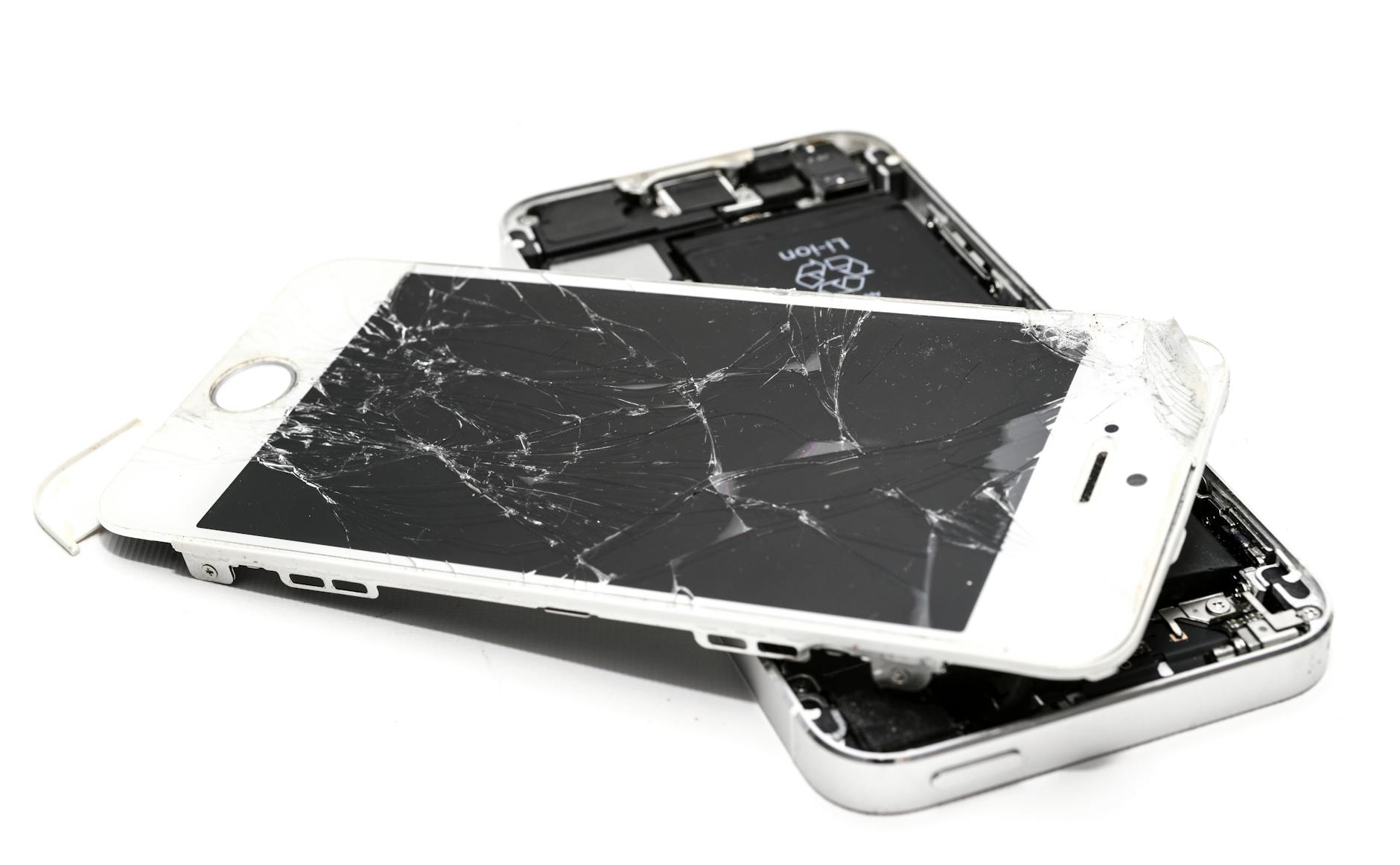 Photo by ClickerHappy
What to expect at a repair shop
If tests suggest hardware involvement, a repair shop is the next step. Knowing what to expect helps you compare options and avoid surprises.
- Diagnostic options: most shops will run a screen test, check the digitizer controller, verify cable connections, and inspect for screen defects. Ask whether they also test the logic board or any loose connectors.
- Estimated cost: hardware repairs vary by model and part price. Expect a range from affordable parts to premium screens for flagship models. Request a written quote after the initial assessment.
- Timing: many repairs can be completed the same day, especially at third party shops. Some fixes may require ordering parts, extending turnaround to a couple of days.
- Data safeguard: insist on a clear plan for data handling. If the screen needs to be opened, confirm backups and whether apps or data could be affected.
- Warranty and parts: confirm if the repair includes a warranty on parts and workmanship. Ask about the type of parts used and whether a certified technician will perform the work.
- Preparation: back up your data before the visit to minimize risk. Bring your device and proof of ownership if needed.
If the shop recommends a full digitizer replacement or screen assembly, compare options from authorized service centers and reputable third-party shops. Check reviews, ask about part quality, and verify whether the replacement includes the display assembly or just the digitizer.
Back up data before repair
Before handing your device to a technician, back up data to prevent loss. This step is essential, especially if the repair involves disassembly or a potential reset.
- Photos and videos: ensure your camera roll is synced to the cloud or copied to a computer. This protects memories while the device is apart.
- Apps and game progress: many games save progress locally or in the cloud. Confirm what data is stored where and back up accordingly.
- Messages and contacts: enable cloud backups for text messages and contacts if available.
- Cloud options: use iCloud for iPhone or Google One/Drive for Android. Verify that automatic backups are enabled and recent.
- Local backups: connect to a computer and copy important folders, such as DCIM for photos and app data directories if accessible.
- Verify the backup: after saving, perform a quick restore test on another device or a fresh setup to ensure you can recover essential data.
Having a solid backup reduces stress and speeds up the repair process. It also makes it easier to reconfigure your device after service, so you can get back to gaming sooner.
Optimize your phone for gaming to prevent future touch issues
To keep touch input crisp in mobile games, you need a phone that is tuned for gaming rather than a general-purpose device. This section shows practical, battle-tested steps to optimize performance, temperature management, maintenance, and accessories. Use these tips as a routine so future touch problems don’t derail your sessions.
Enable game mode or performance mode wisely
Activating game mode helps prioritize touch input and frame rate, but it also changes how the device uses heat and battery life. The goal is to balance responsiveness with longevity, not run the phone at full throttle all the time.
- What game mode does: It typically allocates CPU and GPU resources to the game, reduces background activity, and can minimize system interruptions. On iOS, newer devices may auto-optimize when you launch a supported game in full screen. On Android, many brands offer a dedicated Game Mode or Performance Mode that you can toggle from the quick settings panel.
- When to use it: Turn it on for long gaming sessions that demand steady frame rates and smooth input. If you’re in a casual match, you can leave it off to save battery and reduce heat.
- How to enable safely:
- Android: Open the game, pull down the notification shade, and look for a “Game Mode” or “Game Tools” option. If needed, go to Settings > Advanced features or Digital Wellbeing to enable it in a more permanent way.
- iOS: Ensure the device is running the latest iOS, and check Control Center for any gaming-related toggles when a full-screen game is active. Some games trigger a focus-friendly mode automatically.
- What to watch for: If enabling game mode makes the device run hotter or drains the battery quickly, switch to a balanced or standard mode and rely on other cooling and performance tips. The best setup gives you stable input without overheating the battery.
Key takeaway: Use game mode to lean into higher frame rates and crisper input, but monitor temperature and battery usage. A well-tuned phone keeps the action fast and responsive without turning into a small heater.
Keep temperatures in check during long sessions
Heat is the stealthy enemy of touch accuracy. When a phone gets warm, sensors can lag or misinterpret taps, which ruins the feel of a fast-paced game.
- Create a cooler playing environment: Prefer shaded areas or air conditioned spaces. A cooler ambient temperature makes a big difference.
- Improve airflow around the device: Elevate the phone, use a small desk fan, or place it on a breathable surface during long sessions.
- Use a break rhythm: Pause every 20 to 30 minutes for a short cooldown. Even a 2–3 minute rest can prevent thermal throttling from creeping in.
- Manage heat while charging: If you must game while charging, use a low wattage charger and keep the device away from your body. Remove the case during heavy play if it traps heat, then reattach after cooling.
- Protect from overheating in hot climates: Consider gaming in cooler rooms or during cooler parts of the day. If you notice persistent heat, step back to lighter tasks for a bit.
Practical tip: a tiny external fan aimed at the vent areas or a cooling pad can lower surface temperature quickly without adding bulk. Consistent cooling helps your touch stay precise and reliable.
Manage updates and maintenance regularly
A tidy device runs smoother, and that includes better touch performance. A simple maintenance routine prevents a lot of avoidable issues.
- Establish a cadence: check for OS updates and game updates weekly, especially after major releases. Patches often include input fixes and performance improvements.
- Clear cache occasionally: remove temporary files that can bog down system memory and cause momentary lags in touch response.
- Monitor storage: aim to keep a healthy amount of free space. When storage gets tight, system operations slow and touch input can feel less responsive.
- Keep apps lean: disable or remove unused games and apps, especially those that constantly run in the background.
- Reboot periodically: a quick restart can refresh system resources, especially after installing big updates.
If you notice a specific game behaving oddly after an update, try clearing that game’s cache or reinstalling it. A fresh install often resolves stubborn input quirks.
Choose accessories that don’t block input
Accessories add comfort and control, but poorly designed add-ons can block taps, swipes, or edge interactions. The goal is to support gaming without introducing new dead zones.
- Avoid thick screen protectors near the edges: A bulky protector can create a micro-layer that delays or misreads touches, especially if you frequently tap near the bezel.
- Be careful with gloves or touch-sensitive sleeves: Some gloves dull sensitivity or add resistance that makes precise tapping harder. If you game on the go, look for thin touchscreen-friendly options.
- Pick well designed protectors: If you use a screen protector, choose a model designed for gaming with a smooth surface and minimal edge bulges. Read user reviews focusing on touch response.
- Test with and without accessories: After applying a new protector or case, test in a quick gaming session to confirm inputs register reliably. If you notice delayed touches near the edges, you may need a different accessory setup.
- Consider gaming-friendly cases: A case that adds grip without buffering touch input around the edges helps maintain quick taps and accurate swipes.
Simple rule: accessories should disappear from the equation when you need maximum precision. If a protector or case interferes with input, switch to a thinner protector and a lightweight case designed for finger accuracy.
Putting it all together, optimizing for gaming means choosing when to enable performance boosts, keeping the device physically cool, maintaining regular updates and storage, and selecting accessories that respect touch input. With these practices, you’ll minimize future touch issues and enjoy smoother play for longer sessions.
Conclusion
Most touch issues in games are fixable with simple actions. Start with quick checks, test in a game after each step, and back up your data before making bigger changes. If none of the fixes restore reliability, a hardware check may be needed for your smartphone. Share this guide with friends and try the steps on your own devices to keep gaming smooth.