Ever been stuck outside a live Zoom webinar because your phone won’t join, and you can feel the clock ticking? This happens more often than you think, usually from simple app or network hiccups on smartphones. This guide cuts through the noise with clear, step by step fixes you can trust.
If you’re wondering why a phone might fail to connect, the answer is usually easy to find. The problem often sits in three places: the device settings, the Zoom app itself, or the network you’re on. By checking each area, you can usually get back in with minimal fuss and avoid missing valuable sessions.
We’ll start with quick checks you can do in minutes. Confirm the date and time are correct on the phone, verify permissions for camera and microphone, and make sure the Zoom app is updated to the latest version. A failed update or a blocked permission can block entry to a webinar, even when your internet is working.
Next, we’ll walk through app fixes that restore reliability. Clearing cache, restarting the app, and re signing into your Zoom account often fix stubborn glitches. If the app still won’t join, a reinstall can clear deeper issues without losing your meeting details.
Finally, we’ll test networks and give fast, practical tips to improve connection. Switch from mobile data to a stable Wi Fi network when possible, pause other bandwidth heavy apps, and move closer to the router if you’re on a home network. If you’re in a busy public space, consider enabling data saver options that don’t block essential Zoom services. This guide helps anyone with a smartphone join webinars smoothly, with practical steps you can apply right away.
Spot the Most Common Reasons Your Phone Can’t Join Zoom
If your phone keeps missing the Zoom webinar even when others can join, the issue is usually one of a few repeat culprits. This section breaks down the three most common problems and provides fast, practical fixes you can apply in minutes. Whether you’re on the go or at home, you’ll find clear guidance to get back in front of the camera.
 Photo by Anton
Outdated App or Corrupted Data
Old Zoom versions can crumble during a webinar. When the app hasn’t been updated in a while, you miss important fixes that keep joining stable. Cache buildup also slows things down and can cause the app to crash during the moment you’re trying to enter.
- Update the Zoom app from the Google Play Store or Apple App Store. Ensure you’re on the latest stable release.
- If updates don’t fix it, uninstall and reinstall Zoom. A clean install clears out stubborn issues and resets the app to a fresh state.
- After reinstalling, sign back in and verify your meeting link or ID. A mismatch here can block entry even if the app opens.
Tips to prevent future cache problems:
- Periodically clear the app cache. In Android, go to Settings > Apps > Zoom > Storage > Clear cache.
- On iPhone, you can offload the app or reinstall to reset cached data without losing your account details.
- Avoid running many apps in the background while joining a webinar to keep resources free for Zoom.
Permission Denials for Key Features
Zoom needs access to several features to function smoothly on a phone. When permissions are blocked, joining a webinar can fail before you even see the waiting room.
- Check camera and microphone permissions in your phone’s settings. On iOS, go to Settings > Zoom > enable Camera and Microphone. On Android, Settings > Apps > Zoom > Permissions, then toggle Camera, Microphone, and Storage on.
- Ensure you allow Zoom to access storage if you need to download or view materials shared in the session.
- Disable battery saver modes or VPNs during the webinar. They can throttle data or block background activity, which disrupts the connection.
Practical quick checks:
- Open Zoom and start a test call to confirm audio and video work before the webinar begins.
- If you still can’t join, clear the app’s cache and data, then reattempt joining. This clears corrupted local files without affecting your account.
- Temporarily switching to airplane mode for a few seconds and back can reset the phone’s network state.
Network Glitches on Mobile Data
Mobile data connections often stumble in crowded areas or when the signal weakens. A stable webinar requires consistent bandwidth, and 4G/5G can underperform or fluctuate when the signal is busy or congested.
- When possible, switch to a reliable Wi Fi network. A steady connection is usually far more resilient than mobile data during a live webinar.
- If you must use mobile data, minimize competing traffic. Pause large downloads, streaming, or updates while joining the session.
- Move closer to a router or get a better signal indoors. If you’re on the go, a portable hotspot can provide a steadier link than a crowded cellular network.
- Check for data saver features in Zoom that limit video or background tasks. Adjust these settings so Zoom has enough data to stay connected.
- Run a quick speed test. Aim for at least 3–4 Mbps upload and download for a smooth webinar experience. If speeds are consistently lower, switch networks and try again.
Common mobile data traps to watch for:
- Network handoffs between towers can briefly drop the connection during a critical moment.
- Public Wi Fi can be unstable or force captive portals that block Zoom until you sign in.
- Carrier-induced throttling may kick in after you hit data caps, reducing video quality or blocking joining attempts.
By focusing on these three areas—outdated apps, permission blocks, and network reliability—you can quickly diagnose why a phone won’t join a Zoom webinar and take decisive action. If one fix doesn’t solve the problem, you’ve likely ruled out the others and can see the path to a stable connection.
Quick Phone Settings Fixes to Get You Connected Fast
When a smartphone won’t join a Zoom webinar, the fix is usually quick and hands-on. In this section, you’ll find two focused sub-sections that address the two most common blockers: the quality of your internet connection and the app permissions that block access to camera and mic. Follow these steps step by step to get back in quickly.
Verify Your Internet Connection Strength
A solid internet connection is the backbone of a smooth webinar experience. Start by testing your current speeds and then switch to a more stable network if needed.
- Test your speeds on your smartphone using a trusted speed test app or site. Look for your download and upload speeds in Mbps. For Zoom, you want reliable upload and download speeds well above the minimum threshold to keep video and audio steady.
- Compare results with recommended targets. If speeds are low, switch to a stable Wi‑Fi network. A wired or strong home Wi‑Fi connection is usually far more reliable than mobile data during a live session.
- If you must use mobile data, pause other bandwidth hogs. Stop large downloads, streaming, or updates while you join the webinar.
- Move toward the router or switch to a less congested network if you can. If you’re in a busy public space, avoid networks that require captive portals or frequent sign-ins.
Practical tips you can apply now:
- Run a quick speed test just before you join to confirm you have decent bandwidth.
- If speeds dip, disconnect from other devices that share the same network and try again.
- For a quick check, try Zoom’s built in test meeting to verify audio and video are functioning.
Enable Zoom Permissions for Camera and Mic
If Zoom can’t access the camera or microphone, you’ll be blocked from entering the webinar even when the network is good. Here is how to verify and enable the required permissions on iOS and Android.
- iOS (iPhone and iPad)
- Open the Settings app.
- Scroll to and tap Zoom.
- Ensure Camera and Microphone are switched ON.
- If you download materials inside Zoom, also enable Files and Photos access if prompted.
- Android
- Open the Settings app.
- Tap Apps or Applications.
- Find Zoom and tap Permissions.
- Turn on Camera and Microphone; also enable Storage if you expect to download or view shared files.
Tips to keep permissions reliable:
- After changing permissions, reopen Zoom and join a test meeting to confirm both video and audio work.
- If you still can’t join, clear the app cache and try again, or reinstall Zoom to reset all settings.
- Ensure no battery saver mode or VPN is restricting background activity during the webinar.
Quick validation checklist:
- Can you see yourself in the camera preview when you test in Zoom? Yes means camera is active.
- Does your microphone pick up sound in a test call? Yes means mic is ready.
- If either is off, revisit the permissions and the app’s access settings until both are ON.
Refresh Your Zoom App for Smooth Webinar Access
When a phone struggles to join a Zoom webinar, the root cause often sits in the app itself. A refreshed Zoom experience reduces glitches, speeds up login, and smooths audio and video delivery. This section guides you through practical steps to update, clean, and reinstall the app so you can rejoin without delays. You’ll feel the difference almost immediately as you move from a laggy entry to a steady connection.
Update Zoom to the Latest Version
Keeping Zoom up to date is the fastest way to fix joining issues. Updates fix bugs, improve performance, and patch security gaps that can block entry to a webinar.
- Check for updates in the app store:
- On Android devices, open the Google Play Store, search for Zoom, and tap Update if available.
- On iOS devices, open the App Store, find Zoom, and tap Update if it appears.
- After updating, open Zoom and sign back in. Try joining a test meeting to confirm audio and video are working.
- If updates don’t help, a fresh install can remove stubborn glitches:
- Uninstall Zoom from your device.
- Reinstall Zoom from the app store.
- Sign in again and rejoin the webinar link or meeting ID to verify access.
Tips to prevent future update issues:
- Turn on automatic updates in your device settings so Zoom stays current without you thinking about it.
- Make sure you have stable Wi Fi during updates to avoid partial installs.
Clear Cache and Restart Your Device
Clearing the app cache and giving your device a full reboot can fix many stubborn problems. It clears out corrupted temporary files without touching your meeting data or account credentials.
- On Android:
- Go to Settings > Apps > Zoom > Storage > Clear Cache.
- If you notice performance lag, you can also choose Clear Data, then sign back in when you reopen Zoom.
- On iPhone:
- There isn’t a direct clear cache option. Offloading the app (Settings > General > iPhone Storage > Zoom > Offload App) preserves documents but clears cache. Reinstall if you offload.
- After clearing cache, reopen Zoom and try a test join.
- Do a full device restart after the cache clear. This refreshes network connections and background services.
When to restart versus reinstall:
- Restarting is quick and should fix most minor issues.
- If problems persist, a fresh install often solves deeper glitches that linger after a cache clear.
How to test reliability after these steps:
- Open Zoom and run a quick test meeting to verify camera, microphone, and speaker performance.
- If issues recur, note whether they happen with one meeting link or every webinar. This helps determine if the problem is tied to the app or the account.
Uninstall and Reinstall Zoom Fresh
A clean install is the most thorough way to wipe out persistent glitches. It ensures you start from a known good state and eliminates corrupted files that can block access to a webinar.
- Remove the app from your device:
- Android: Settings > Apps > Zoom > Uninstall.
- iPhone: Press and hold the Zoom app icon, then tap Remove App and confirm.
- Reinstall Zoom from the appropriate store.
- Open Zoom and sign in. If you use SSO or single sign on, make sure your credentials are ready.
- Join a test meeting to confirm everything works before the webinar starts.
Why a fresh install helps:
- It resets permissions, caches, and settings that might have been misconfigured.
- It clears hidden data that can cause odd app behavior during critical moments.
- It ensures you’re running a version compatible with the latest webinar features.
Post reinstall tips:
- Grant only the necessary permissions (camera, microphone, storage) for smooth operation.
- Disable any VPNs or battery saver modes during the test join to avoid performance throttling.
- Keep the device connected to a reliable network during the first real join after reinstall. This confirms the issue was resolved.
Test Different Networks to Pinpoint Connection Problems
When a phone struggles to join a Zoom webinar, the culprit is rarely the app alone. The network you’re on can make or break the experience in minutes. By testing a few different networks you’ll quickly identify where the fault lies and adapt on the spot. Below are practical steps you can follow to isolate issues and regain a stable connection, even on the go.
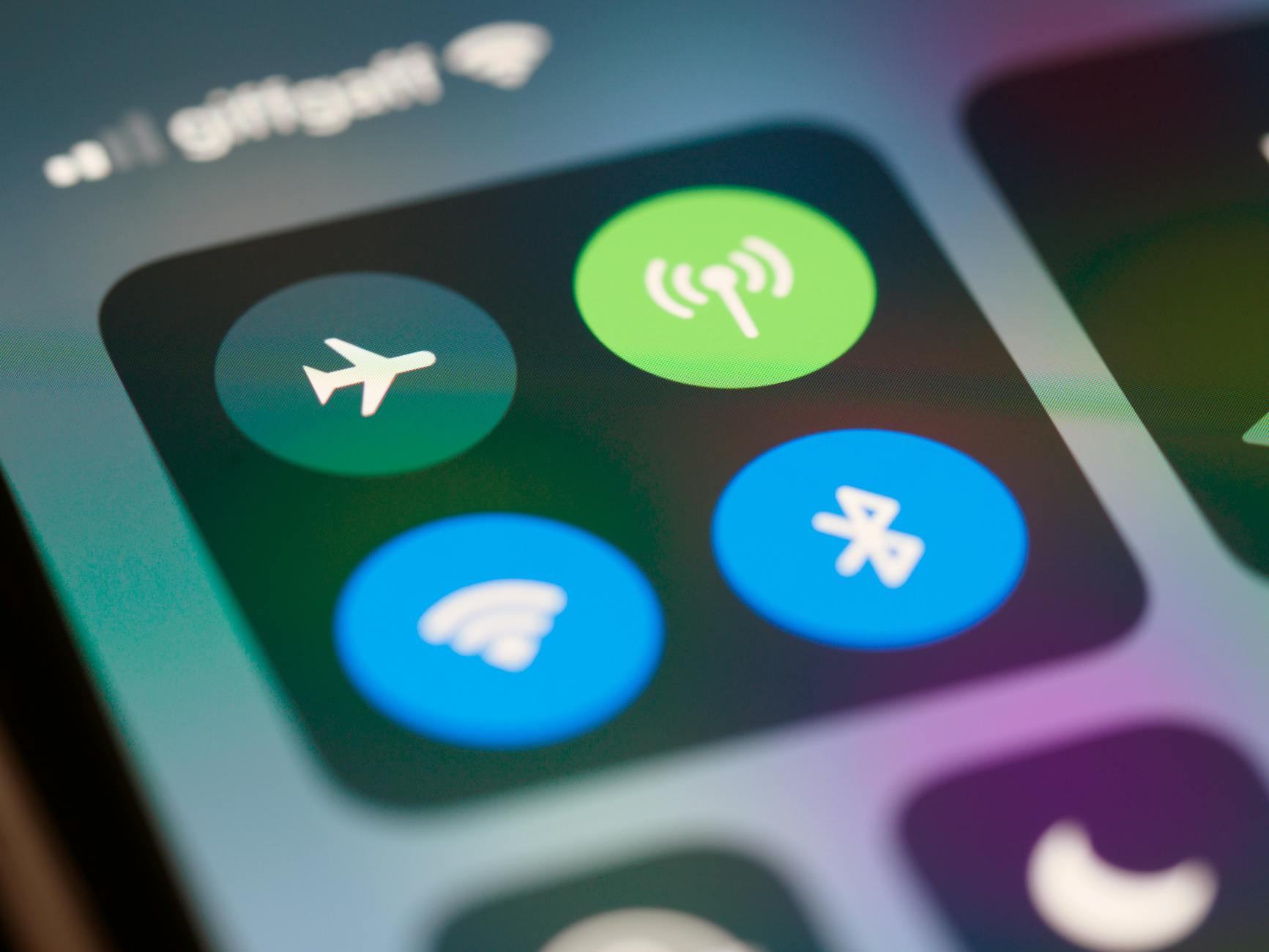 Photo by Brett Jordan
Switch from Mobile Data to Wi-Fi
For many Android users, switching from cellular data to a solid Wi Fi connection fixes drops and camera freezes during a webinar. A stable Wi Fi path removes the variability common with mobile networks and keeps the session steady.
- Open Settings and go to Network settings. Turn off Mobile data, then enable Wi Fi and connect to a reliable network.
- If you’re in a crowded area, try a private or home network instead of public hotspots. Public networks often require sign-ins or enforce captive portals that disrupt Zoom.
- After switching, open Zoom and try joining a test webinar or audio/video test. Confirm both audio and video are functioning before the real session starts.
Quick checks to confirm the fix:
- Can you hear audio clearly and see video without delay?
- Do you maintain a steady connection for several minutes in a test call?
- If issues persist, try a different nearby network or reset your router.
Try a Hotspot or New Wi-Fi Spot
Borrowing a hotspot or finding a fresh Wi Fi spot can reveal whether the problem is the network or something on the device. A new network path often bypasses local congestion and ISP throttling that affect Zoom.
- If you can borrow a hotspot from another phone, enable it on that device and connect your phone to it. Use a strong password and keep the hotspot close to your phone for best signal.
- When using a new Wi Fi spot, connect to a different network name (SSID) and test again. If it works, the original network is likely the bottleneck.
- For both options, run a quick test in Zoom: join a test meeting and verify audio and video clarity.
Practical considerations:
- If your hotspot has a data cap, monitor usage during the webinar to avoid throttling mid-session.
- A hotspot typically offers a cleaner signal in busy areas than a crowded public Wi Fi network.
- If the test passes on the new network, plan to use that network for the actual webinar to prevent surprises.
Restart Your Router and Disable VPNs
Router health can influence every device in your home. A simple restart often resolves unseen issues and refreshes the connection to Zoom servers. VPNs can complicate routes and cause timeouts or blocked traffic.
- Unplug your router for about 30 seconds, then plug it back in. Give the network a couple of minutes to reboot and reconnect devices.
- After the router comes back online, reconnect your phone to the network and run a test join in Zoom.
- If you use a VPN, disable it for the webinar. VPNs can route traffic in ways that Zoom does not expect, causing delays or blocks.
- Also check for any active data saver modes on the router or the phone that could throttle traffic to Zoom.
Helpful checks:
- Confirm the router’s firmware is up to date. An older firmware can cause compatibility issues with newer app features.
- If your network supports Quality of Service (QoS), prioritize Zoom traffic to ensure stable audio and video.
By testing these network approaches, you’ll quickly identify whether the issue is on the phone, the app, or the network itself. If one method fixes the problem, you’ve found your reliable setup for future sessions.
When Basic Fixes Fail: Next Steps and Support Options
If you’ve run through the quick fixes and Zoom still won’t let you join a webinar, it’s time to widen the net. The goal is to confirm whether the issue is isolated to your device, the app, or the network. This section outlines practical next steps and reliable support routes so you can get back in front of the camera without delay.
Test on Another Device to Confirm
Quickly checking with a different device helps you pinpoint the root cause. If the issue disappears on another device, the problem is likely with your original phone settings, the app on that device, or its data. If the problem remains, the fault probably sits with the network or the webinar link itself.
- Try another device that can run Zoom, such as a tablet or a friend’s phone. Use the same meeting link and test meeting settings.
- If the second device connects normally, focus on the original phone. Start with a clean slate: clear the Zoom cache, reset permissions, and consider a fresh install.
- If the issue persists on the second device, switch networks. Move from cellular data to a trusted Wi Fi network and test again.
- Take notes during testing: the exact error message, whether audio or video fails first, and whether you can hear the host. This helps when you contact support.
Practical tips to maximize the test:
- Keep both devices logged into the same Zoom account or use the same meeting link. Consistency matters.
- If you’re near a Wi Fi router, test at different distances to gauge signal stability.
- Document the results in a quick notebook or note on your phone. It makes the support conversation faster.
When a different device works, the fix is usually simpler: adjust settings on the original phone, refresh the app, or reinstall Zoom. When a second device fails as well, you can rule out the device as the sole culprit and focus on the network path or the webinar itself. In either case, you’re closer to a reliable setup for future sessions.
Contact Your Carrier or Zoom Help
If all device and network checks point to a deeper issue, reach out for expert help. Your path depends on the exact symptoms, but you have solid options to get timely answers.
What to say and where to go:
- When you contact Zoom support, share: your device model, OS version, Zoom app version, the exact error message, and the time of the failed attempt.
- If you’re speaking with your mobile carrier, mention any recent data plan changes, outages, or throttling that could affect video calls.
- Have the webinar link or meeting ID ready, along with any screenshots of error alerts. Clear visuals help support teams diagnose quickly.
Where to seek help:
- Zoom Help Center: searchable articles and step by step troubleshooting for joining issues.
- Zoom Community Forums: real user experiences and fixes that often apply to specific devices.
- Live chat or phone support: available through Zoom for paid plans; use the official contact page to start a ticket or request a call.
- Your carrier’s support portal: they can check network blocks, data restrictions, or roaming issues that might disrupt Zoom traffic.
What to expect from support:
- A quick triage to confirm whether the problem is device, app, or network related.
- Specific instructions tailored to your device and OS, such as permission checks or network settings.
- If needed, a deeper network diagnosis or a workaround like a different Zoom server region or a temporary meeting link.
Pro tips for faster resolution:
- Run a test meeting and have the support agent observe the behavior live if possible.
- Share your logs or diagnostics if requested; these contain helpful details about app version, OS version, and network status.
- If you’re in a busy time zone or near a large event, ask for a scheduled callback so you don’t miss back to back webinars.
This path keeps you moving forward. Whether you’re sorting out a quirky device quirk or a network snag, you’ll have clear steps and reliable support options to get back into the webinar with confidence.
Conclusion
Troubleshooting a phone that can’t join a Zoom webinar boils down to three solid checks: app health, permission access, and network reliability. When you approach the problem in this order, you can quickly rule out the common culprits and rejoin with confidence on your smartphone.
Keep the fixes practical and repeatable. Update the Zoom app, clear the cache, and restart the device. Verify camera and microphone permissions, and test with a quick Zoom test meeting to validate audio and video. If needed, switch networks or use a hotspot to confirm where the bottleneck lies. A clean reinstall can wipe away stubborn glitches without risking your meeting data. Finally, run a network test and disable VPNs or data saver modes that block essential Zoom traffic.
Checklist to follow step by step
- Update Zoom to the latest version
- Clear cache and restart the phone
- Check camera and microphone permissions
- Run a test meeting to verify audio and video
- Switch to a stable Wi Fi network or test a hotspot
- If still stuck, reinstall Zoom and sign back in
Want better odds next time? Join test meetings often and bookmark this page for the next webinar. With these steps, a seamless join is within reach, even on the busiest days for your smartphone.