Ever tried to listen to your messages aloud and heard nothing back from the phone? That frustration is common, but it’s also fixable. This guide walks you through practical steps to troubleshoot text-to-speech on both Android and iOS phones, so you can get back to listening rather than fiddling with settings. You’ll learn what typically causes TTS to fail and how to apply quick fixes that work for most users.
Text-to-speech helps your phone read screen content or selected text aloud, which is handy for commuting, multitasking, or accessibility needs. When it quits, the problem usually boils down to a few culprits: settings glitches, outdated software, low storage, or a misbehaving voice engine. The steps below start with simple checks you can do in a couple of minutes, then move to device specific tips. By the end, you’ll have a reliable path to restore TTS across apps and alerts.
This guide promises clear, actionable steps that don’t require technical jargon or special tools. You’ll first confirm basic features are enabled, then verify the voice engine and permissions, and finally test playback in real scenarios. Whether you’re using a smartphone for work, learning, or everyday convenience, these fixes are designed to work for most users. If a more persistent issue remains, you’ll also find guidance on when to seek official support.
Start with Quick Basic Checks Before Diving Deeper
When TTS stops working, quick checks can save you time. Start by confirming essential functions are on and your device is healthy. A quick restart, a stable internet connection, and enough free space lay the groundwork for more advanced fixes. If these basics fail, you’ll know where to focus next. Below you’ll find three concise checks that cover the most common culprits before you dig into deeper troubleshooting.
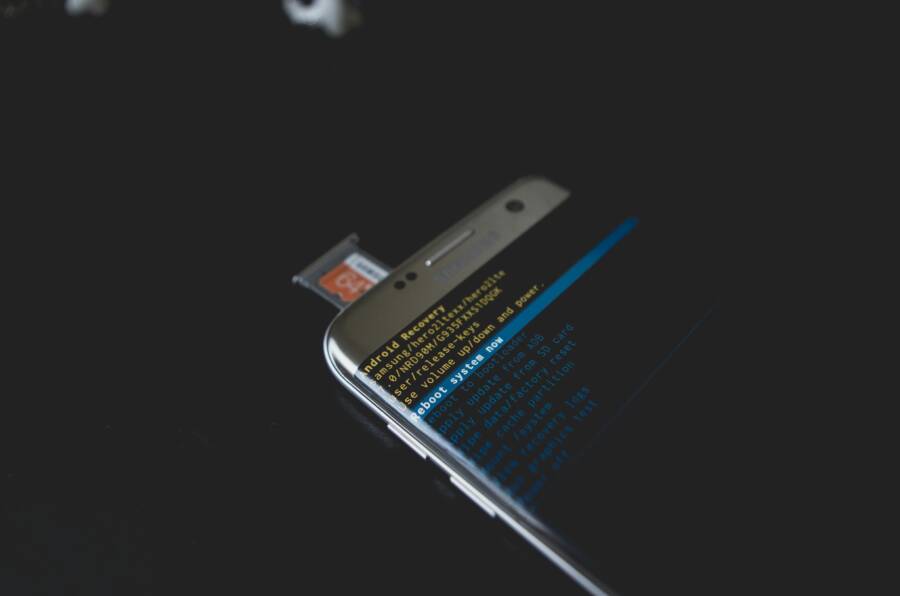
 Photo by Kelvin Valerio
Restart Your Phone
A full restart is the simplest, most effective first step. On Android, press and hold the power button until the power menu appears, then tap Restart. On iOS, quickly press and release volume up, then volume down, and hold the side button until the Apple logo shows. If your device is unresponsive, perform a hard restart by holding the power and volume down (or up) for about 15 seconds until it reboots. After the device comes back, test Text-to-Speech to see if the issue is resolved.
Restarting clears temporary glitches in the system and resets running processes that might block TTS. It also reinitializes the voice engine and its permissions. If you notice TTS works briefly then stops again, move to the next checks. A successful reboot often fixes the majority of minor TTS hiccups without extra steps.
Verify Your Internet Connection
Some TTS voices require an online component for download or use. Check that you have a stable connection, either via Wi‑Fi or cellular data. If you’re in a spot with weak reception, toggle airplane mode on for a few seconds, then switch it off to refresh the network. Try switching to a free, built‑in voice first to confirm the TTS system is functioning, then test a premium voice if needed. Remember that data plans vary; streaming voices can use data in the background.
A solid connection ensures the voice library can load when needed. If your TTS still doesn’t respond, test with a different app or a simple note you want read aloud. This helps determine whether the issue is app‑specific or system‑wide.
Free Up Phone Storage
Low storage can block TTS from loading voices or processing playback. Check storage in your device settings and aim to free at least 1 GB. Start by removing unused apps and clearing large, unused files like videos or downloads. You can move photos and videos to cloud storage or a computer, then delete local copies. After freeing space, restart or refresh the voice engine, and test TTS again. Adequate space reduces lag and prevents new glitches from appearing during playback.
Fix Text-to-Speech on Android Phones Step by Step
If your Android device isn’t reading text aloud correctly, you’re not alone. This section walks you through a practical, step-by-step approach to get TTS back in action. You’ll focus on selecting the right voice, keeping apps up to date, and confirming the fixes across common apps. The goal is a reliable, easy-to-maintain setup so you can keep listening without chasing glitches.
Adjust TTS Settings and Pick a Voice
Start by opening the settings and locating the text-to-speech options. Set the Preferred engine to Google Text-to-Speech Engine for the most consistent results. Tap the gear icon next to it to customize language and voice. If you don’t see any voices, choose Install voice data and download a suitable option. After selecting a voice, tap Play to test the reading aloud. If you hear the voice clearly, you’re in the clear. A quick restart helps apply the changes and can fix stubborn hiccups.
If you’re using a smartphone with several voice options, Google TTS is usually the most reliable choice for broad app compatibility. Some devices may show alternatives like Samsung TTS, but on newer Android versions those engines can behave oddly in third‑party apps. If you don’t hear anything during the test, recheck your permissions to ensure mic, storage, and audio access are allowed. These settings act like the gas pedal for TTS, making sure everything runs smoothly.
During this step, you’ll also confirm that the voice data is installed. If it isn’t, select Install voice data, pick a language you understand, and download it. This small file unlocks the reading capability for many apps. After installation, repeat the test. If you’re testing from a smartphone, a concise voice prompt confirms readiness.
Key tips:
- Use Google TTS as the default engine for wider app support.
- Install at least one high‑quality voice data package.
- Always run the built‑in test to verify the setup before moving on.
Clear Cache and Update Apps
TTS issues often stem from stale cache or outdated software. Start by locating the Text-to-Speech Engine or Google app in Settings > Apps. Clear the cache first; if problems persist, clear data and then re‑download voice data. Force stop the app, reopen it, and retest TTS playback.
Next, update relevant apps. Head to the Play Store and ensure the Google app, Google TTS, and any system update packages are current. A fresh install can fix lingering issues that cache cannot. After updating, restart your device to ensure all changes take effect.
Don’t forget to check permissions again after these updates. Grant microphone, storage, and appropriate audio access to the TTS components. If you’re troubleshooting on a smartphone used by multiple people, these steps can prevent cross‑user permission conflicts from causing gaps in speech performance.
If the issue remains, consider temporarily disabling any battery optimization rules for Google TTS or the Google app. This allows the engine to run more consistently in the background, avoiding abrupt pauses during reading tasks.
Why this helps: cache corruption and outdated components can block voice loading or cause lag, leading to silent or choppy playback. Clearing data and updating apps refreshes the entire pipeline and often restores normal behavior.
Test in Common Apps
Testing the TTS setup across familiar apps helps pinpoint where the problem lies. Try quick tests in the Google app or Google Assistant, in Messages, and through the Gboard voice typing feature. If you can get readable speech in these contexts, you know the core engine is functioning and the issue is likely app‑specific.
A simple way to verify is to select text in a chat or webpage and use the Speak option, or ask Google Assistant to read a message aloud. If one app works while another does not, focus your troubleshooting on that app’s permissions or its internal TTS integration. This step is about confirming consistency across scenarios so you can move with confidence.
Sample quick tests:
- Google app or Assistant: select text and choose Speak, or trigger a read‑aloud command.
- Messages: select text and use Speak, or share text to Assistant for a read aloud.
- Gboard voice typing: enable the mic, grant permission, and test speaking prompts to ensure voice input and output function together.
If you still hear nothing, verify that the device volume is not muted for media playback and that Bluetooth is not redirecting audio away from the phone. A quick unplug from headphones can also help determine where the issue sits.
App‑specific tips:
- Some apps have their own TTS settings; look for a dedicated Reading or Accessibility option inside the app.
- If an app recently updated and TTS stopped working, check the app’s permissions and reset its data if needed.
- On devices with multi‑user profiles, ensure the chosen voice and engine are configured for the active user.
Example test plan:
- Step 1: Open Google app, type a sentence, tap Speak.
- Step 2: In Messages, long‑press a text message and choose Speak.
- Step 3: In Gboard, enable Voice Typing and perform a quick read of suggested text.
- Step 4: If all three work, your TTS setup is solid; if one fails, investigate that app’s permissions and settings.
Common issues to watch for:
- Low media volume or muted notifications can disguise a working engine.
- Bluetooth audio routing may send speech to a headset or car system.
- Incompatible voice data due to language packs not installed or corrupted files.
If all else fails, you can reinstall the Google TTS package from the Play Store and reconfigure the voice data. In some cases a factory reset may be the last resort, but this is rarely needed.
A note for readers using a smartphone with older hardware: some devices may have limited voice options or slower processing. In that scenario sticking to Google TTS and keeping a lightweight voice pack helps maintain reliability.
Subtle but important takeaway: keeping TTS components current and properly configured reduces the chance of silent periods or garbled speech across apps. With these steps, you should regain consistent, natural voice output across your most-used tasks.
Suggested micro‑checklist before moving to the next section:
- Google TTS set as default engine
- Voice data installed and tested
- Cache cleared and apps updated
- Permissions granted for TTS components
- Tested across at least two common apps
In this guide you’ve covered practical ways to fix TTS on your Android phone. If you want to dial in further, we’ll look at more targeted settings and hardware considerations in the next section.
Resolve Text-to-Speech Problems on iPhones
If TTS isn’t reading aloud the way you expect on your iPhone, you’re not alone. Many issues boil down to a few settings or software quirks. This section focuses on making the Spoken Content feature reliable by turning it on, choosing the right voices, and fine tuning speed. You’ll learn practical steps you can apply in minutes, whether you’re using this on the go with a smartphone or at home. Let’s get your iPhone speaking clearly again.
Enable Spoken Content and Choose Voices
Turn on Speak Selection or Speak Screen and pick the voice that sounds natural to you. Start by opening Settings, then Accessibility, and tapping Spoken Content. Enable Speak Selection and/or Speak Screen. Next, choose a voice in Voices. You can select a dialect you’re comfortable with and try Enhanced Quality voices if you have enough storage. Download options may appear, letting you grab the best sounding options over WiFi.
Adjust the Speaking Rate to match your listening preference. A slower rate is easier to follow in long articles, while a faster rate tracks your reading pace. Test by selecting text in Notes or Safari and using Speak Selection or Speak Screen to confirm it feels right. If a voice sounds robotic, switch to another option or download a fresh voice pack. After settling on a voice, restart the iPhone to ensure all changes take effect. This step lays the groundwork for consistent, natural speech across apps.
Photo by Brett Jordan: Detailed view of the iPhone screen showing the settings app icon
Credit: Photo by https://www.pexels.com/@brettjordan
Update iOS and Reset Settings
Keeping iOS up to date helps TTS work smoothly. Go to Settings > General > Software Update to check for the latest version and install it if available. System updates often include bug fixes that address voice playback and accessibility quirks.
If problems persist, you can reset settings without deleting your data. Go to Settings > General > Transfer or Reset iPhone > Reset > Reset All Settings. This action returns network, display, and accessibility preferences to their defaults while keeping your photos and apps intact. You’ll need to reenter WiFi passwords and reconfigure some options, but it solves many stubborn glitches that block TTS. After the reset, recheck Spoken Content and the voice settings, then test in Notes or Safari. If issues remain, consider a full backup and restore as a last resort.
Keep in mind the cautions: you’ll lose saved network preferences and display arrangements, so you may want to record key settings before resetting. This approach often restores TTS reliability without wiping your data.
Test and Tweak Speaking Options
With the core features set, run quick tests to confirm the setup works across your daily tasks. In any app, highlight text and use Speak Selection, or swipe to trigger Speak Screen in supported apps. Watch for consistent playback and smooth highlighting as the text is read. If you notice delays or choppy speech, revisit the Speaking Rate and Voice options, then retest.
When testing, pay attention to how feedback integrates with typing and navigation. Typing Feedback can announce characters or words as you type, which helps catch mistakes. If audio shifts between devices or isn’t audible, verify that media volume is up and that Bluetooth is not routing the sound away from the iPhone. This section helps you confirm a reliable TTS workflow across the most common tasks on your smartphone.
Sample quick checks:
- Highlight text in Notes and use Speak Selection for a steady read.
- Open Safari and test Speak Screen on a long article.
- Type in a message and listen for typing feedback if enabled.
This final verification step ensures voices stay readable in real life moments, not just in theory. If you still hear issues, re‑test in one app at a time to isolate app specific quirks.
Advanced Fixes When Basic Steps Fail
If you’ve already checked speakers, restarted your device, and updated the essentials but TTS still won’t speak, it’s time to go deeper. This section covers advanced checks that target permissions, background activity, and deeper software glitches. The goal is to restore reliable voice output without a full device reset. Keep in mind that some fixes may require small, non-destructive changes you can undo later if needed.
Check Your Phone’s Speaker and Microphone
Before blaming the software, confirm the hardware is ready to read aloud. Test other audio apps or media to verify sound output is clean and audible. If you hear muffled or no audio, gently clean the speaker grilles with a soft brush or compressed air, being careful not to damage the openings. Run a quick microphone test by recording a short note in a voice memo app and playing it back to confirm mic function. If hardware seems fine, you can proceed to software-focused fixes. A successful hardware check rules out audio path issues and helps you focus on the engine and permissions that power TTS.
Reinstall TTS Apps or Reset Phone
If basic tweaks fail, reinstalling the voice components or performing a reset can clear stubborn glitches. Start by uninstalling the TTS-related apps, then reinstall them from the store. After reinstalling, test TTS again to see if playback improves. If the problem persists, consider a full device reset with backups in place. This step is more drastic but can resolve corrupted system files or conflicting settings that simple updates cannot fix. Weigh the pros and cons: resets restore a clean slate but require reconfiguring settings and reinstalling apps. For most users, a staged approach—reinstall first, then reset if needed—minimizes downtime while still delivering results. Always back up important data first, and document key preferences so you can restore them quickly.
Get Help from Support
Sometimes a stubborn TTS issue sits beyond user control. At this point, reaching out to official support can save time. Contact the device manufacturer’s support team or your service carrier, and share what you’ve tried so far. If you’ve encountered known issues, support channels may offer patches or workarounds tailored to your model. When you contact them, include your device model, OS version, recent app updates, and a summary of the steps you’ve taken. This information helps a technician diagnose quickly and reduces back-and-forth. If you prefer community input, check official forums for your device and mechanic tips that others have found effective.
Conclusion
If you want reliable text-to-speech on your phone, start with the basics and zone in on your operating system. A quick reboot, a stable storage level, and up-to-date apps clear away many simple glitches and set the stage for smooth playback. Keeping both the system and the TTS components current is the best guard against new bugs and compatibility issues.
On Android devices, confirm the default TTS engine, download a high quality voice, and verify permissions. Clear the cache, update the TTS apps, and test across a few common apps to confirm every path reads aloud. If you still notice gaps, disable battery optimization for the TTS services and check for app specific settings that might block speech output. On iPhones, enable Spoken Content with Speak Selection or Speak Screen, pick a clear voice, and adjust the speaking rate for comfort. A quick iOS update and a Settings reset can resolve stubborn quirks without losing data.
Treat TTS as part of daily accessibility; test it after every major app or OS update and after a storage cleanup. This keeps the workflow consistent across a few routine tasks in a busy smartphone routine. If you’ve found a fix that works, share it in the comments so others can benefit, and try these steps now to keep your voice reading your world clearly.