
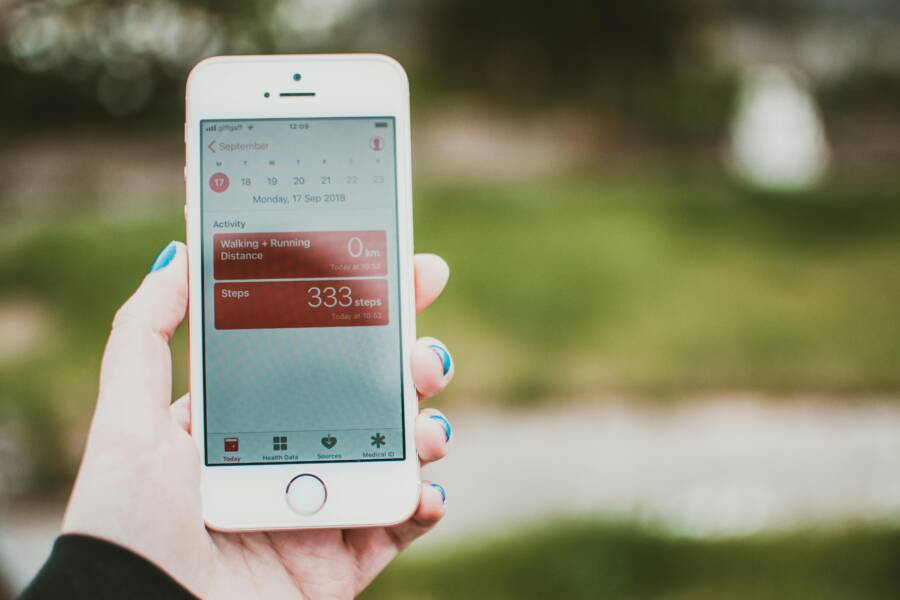
Tired of your phone showing you hit 10,000 steps when you clearly know you haven’t moved that much? Inaccurate step counts can throw off your fitness goals and make it hard to track progress week to week. This simple guide cuts through the confusion and shows you how to fix common errors on iPhone, Android, and popular apps like Google Fit, Apple Health, and Samsung Health.
First, you’ll want to understand why counts go off. Your phone relies on motion sensors, and those sensors can be fooled by everyday movement or carry locations. Pocket placement, bag or hand holding, and even driver workloads can all skew results. These fixes come from user reports and sensor facts, not hype, so you get reliable results you can trust.
Next, follow a practical, step by step checklist to improve accuracy. Start with a quick reset of the app and device, then review permissions so the health app can read motion data. Check where you carry your phone and try keeping it in a hip pocket for better readings. Finally, keep your phone updated and avoid using the device while walking if you want the most faithful counts.
If you’re testing multiple apps, apply these tweaks consistently across Google Fit, Apple Health, and Samsung Health. You’ll likely see a noticeable improvement in the next day or two, and you can confirm with a simple baseline walk test. The goal is straightforward: stable, realistic counts that match your actual activity.
These fixes are practical and straightforward, designed for busy people who want real numbers they can act on. A reliable step readout helps you stay motivated and on track with daily targets, workouts, and weight goals. Try these steps now and you’ll have clearer insight in under 30 minutes.
Why Your Phone Counts Steps Wrong
If you’re serious about tracking activity, you’ll want to understand how a tiny sensor can drift from real movement. Your phone’s step count is a best guess based on accelerometer and gyroscope data. Where you keep the device and how you move can push the numbers off by a lot. The following sections zero in on two common culprits and how to test and fix them. Carrying a phone properly and recognizing non walking movements that inflate counts will help you trust the numbers again.
Phone Position Makes the Biggest Difference
Where you keep your phone matters more than you might think. The hip level front pocket is the sweet spot because the body’s natural swing is most visible there. In that position the accelerometer and gyroscope catch the up and down motion and side-to-side sway clearly, yielding the most accurate results. Move the phone to a bag, a hand, or a back pocket and the readings become muddy. Fabric, bag bouncing, or arm movements can confuse the sensors and create extra steps or missed ones.
If you’re unsure where to start, test a few spots: front hip pocket, jacket pocket, hand-held, and a bag or backpack. Do a short, the-same-walk test in each spot and compare results against a known pace. For most people, the front hip pocket gives the most faithful counts. If you must use a different spot, recalibrate and keep consistent placement during workouts to reduce variance.
Fake Steps from Driving and Other Moves
Everyday activities outside walking can inflate counts. Bumpy rides in a car, a stroller, or a shopping cart can trigger the sensors to record steps as you roll along. The spikes can be dramatic, sometimes jumping by 500 or more steps in a short period. The issue isn’t unique to one brand or app; it happens across Google Fit, Apple Health, and Samsung Health when the phone experiences movement that resembles walking.
To minimize artificial counts, try to separate non walking movement from actual steps in your testing. If you must ride or push a stroller, pause step counting during those periods or mark them as non walking activity in your app. When you resume walking, reset the baseline by taking a short walk on a flat, even surface to reestablish an accurate baseline. Consistency matters more than chasing every single reported step.
Place Your Phone Right for True Counts
Getting reliable step counts starts with where you keep the phone. The right pocket spot can tame false rises and keep readings honest. Think of the phone as a tiny sensor map of your everyday motion. Small changes in placement can yield big differences in results. As you test, you’ll discover it becomes clear which spot fits your routine best. Use this section to guide practical testing and keep your counts trustworthy, whether you’re using an Android device or an iPhone.
Test and Pick the Best Pocket Spot
Step-by-step testing helps you see what actually works. You’ll compare counts across spots and verify distance with GPS apps to anchor the numbers.
- Choose four spots to test: back pocket, front hip pocket, jacket pocket, and in hand.
- Prepare a simple outdoor route and reset the step counter on your phone.
- Walk exactly 20 steps at a steady pace, then pause.
- Note the step count shown by the health app and the distance from a GPS app.
- Repeat the test in each spot, keeping the same pace and route.
- Compare results: the pocket closest to the hip usually yields the most faithful counts, while in-hand readings often overestimate steps.
- If you wear a jacket or bag, test with and without the strap to see how movement affects the readouts.
- For each spot, record the difference between counted steps and GPS-confirmed distance.
- Pick the spot that minimizes discrepancy and feels natural for daily wear.
- Re-test weekly to confirm stability as you change outfits or seasons.
- If counts drift, reset the baseline with a fresh 20-step walk on flat ground.
- When you switch activities, carry a quick note of any movement that isn’t walking to avoid false spikes.
- Use the same smartphone along the test to control for device variability.
- Validate once more with a longer walk to ensure consistency.
- Keep this baseline handy for future calibrations.
- Share your findings with friends who track fitness to compare experiences.
- If you notice extreme drift, consider a backup method like a wrist wearable for cross-checks.
- Document the best pocket spot in your daily routine note for easy reference.
- Maintain a consistent carry style to reduce variance over time.
- Celebrate a clearer, more reliable readout you can trust every day.
Tip: If you routinely carry your phone in a bag or in a non-hip location, a well-timed recalibration can help restore accuracy. For many users, a hip or jacket pocket is the sweet spot, keeping counts aligned with real activity. And remember, always test with a smartphone you use daily, since device differences can affect results.
Update Apps and Calibrate Sensors
Calibrating your tracking apps and tuning the sensors in your phone can dramatically improve step accuracy. Use the same quick routine across devices when you switch between iPhone and Android. A clean calibration helps your daily totals reflect real activity, not guesswork. Keep the process simple: update the apps, run a short calibration walk, and verify with a baseline test. You’ll notice more consistent counts for workouts, daily steps, and goal tracking.
Calibrate Google Fit on Android
To recalibrate, follow these exact steps and then test with a short outdoor walk. In Google Fit, open your profile, tap Settings, go to Tracking, and turn on Accurate tracking. Then perform a walk of about 20 steps outdoors with your smartphone in a natural resting position. If needed, disable auto-pause so the app captures the full motion. While calibrating, ensure location services are on and your profile height is up to date. After the walk, review the step count and repeat if the number still feels off. A brief test on a flat route helps verify improvements.
Calibrate Apple Health on iPhone
Start the calibration by checking permissions and data sources. In the Health app, go to Sources and select Motion & Fitness, then ensure it is on. With your iPhone near your body, perform a 20 minute walk using the Workout app and a steady pace. After the walk, inspect for duplicates in the Health data so you don’t double count. If you see extra entries, recalibrate and repeat. Keep the same carry position during your tests to ensure consistency across days. This quick, focused calibration helps align Apple Health with real motion captured by your smartphone.
Samsung Health Quick Calibration
Begin with More > Settings > Tracking and choose Calibration. Walk about 20 steps in an open area with high accuracy location enabled. This process helps Samsung Health tune how it reads your movement and reduces drift between walks. After the calibration, do a short test on a flat surface to confirm the counts match your pace. If you notice any discrepancy, repeat the steps with a consistent pocket position and ensure the app has all necessary permissions. This method provides a reliable baseline for daily activity tracking.
Cut Fake Steps and Fix Device Sync
When you rely on step counts to guide workouts or daily targets, false readings can derail your plan. This section covers practical fixes to stop fake steps during car rides and to keep devices syncing cleanly. You’ll learn simple tweaks you can apply today that don’t require special tools. Think of your phone as a sensitive detector that needs careful placement and proper permissions to give you trustworthy data. The goal is steadier, more realistic totals you can act on.
Stop Counts from Car Rides
Car rides often trigger phantom steps because the phone’s sensors pick up vibrations and motion that resemble walking. To minimize these ghost counts, adjust a few settings and keep a clear testing routine. Start by temporarily turning off motion tracking during long drives, then reenable it when you’re done. If you prefer continuity, set non walking activity reminders so the app knows you’re not moving on foot. Carry placement matters too; keep the phone in a stable, close position at the hip for the most faithful readings. After a ride, perform a short calibration walk on a flat surface to reestablish an accurate baseline. A quick reset after every long ride helps keep totals honest. In parallel, review app permissions to ensure only motion data from trusted sources is used.
Sync One Device at a Time
When you own multiple tracking devices like a phone and a smartwatch, syncing them correctly matters more than you think. Start by choosing one primary device for step counts, then pause or forget Bluetooth re-pair on the secondary device. This avoids duplicate readings that happen when two sensors try to tally the same movement. If you notice drift after a transition, recheck the connection and reestablish the bond once. Keep the same device as your daily baseline for a week to understand your routine with less variability. If you still see mismatches, temporarily disable automatic syncing during workouts and log steps manually for a short period. Consistency is the secret to clean data across platforms. Also, perform a quick comparison test across apps like Google Fit, Apple Health, and Samsung Health to confirm the primary device provides the most reliable baseline.
Last Fixes if Counts Still Off
If you’ve tried the previous steps and your counts still feel off, it’s time for a few final checks that jack up reliability without adding complexity. These fixes focus on baseline consistency, cross verification, and practical decisions that prevent drift from creeping back into your daily totals.
Reestablish a rock-solid baseline
A stable baseline makes every walk easier to read. If your counts wobble day to day, perform one quick recalibration walk on a flat surface after any major change (a new phone, different pocket, or a long car ride). Keep the route short, steady, and controlled so the app can lock onto true motion.
- Do a 20-step walk at a comfortable pace.
- Note the starting count and the distance from a GPS app.
- Reset and repeat in the same conditions, then compare results.
- Use the spot you chose as your daily carry for a week to confirm stability.
Why this works: a fresh baseline aligns the app’s interpretation of movement with your current routine. It’s simple, but it pays off over time.
Cross-check with a second method
If you rely on a single app for steps, you’re opening the door to unseen drift. Use a second source to validate trends. For example, compare a day of Apple Health steps with a quick outdoor walk logged in Google Fit or Samsung Health, even if you don’t regularly use the other app.
- Pick one day to log two short walks with different apps.
- Write down the totals and compare with your memory of activity.
- Look for consistent gaps or overlaps and adjust your carry position or timing accordingly.
Cross-checking helps you spot persistent biases, such as overcounting during certain movements or when the phone is held in a particular pocket.
Consider a wearable for cross‑verification
A trusted wrist wearable can serve as an objective reference when phone counts wobble. Use it to sanity-check spikes and to confirm days when you feel you moved more than the numbers show.
- Start with a simple baseline: wear the device during a normal day and during workouts.
- Compare its step totals to your phone’s counts at the same times.
- Use the wearable as a tiebreaker in case of discrepancies.
This approach isn’t about replacing your phone app, but about ensuring you’re not chasing phantom steps.
Reassess risk factors that cause drift
Some everyday habits quietly push counts off. Revisit a few common culprits and decide if they apply to you.
- Regularly riding in a car or stroller: pause counting during non walking periods.
- Carry style changes: if you switch from hip pocket to bag, expect more variance and recalibrate more often.
- Phone position during workouts: keep the device close to your body and avoid swinging in a held hand.
Understanding your patterns makes it easier to spot when numbers are trustworthy and when they aren’t.
When to swap apps or devices
If none of the above fixes hold, you may be chasing a fundamental mismatch between hardware and software. In that case, consider these decisive moves:
- Switch primary tracking to a different app or platform for a few weeks to see if totals align better with your routine.
- Test a different device or model to rule out sensor limitations.
- Use a dedicated fitness wearable as your main step tracker and keep the phone app for companion data and activity context.
These steps aren’t about giving up; they’re about finding the most reliable method for your day to day life.
Quick win checklist
- Recalibrate after major changes or drift.
- Perform a short baseline walk on flat ground.
- Cross-check with at least one other app or device.
- Keep a wearable as an optional reference.
- Maintain consistent carry habits to reduce variability.
Caption image
 Photo by Lisa from Pexels
Conclusion
You now have a practical, repeatable plan to fix step counting inaccuracies on your smartphone. The core fixes are simple: test and pick the best pocket position, calibrate the sensors when needed, keep apps and OS updated, and cut out fake steps from non walking movement. This approach gives you more reliable totals you can trust for daily goals and workouts.
A quick reminder to test today. Do a short baseline walk in a consistent pocket position, then compare against a GPS distance to see if the numbers line up. Keep testing across your main health apps to confirm the same trend. A small calibration walk after big changes or long rides makes a big difference.
If you find drift still exists after these steps, consider a wearable for cross verification or switching to a single primary tracking method for a while. The goal is stable, realistic steps that reflect true activity.
Share your experience in the comments and tell us which fix helped you most. Try these steps now and you’ll gain clearer insight into your activity, which can boost motivation and keep you on track with your fitness plan.

