Missing notification channels on Android phones can leave you in the dark when you need alerts the most. When apps stop pushing important updates, it’s easy to miss time‑sensitive messages, from security alerts to delivery updates. If you’ve noticed gaps in alerts, you’re not alone, and the problem is usually fixable with a few quick checks.
In this guide you’ll find a practical, step by step approach to resolve notification channels missing issues. We’ll cover the most common culprits, show fixes that work on most devices, and share device specific tips for Samsung and Pixel users. You’ll learn how to enable notification channels, adjust Do Not Disturb settings, ensure background data stays active, and verify app permissions so alerts come through reliably. The goal is to get your alerts back in real time without juggling settings for every app.
You’ll see how to identify where things go wrong, from battery optimizations to app permissions and DND conflicts. We’ll walk through easy checks you can perform in seconds, plus a few tweaks that often solve the problem on both standard Android and popular brands. A quick restart, a routine permission review, or a toggle in the background data setting can make a big difference. This is a practical, smartphone focused guide you can follow right away.
By the end, you’ll know how to fix Android notification gaps quickly and keep your apps communicating clearly. Expect clearer, timely alerts and fewer missed messages, with steps you can repeat whenever needed.
Why notification channels disappear and how Android channels work
When you first set up an app, Android creates notification channels to organize alerts by type. Each channel acts like a dedicated lane for a specific kind of notice, and you as the user can tailor that lane. If a channel is muted or turned off, that channel’s alerts won’t surface in your device’s notification shade, even if the app still wants to push them. This section explains what a notification channel is and how Android channels function in real life, so you can better diagnose missing alerts on your smartphone.
What is a notification channel?
A notification channel is a named pathway that groups similar alerts from an app. Think of a messaging app that splits its alerts into two channels: New Messages and Friend Requests. New Messages might play a sound and appear as a heads‑up, while Friend Requests could be silent or vibration only. Users can customize or mute each channel individually, so they control exactly which notifications they receive. If a channel is off, alerts for that channel won’t appear in the notification area, even if a new message comes in. This granular control helps you avoid a constant stream of alerts while still staying informed about what matters most. Smartphone users benefit from this setup because it lets them prioritize important events without noise.
How Android manages channels and why they may vanish after updates
Android groups alerts by channel and lets apps define those channels with specific behaviors. Each channel has a name, a description, and an importance level that determines how notifications behave on the device. Once created, apps cannot completely override user preferences for that channel; the user controls sound, vibration, and visibility from the system settings. However, updates can change how channels appear or behave. App updates may add new channels or alter existing ones, while system updates can reorganize channels to align with new privacy or battery rules. Sometimes a channel seems to disappear because it was disabled during an update or because a bug resets its state. In both cases, checking both the app’s notification settings and the system notification settings is essential. A quick fix often involves re-enabling the channel in the app’s settings or allowing the OS to recreate channels on launch. User reports show this happens across devices, not just one brand, so a two‑step check is usually enough: inspect the app’s notifications, then verify Android’s global notification permissions.
Common culprits that hide notification channels
When notifications go silent or miss a beat, the problem isn’t always the app. In many cases, Android’s own behaviors, power features, and device tweaks block or mute channels without you realizing it. Below you’ll find the most common culprits and clear steps to verify and fix them. These checks are quick and work across most Android phones, including popular brands. Start with the simplest item and move down the list until alerts return to normal.
Do Not Disturb and Airplane mode
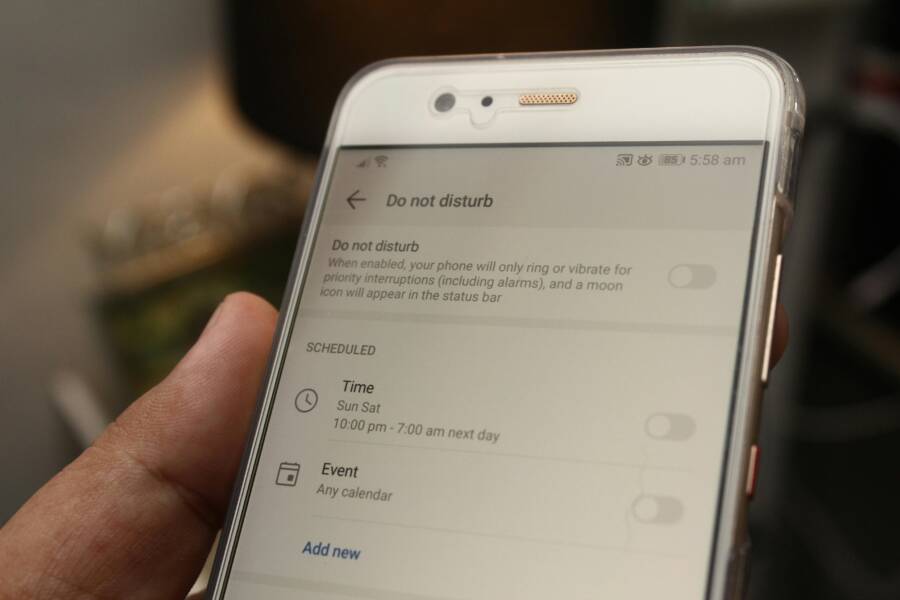
Do Not Disturb (DND) stops sounds and vibrations but can still let essential alerts through if you enable exceptions. Check if the app is white-listed so its notifications bypass DND, or disable DND briefly to test. Quick steps: open Settings > Sound & vibration > Do Not Disturb, and review allowed contacts and apps. If you need a fast test, toggle DND off for a moment and trigger a notification. Airplane mode disables all wireless connections, so alerts cannot arrive. Confirm connectivity is active and that you’re not in airplane mode when you expect updates.
Battery saver and background restrictions
Power saving modes can curb how often apps fetch updates, delaying or silencing notifications. Look for Battery Saver or Adaptive Battery features and ensure the target app is allowed to run in the background. Quick actions: Settings > Battery > Battery Saver (or similar) > turn off for the app, or set the app to “unrestricted” background activity. If your device uses strict background limits, add the app to the unrestricted list. After adjusting, perform a test by sending a notification or waiting for a routine update to arrive.
App permissions and data usage
Missing permissions or data limits can mute channels. Start with notification permissions: Settings > Apps > [Your App] > Notifications, ensure they’re allowed. Then check storage permissions and data usage: Settings > Apps > [Your App] > Data usage, and verify background data is allowed. Some devices also gate background data behind battery or data saver settings, so make sure the app can use data in the background. Revisit the app’s permission prompts when you reinstall or update.
Cached data and app state
A stale cache or a frozen app state can disrupt how channels deliver alerts. Clearing an app’s cache forces the system to fetch fresh data, which can restore normal notification behavior. Steps: Settings > Apps > [Your App] > Storage > Clear Cache. If issues persist, try Clear Data (note this resets the app to factory defaults). After clearing, reopen the app and let it rebuild its state. A clean start often fixes misrouted or delayed notifications.
System updates and OEM tweaks
System updates or manufacturer tweaks can change where settings live or how channels behave. Look for OEM specific terms like “App notifications,” “Special app access,” or “Adaptive battery.” On Samsung devices you might find these under Modes and Routines or Digital Wellbeing, while Pixel devices may route these through Focus modes. If you don’t see the expected options, search the Settings app for notification, battery, or app access and adjust accordingly. After updating, recheck the app’s notification channels and test a message.
How to fix missing channels step by step
If you’re missing notification channels on Android, a careful, step by step approach can bring alerts back. These steps cover the most common causes, from Do Not Disturb settings to app level permissions. Follow the sequence, test after each step by sending a new message, and you should see channels reappear. A quick restart can help when changes don’t take effect immediately. This section uses practical paths you can follow on stock Android and popular OEM skins.
Step 1: Check Do Not Disturb and airplane mode
Do Not Disturb can mute alerts even if an app is ready to send them. Verify DND is off or that the app has an exception. On stock Android we usually go Settings > Modes > Do Not Disturb and check allowed apps. On Samsung, look under Settings > Modes and Routines > Do Not Disturb, then App exceptions. Pixel users often find DND under Settings > Sound & vibration > Do Not Disturb with People & apps exceptions. A quick test: turn DND off for a moment and send a new message to confirm alerts arrive. If you’re traveling or in a place with limited connectivity, ensure airplane mode isn’t blocking updates. This is where a quick smartphone check can save time.  Photo by Daniel Moises Magulado
Step 2: Inspect the app level notification settings
Per‑app toggles decide whether the app can show alerts at all. On stock Android, go Settings > Apps > [Your App] > Notifications and confirm main alerts are enabled. Samsung users should navigate Settings > Apps > [Your App] > Notifications, then ensure all channels are on. Pixel devices typically use Settings > Apps & notifications > [Your App] > Notifications. After enabling, open the app and trigger a test notification to verify channels appear. A smartphone test helps confirm the configuration is correct.
Step 3: Re‑enable channels from App info
If channels disappeared after an update, re‑enabling them from the App info screen often fixes the gap. Long‑press the app icon, select App info, then Notifications, and toggle on the individual channels you expect to see. Muted channels will show a crossed or dimmed indicator. Recheck the channel names you rely on, then send a new message to confirm that the desired alerts surface. This quick check helps restore missing lanes without reconfiguring everything.
Step 4: Allow background data and battery usage
Background data and battery restrictions can mute channel delivery. Set the app to unrestricted data and unrestricted battery usage when possible. On stock Android, go Settings > Apps > [Your App] > Data usage and enable Background data; if available, set Data saver to allow this app. For battery, Settings > Battery > Battery optimization > All apps and choose Unrestricted for the app. Samsung devices use Settings > Apps > [Your App] > Battery > Unrestricted, while Pixel follows similar paths under Settings > Battery. After these changes, test by sending a real notification.
Step 5: Restart device and clear cache
A restart helps apply changes that didn’t take effect. After reboot, clear the app cache to remove any stale data that might block channels. On stock Android and Pixel/Samsung devices, go to Settings > Apps > [Your App] > Storage > Clear Cache. Avoid Clear Data unless you’re prepared to reset the app state. Reopen the app and trigger a new alert to confirm channels are functioning again.
Step 6: Reset app preferences
Resetting app preferences restores default permissions and notification behaviors without removing your app data. On most Androids, Settings > Apps > Menu (three dots) > Reset app preferences is the path. This action re-enables disabled notifications, resets default apps, and re‑establishes permission prompts. Your photos, messages, and saved data stay intact. After resetting, reopen the app and send a test notification to see if channels appear correctly.
Step 7: Update the app and test notifications
Software updates can restore missing channels by recreating or adjusting notification channels. Update the app from the Play Store, then open it once to trigger channel creation. After updating, send a real alert from the app and confirm the expected channel behavior. If issues persist, re‑test with a quick reinstallation or re‑login, and watch for new channel prompts during app startup. Consistent testing helps catch edge cases early.
Brand and device specific matters
Not all Android devices present the same path to per‑app notification channels. Brand skins, OEM tweaks, and even small firmware updates can relocate or rename the same controls. In this section you’ll learn where to look on three common setups and how to test alerts after changes. The goal is to give you quick, reliable routes so you can restore targeted notifications without hunting through menus for hours. Think of it like tracing a single lane in a busy traffic map, then reactivating it so traffic flows again.
Samsung Galaxy with One UI notification path quirks
Samsung’s One UI adds extra layers to the usual Android flow. Start by opening Settings > Notifications > App notifications and pick your app. Inside, you may see Notification categories or additional submenus like Advanced settings. If present, enable the relevant categories (for example, Promotions or Security) and adjust how each channel behaves. Some devices also offer a pop‑up style and lock screen content options. To test, long‑press a recent alert and select Settings to jump to that app’s exact channel, or use Notification history to review past alerts and recheck the channel list. If you don’t see the expected options, search the Settings app for “notification” and follow the results to the app’s page.
Google Pixel and stock Android nuances
On Pixel and stock Android devices, the standard path is straightforward. Go to Settings > Apps & notifications > [Your App] > Notifications. Look for per‑channel toggles or a list of Notification categories such as Alerts, Offers, or Updates. Turn on the channels you need and test by triggering a new alert. Pixel also exposes Special app access under Settings > Apps > Special app access > Notification access, where you can grant or revoke full control for apps. This area is usually simpler than OEM skins, so you can quickly confirm that the app is allowed to post and that the channels themselves are enabled.
Other brands and how to find the right path
For brands beyond Samsung and Pixel, the approach is similar but labels differ. A reliable starting point is Settings > Notifications > App notifications or Settings > Apps > [App] > Notifications. From there you can locate per‑app channels or categories. On OnePlus devices you’ll often see direct access to categories, with channels tweakable from the app’s notification page. Huawei’s HarmonyOS and Xiaomi’s HyperOS also expose per‑app categories under their notification menus, though navigation may vary by model. If you’re unsure, use the Settings search to type “notifications” and follow the results to the app’s notification page.
Conclusion
Fixing missing notification channels is a step by step process you can tackle in minutes. The goal is clear: reliable alerts from the apps you trust, without constant checking or guesswork.
Start by testing after each fix. Turn off Do Not Disturb or adjust app exceptions, then verify per app and per channel settings. If alerts still vanish, enable background data and lift battery restrictions for the problem app, then retest. A quick restart and clearing the app cache often reestablishes the correct channels. If needed, reset app preferences to restore default permission behavior and reenable the channels you rely on. Finally, updating the app or reinstalling it can recreate missing channels and push fresh configurations.
Keep this guide handy as a bookmarked reference. It helps you move through common culprits quickly and keeps you from chasing transient problems between device brands. A consistent retest cadence ensures you catch changes caused by updates or OEM tweaks before they disrupt your workflow.
If you have your own tips or a quick trick that fixed notifications for you, share it in the comments. Your experience might save someone else a few minutes. And if you found this guide helpful, consider passing it along to friends who rely on timely alerts on their smartphone.