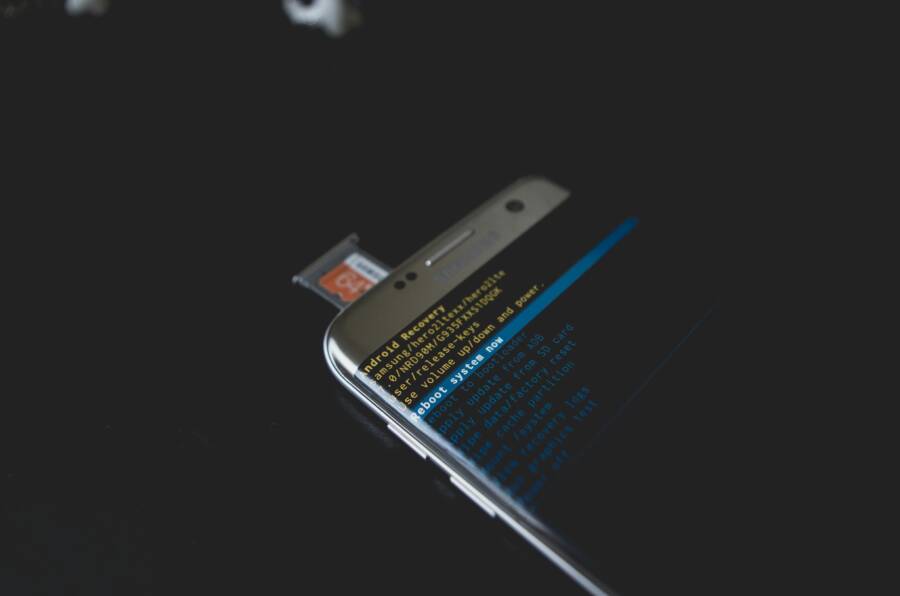
Ever felt the sting of a favorite feature vanishing right after a phone update. It happens more often than you’d think, as glitches pop up and settings rearrange themselves. Updates can introduce small hiccups that make features seem missing, even when they’re just relocated or renamed. This guide cuts through the confusion with practical, step by step fixes you can try today, whether you use an Android or an iPhone.
First, you’ll get a clear quick plan. You’ll learn how to identify what changed, what to restart, and when to reset apps or the device. Most fixes are simple and don’t require tech support. And yes, these tips come from real user reports and hands on testing, so they’re proven to help in many common situations.
We’ll cover the most common trouble spots after recent updates. If a feature like Bluetooth controls, widgets, or a battery indicator seems to disappear, you’ll have targeted steps to bring it back. The approach is practical and non technical, designed to get you back to a smoother smartphone experience fast.
Here’s what you’ll find inside this guide
- Quick checks that often recover missing features without a full reset
- App specific tweaks that fix settings and cache issues
- When to update or reinstall to restore functionality safely
- How to spot a bigger issue and what to do next
Keep this in mind: start with the simplest fix and move up only as needed. By following these steps, you’ll minimize downtime and keep your device feeling familiar again.
Spot the Common Culprits Behind Disappeared Features
When a feature vanishes after an update, it’s easy to assume it’s a glitch or a lost cause. In reality, several typical culprits often explain what you’re seeing. Understanding these causes helps you pinpoint the right fix quickly. Think of it like a quick triage for your smartphone: identify the symptom, locate the culprit, then apply an exact remedy.
- Bug in the update
- Example: A recent Android patch unintentionally hides a Bluetooth control option in the Quick Settings menu for some devices. The feature exists in the code, but the UI path that shows it is broken for certain builds.
- What to watch for: Reproducible issues right after an update, fewer reports from users on older security patches, and a pattern where the same feature reappears after a later fix. This is usually resolved with a follow-up patch from the vendor or a small configuration reset.
- Redesigned settings or UI changes
- Example: iOS 16 redesigned where certain widgets moved to a new location. A user searches for “battery indicator” and cannot find it in the expected spot because the control has been relocated to a different menu.
- What to watch for: The feature isn’t gone, just relocated or renamed. A quick tour of Settings and the new control center or widget gallery often reveals the updated path. You may find hints in release notes or in a quick onboarding guide after the update.
- Third-party app interference
- Example: A launcher or keyboard app changes how system shortcuts work. If a feature relies on that third-party app, disabling or updating it can restore the lost capability.
- What to watch for: The issue appears across multiple apps that depend on the same platform service. In some cases, you’ll need to grant new permissions or switch back to stock utilities temporarily to confirm the root cause.
- Outdated companion apps
- Example: Google Play services or Samsung SmartThings on Android lag behind after a system update. Without the latest companion app version, certain features won’t activate or appear in menus.
- What to watch for: Updates to core services unlock features that the OS alone cannot enable. If a feature seems missing, check for updates to essential services and reboot after installation to apply changes.
- Extra context for quicker diagnosis
- If you notice a feature only on Wi‑Fi networks or only when connected to a specific device, it’s often a sign of server side flags or regional rollouts. In these cases, the feature should show up for your device in a day or two as the rollout reaches more users.
- Hardware- or model-specific limitations can mimic missing features. Some upgrades unlock functionality only on newer chipsets or camera systems, leaving older devices to wait for broader hardware support.
In practice, you’ll often start with the simplest explanation. If the feature still feels missing after trying basic checks, move up to app updates, then to a quick refresh of critical services, and finally consider a more targeted reset. The goal is to rule out the easy fixes first so you don’t waste time chasing phantom problems.
- Quick tip: if you’re unsure which category your issue falls into, map your symptoms to the four main culprits above. A quick inventory of recent app and system updates, along with a glance at Settings, usually points you to the right path.
- Quick checklist to keep handy
- Have you installed the latest OS update and any available patches?
- Are essential companion apps up to date (your core services, launcher, keyboard, or device-specific utilities)?
- Have you checked for redesigned menus or renamed controls in the new layout?
- Could a third-party app be interfering with the feature, and would a temporary disablement confirm it?
By recognizing these patterns, you can act with confidence. The next steps will guide you through practical fixes tailored to Android and iOS, so you can restore the features you rely on without a lot of fuss. Whether you’re a long-time iPhone user or a die-hard Android fan, the same principles apply. Your device is not broken—it’s just showing you where to look. And with a little method, you’ll have your missing features back in no time.
Start with These Quick Fixes for Any Phone
When features go missing after a update, a calm, methodical approach beats panic. These quick fixes work whether you use Android or iOS, and they’re designed to get your phone back to normal fast. Think of it as a quick triage for your smartphone: simple steps first, then deeper checks if needed. You’ll often recover the missing functionality without needing a full reset or a call to support.
 Photo by Kelvin Valerio
Restart and Clear Cache to Refresh Your Phone
A fresh start can clear the most stubborn gremlins. Start with a simple reboot and then tackle cache data for the apps that drive the missing feature.
- For Android:
- Power off the device, then turn it back on.
- Go to Settings > Apps and select a key app that might be involved (for example, the launcher, Bluetooth services, or a system UI app).
- Tap Storage > Clear cache. This won’t delete your data, just the temporary files that can trap updates in place.
- For iOS:
- Restart the iPhone by turning it off and on again.
- If a specific feature relies on an app, try offloading unused apps to reclaim space without removing data. Go to Settings > General > iPhone Storage and enable Offload Unused Apps.
- Quick wins to look for:
- A newly relocated control in Settings that was previously in a familiar spot.
- A sluggish UI surface or a launcher that feels unresponsive after a reboot.
Why this helps: updates often stash temporary data that conflicts with new layouts or permissions. A clean slate gives the system a fresh read of the feature’s wiring.
Tip: if you’re unsure where to start, reboot first, then target the app or service most tied to the missing feature. A quick cache reset of the core services often restores visibility without a deeper reset.
Boot in Safe Mode to Check for App Problems
Safe Mode isolates issues by loading only the essential system software. It’s a simple way to tell if a missing feature is caused by an app you installed or by the OS itself.
- Android Safe Mode basics:
- Press and hold the Power button to begin a restart.
- When the device powers back on, press and hold the Volume Down button until the home screen appears with “Safe Mode” in the corner.
- In Safe Mode, use the feature to see if it returns to normal. If it does, an app you installed is likely the culprit.
- iOS approach:
- iPhones don’t have a traditional Safe Mode. Use an equivalent check by temporarily turning on Airplane Mode to disable networked features, then test the missing feature. If it reappears, the issue may be tied to network services or a background process.
- What this reveals:
- If the feature works in Safe Mode, start by disabling recently installed apps one by one or removing them to identify the offender.
- If it still doesn’t show, the problem may be with the OS or a core service that requires a standard reboot or update patch.
Why this matters: Safe Mode flags whether your problem is tied to third-party software or the system itself. It saves time by directing you away from broad resets toward precise app-level fixes.
Transitioning through these quick checks first helps you avoid unnecessary resets and keeps your daily routine intact. If you still see the feature missing after these steps, you’re ready to move on to targeted app updates and service refreshes. Your goal is to restore function with minimal disruption to how you use your phone every day. And yes, you’ll get there without rushing into a full device reset.
Android Fixes for Missing Bluetooth, Widgets, and More
After a system update, it’s common to see features drift or disappear. The good news is that many issues are easy to fix with a few targeted steps. This section covers practical, user-friendly tweaks you can apply on Android devices to restore Bluetooth controls, bring back widgets, and regain access to important notifications. Think of it as a quick, reliable playbook you can run any time a feature goes missing on your smartphone.
Restore Bluetooth Controls on Pixel and Samsung Phones
Bluetooth controls can vanish after an update, but you can revive them with a careful re-pair and a quick settings reset. Start by re-pairing devices and then implement a focused button workaround if needed.
- Detailed re-pairing:
- Open Settings > Bluetooth.
- Tap the gear icon, then choose Forget.
- Put your Bluetooth device back in pairing mode and re-pair it.
- If you don’t see the device, toggle Bluetooth off, wait a moment, then turn it back on and retry.
- Quick path if the control is hidden:
- Use the volume button workflow to manage Bluetooth audio. Some devices allow volume controls to switch audio routes even when the on-screen toggle isn’t visible.
- If you still don’t see the toggle, use Quick Settings to confirm Bluetooth is active. Swipe down twice and look for the Bluetooth tile; tapping it should engage or disconnect without opening the full settings app.
- If problems persist:
- Clear storage or cache for the Bluetooth system app via Settings > Apps > Bluetooth > Storage (clear storage if available, otherwise clear cache).
- Restart the phone and re-pair.
Why this works: updates can relocate or temporarily hide the Bluetooth controls in the UI. A clean re-pair along with a reset of related services re-establishes the original wiring between the system and your devices. For Pixel and Samsung users, this approach solves the vast majority of post-update Bluetooth quirks. If you’re still stuck, check for a firmware update for the headset or car’s infotainment system, then try again.
Bring Back Widgets and Lock Screen Shortcuts
Widgets and lock screen shortcuts are often moved or renamed after an update. The fix is straightforward: refresh the widget layout, then re-enable or reconfigure widgets from scratch.
- Steps to restore widgets:
- Long-press the home screen and select Widgets.
- If your widgets aren’t showing, reset preferences by going to Settings > General management > Reset app prefs. This re-enables default widgets and shortcuts without removing your data.
- Rebuild your lock screen shortcuts:
- Access Settings related to lock screen or home screen customization, and re-add the widgets or shortcuts you use most frequently.
- If a specific widget still doesn’t appear, check for a widget app update or reinstall the widget’s supporting app.
- Quick checks:
- Confirm you’re using the expected home screen launcher. Some updates reset the launcher to a stock variant, which can hide your custom shortcuts.
- Review permissions for the launcher and widget apps to ensure they can draw over other apps and access necessary data.
Why this helps: after updates, the grid and access points for widgets can shift. A fresh setup aligns your preferred tools with the new interface, restoring both convenience and usability on your smartphone.
Fix Notification Access After Update
Notifications are essential for staying on top of what matters. If a recent Android update disrupted notification access, a simple path through the settings can restore visibility and control.
- Path to restore:
- Open Settings > Notifications.
- Check Notification history if available, and review per-app toggles to ensure each app is allowed to show alerts.
- If a particular app’s notifications are missing, enter the app’s settings within the Notifications menu and re-enable alert permissions.
- Additional tips:
- Some OEM skins place notification controls in slightly different spots. If you don’t see what you expect, use the search bar in Settings and type “notifications” to surface the right options.
- Reboot the device after making changes to ensure the new settings take effect.
Why this matters: updates can change how notifications are delivered or filtered. Verifying per-app permissions and history ensures you’ll see alerts when you expect them, keeping your workflow on track on your smartphone.
By following these targeted steps, you can recover missing Bluetooth controls, restore widgets and lock screen shortcuts, and regain reliable notification access. If you still encounter issues after executing the fixes above, consider checking for a newer patch from the device maker or testing with a fresh user profile to rule out account-specific settings.
iOS Solutions for Features That Seem Gone
Updates can move or rename controls, making it feel like a feature vanished. On the iPhone, a quick map back to the right settings often brings back the functionality you rely on. This section focuses on two areas where users often notice disappearances after an update: file access through the Files app and the way notifications are aggregated with a Summary. You’ll find practical steps you can take today to reclaim visibility and control.
Improve File Access and Notifications on iPhone
If a feature seems missing after an iPhone update, the Files app and notification settings are a good place to start. The Files app acts as a central hub for documents, downloads, and cloud-stored files, while a well-configured Notification Summary keeps you on top of important alerts without noise. Here’s how to reclaim both.
- Files app tips for better access
- Use the Browse tab to see all your storage locations at a glance, including iCloud Drive and “On My iPhone.” This helps you locate files that may have moved after an update.
- Quick organization matters: create folders like “Work,” “Receipts,” or “Media” and tag files with descriptive names. Regularly moving items into the Files app prevents a cluttered Photos or Mail view from hiding important documents.
- Leverage Recents and Shared views to quickly reopen files you’ve touched recently or items others have shared with you. This reduces the time spent hunting through folders.
- Take advantage of sorting and viewing options. Switch between icon view and list view and sort by name, date, size, or tags to surface what you need faster.
- Use iCloud Drive selectively: keeping frequently used folders in iCloud Drive makes them accessible from other devices while preserving local storage space on your iPhone.
- Notification Summary toggle and setup
- The Notification Summary groups less urgent alerts into a scheduled digest. This helps you focus on priorities without missing messages.
- To enable it, go to Settings > Notifications > Notification Summary. Turn on the feature and choose a delivery schedule that fits your day.
- Pick which apps participate. Start with essential apps and gradually include others. If a nonessential app is noisy, remove it from the Summary to keep the digest clean.
- Fine-tune timing and priority. Set a stable window for the summary so important alerts aren’t delayed. For urgent communications, ensure those apps can still push direct alerts outside the Summary.
- Test and adjust. After enabling the Summary, monitor for a day and adjust which apps are included and the delivery times to strike the right balance between awareness and interruption.
Why this matters: the Files app keeps your document workflow intact, even when an OS update reshuffles menus. A well-tuned Notification Summary reduces disruption while ensuring you don’t miss critical messages. Together, they restore a familiar rhythm to daily tasks on your iPhone without chasing phantom glitches.
Practical example: imagine you rely on scanned receipts and work documents. By filing them in a dedicated folder in Files, you can quickly find everything later, even if an update has swapped the location of some menus. At the same time, you set a Notification Summary that surfaces reminders in the late afternoon, so you stay on top of tasks without constant pinging.
Tips for a smoother setup
- Keep the Files app structure simple. A clear folder layout makes it easy to locate documents after updates.
- Regularly review notifications. A quarterly check helps you adapt to any interface changes and keeps the Summary useful rather than overwhelming.
- If a feature still feels off after a couple of tweaks, restart the iPhone and re-check the relevant settings. A fresh read of the interface can reveal small changes you missed the first time.
By aligning File access with a clean notification strategy, you reduce friction after updates and stay productive. If you run into any specifics that don’t match these steps, look for related path changes in Settings or release notes from Apple. Small adjustments often restore the exact behavior you relied on before the update.
Advanced Steps and How to Avoid Issues Next Time
Updates can feel like a reset switch for your phone. The right preparation can prevent missing features from turning into days of frustration. This section focuses on advance steps you can take to protect your data and minimize headaches after future updates. You’ll learn how to back up effectively, verify restores, and set up safeguards so you’re ready for whatever comes next.
 Photo by Castorly Stock
When to Reset and How to Backup First
Before you perform a reset or major update, guard your data with reliable backups. A good backup acts like a safety net, allowing you to restore apps, settings, and files with minimal fuss. Follow these proven steps to back up on Android and iOS, then you can reset or update with confidence.
- Google backup steps for Android
- Open the Settings app and go to System > Backup (or search for “Backup” in Settings).
- Enable “Backup by Google One” and make sure Wi-Fi is on and the device is charging.
- Tap “Back up now” and wait for the process to finish. This saves app data, contacts, photos, messages, and device settings to your Google account.
- After the backup completes, you’ll have a restore point during initial setup on a new or reset device.
- Pro tip: regularly run a backup and review what’s included in the backup details under Settings > Google > Backup Details.
- iCloud backup steps for iOS
- Connect the iPhone to Wi-Fi and plug it into power.
- Go to Settings > [Your name] > iCloud > iCloud Backup.
- Turn on iCloud Backup and tap “Back Up Now.” Stay connected to Wi-Fi until the backup completes.
- Verify the backup completed by checking the timestamp under the same screen.
- Pro tip: enable iCloud Drive for document syncing and ensure essential apps have the data they need backed up.
- General backup tips to avoid future hiccups
- Schedule regular backups. Automate the process so you don’t rely on memory.
- Include app data and important files. Some apps store data locally; ensure it’s synced or backed up.
- Keep firmware and essential services up to date. This reduces compatibility issues after a reset.
- Test the restore process on a secondary device when possible. A quick trial helps you spot gaps before you need them.
- What to do if you’re unsure whether data is included
- Review the backup details in your account. Look for app data, messages, photos, and device settings.
- If certain data isn’t included, use the app’s own cloud sync or export features as an extra safety net.
Why backup discipline matters: a well-structured restore can save hours of setup work and keep you in control after an update. The goal is to make the next reset a smooth step, not a chaotic scramble.
- Quick checklist to keep handy
- Latest OS and essential service updates installed.
- Core apps and launcher utilities updated.
- Settings reviewed for renamed controls or relocated menus.
- A backup test run completed within the last month.
- A brief post-restore check to confirm major features work as expected.
Following these practices reduces downtime and helps you stay productive. If an update does create changes, you’ll have clear, verified paths to bring back your preferred setup without hunting for features you rely on every day. This approach also makes it easier to compare Android and iOS behavior side by side, so you know what to expect next time you update.
Conclusion
If a feature goes missing after a phone update, start with the simplest steps and move methodically to more involved checks. Reboot, clear app caches, and verify that core services are up to date. A quick Safe Mode test helps you decide if the issue comes from an app or the OS.
Next, focus on targeted fixes for your device. Re-pair Bluetooth devices, refresh widgets and lock screen shortcuts, and review per app notification settings. On iOS, recheck the Files app paths and Notification Summary setups. On Android, confirm launcher behavior and core system services are current. Often, visibility returns after a clean reboot and a quick settings audit.
If problems persist, back up your data and consider a controlled reset or a fresh profile test. A solid backup routine makes the next update less painful. Share your experience in the comments so others can learn from your steps, and tell us which fixes worked for you. If this helped, pass it along to friends. For more practical guidance, check out our posts on the best backup apps and how to verify your restore after updates.