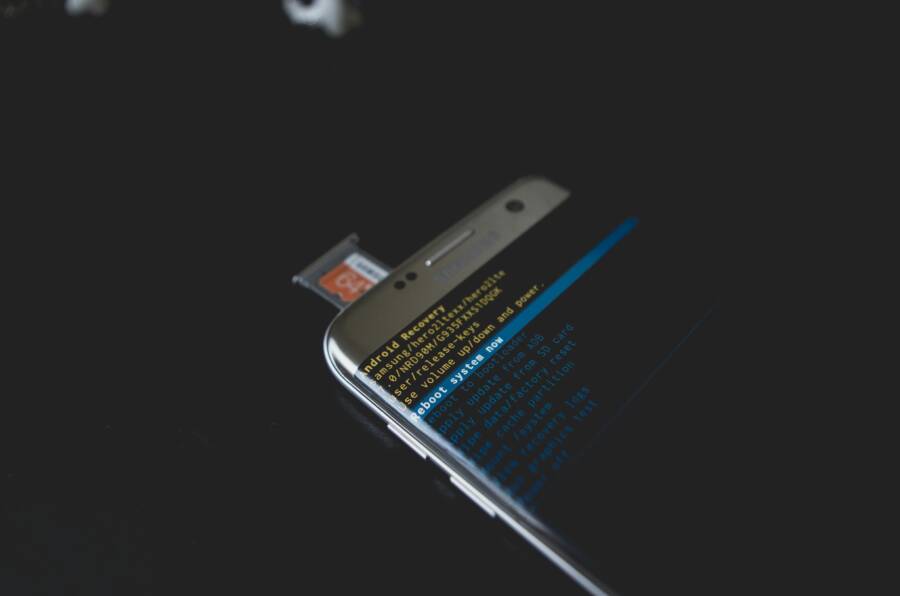
A failed restore can feel like a data cliffhanger. You reset your phone or upgraded your device, and now your photos, apps, and settings can’t come back the way you expect. If you’ve been staring at a blank screen while your backup sits in the cloud, you’re not alone. A lot of people run into this at least once, and there are clear, practical steps that can help you recover quickly.
In this guide we’ll cover the most common culprits behind a phone that cannot restore from backup. You’ll learn how simple checks can reveal if the issue is a weak connection, insufficient storage, or a mismatched software version. We’ll walk through quick fixes for both iPhone and Android users, with options that work for iCloud and Google backups. By knowing what to test first, you can save time and avoid repeating the same mistakes.
If you’re worried about losing data, this post gives you a clear path to resolve the problem without waiting for a tech visit. You’ll find actionable steps you can try today to get back up and running. The goal is to restore your essential content fast, so your smartphone feels like your own again rather than a blank slate. We’ll show you how to confirm the restore, what to do when it stalls, and when to start fresh with a new backup plan.
By the end, you’ll have a practical checklist to troubleshoot a phone that cannot restore from backup and fix backup restore failed scenarios on both iOS and Android. Whether you rely on iCloud or Google Drive, these steps are designed to get your data restored safely and efficiently. And if you need more help, you’ll know exactly where to look next for deeper guidance.
Common Reasons Your Phone Fails to Restore from Backup
When a restore stalls or fails, it usually isn’t a mystery. Most issues come down to storage, connectivity, or power. Understanding the most common culprits helps you fix the problem quickly and get back to a familiar home screen. Below you’ll find two focused subsections that address the two areas most likely to trip you up: storage shortages and connection or power problems. Use these as a practical checklist you can apply to both iPhone and Android restores.
Storage Shortages on Cloud or Device
One of the top reasons a restore stops short is not enough space. If your iCloud or Google One storage is full, the restore can fail because there isn’t enough room to pull in all the data. Start by checking how much space you have left in the cloud and on the device, then clear out anything you don’t truly need.
- iCloud storage on iPhone: Open Settings > [Your Name] > iCloud > Manage Storage to see how much space is used and what’s taking up most of the room. If backups or app data are hogging space, you can delete old backups or large app data you no longer need.
- Google One storage on Android: Open Google One to review your cloud storage usage. If backups are consuming a lot of space, consider removing outdated backups or large files that aren’t essential.
Freeing space can be done in a few targeted ways:
- Delete old device backups you no longer need. In iCloud, go to Settings > [Your Name] > iCloud > Manage Storage > Backups, select the old backup, and delete it. In Google One, explore the Backup section and remove outdated device backups.
- Choose which apps to back up. Some apps don’t need to be part of your cloud backup every byte of data. On iPhone, Settings > [Your Name] > iCloud > Manage Storage > Backups > [Your Device] lets you toggle app backups off. On Android, you can adjust Google One backup settings to exclude large apps or app data you don’t need in the cloud.
- Trim photos and videos. Media often accounts for most of the space. Consider enabling Optimized Storage options in iCloud Photos so full-quality copies stay in the cloud while smaller versions live on the device. If you don’t rely on every photo or video in the backup, remove duplicates or move large media to a separate storage solution.
- Empty the Recently Deleted folder. Deleted content can still count toward cloud storage for up to 30 days, so purge that folder to free up space.
Clear storage is more than just freeing space. It ensures the restore process has room to download apps, settings, and media without hitting a space error midway. It also reduces the risk of partial restores or corrupted data being pulled down to the device.
- Important note: Restoring a backup also requires some free space on the device itself. Even if your cloud shows available space, you’ll want a buffer on the phone to install apps and unpack data during the restore.
To avoid future issues, consider setting up a routine cleanup schedule for backups and media. Regularly review what you back up and prune the older items before they become a problem.
Photo by Polina Zimmerman on Pexels Photo credit: Photo by Polina Zimmerman
Connection and Power Problems
A stable connection and reliable power are the quiet allies of a smooth restore. Wi-Fi that keeps dropping, a near-dead battery, or a device that needs a restart can derail the process.
- Network stability: Use a strong, stable Wi-Fi network. If your connection wobbles, switch from a weak home network to a more robust network or pause the restore and retry when your connection is solid. Avoid restoring over cellular data, which can be less reliable for large transfers and may trigger throttling or interruptions.
- Battery and power: A restore can take a while, especially if you’re pulling in many apps, settings, and media. Ensure your device is charged or plugged in before starting. If your battery dips during the restore, the process can stall or fail.
- Restart when in doubt: If the restore stalls or shows errors, a quick restart can clear temporary glitches in the system’s networking or storage handling. After reboot, start the restore again from the beginning.
Practical tips to minimize these issues:
- Pin the device to a charger during the restore and keep the charger in place until the process finishes.
- Run the restore in a quiet moment when you’re not streaming media or gaming, which can compete for bandwidth and resources.
- If you encounter repeated dropouts, test the same network with another device to confirm the issue isn’t on your phone. If it is, reset network settings on the phone and reconnect to a reliable network.
If you’re restoring from iCloud, verify that the backup you’re restoring from is the most recent complete copy. For Google backups, confirm you’re restoring the correct device backup associated with your account. Mismatched backups can lead to partial restores or missing apps and data.
- Quick check for iPhone users: After starting the restore, you should see progress bars indicating the backup loading. If the progress stalls for a long period, consider pausing and trying again after a network reset.
- Quick check for Android users: Monitor the Google Drive backup status in Google One. If it shows errors, you may need to reinitiate the backup on the source device and try restoring again from the latest complete copy.
When to seek deeper help: If you’ve verified storage and connectivity and the restore still fails, it may be related to the backup integrity or a device-specific issue. You can contact Apple Support for iOS or the device manufacturer’s support line for Android to explore more advanced diagnostics, including testing the backup integrity itself or performing a recovery mode restore.
Images and visuals can help you quickly assess the situation. If you’re facing a persistent restore error, an image showing the failed restore screen with an error code can help you compare your experience to common error messages and guides.
[End of section content]
Basic Checks to Try First Before Restore
Before you dive into complex fixes, there are a few simple checks that can save you time. Think of these as the warm-up moves for your smartphone. They verify the basics: software compatibility, a stable connection, and enough power. When you confirm these factors, you typically remove the most common roadblocks to a successful restore. Below are two practical subsections you can apply to both iPhone and Android devices.
Update Your Phone’s Software
Keeping your device software current is one of the most effective ways to ensure a smooth restore. Software updates fix bugs, improve security, and adjust how backups are processed. Start with a quick check on both major platforms.
- For iPhone (iOS):
- Connect to Wi-Fi and plug in your device. Open Settings, then General, and tap Software Update. If an update is available, tap Download and Install. Enter your passcode if prompted and follow the on-screen prompts. Updates can take 20 to 60 minutes or longer depending on the size and your network.
- If you prefer hands-off management, enable Automatic Updates in Settings > General > Software Update > Automatic Updates. This lets the phone download the update over Wi-Fi in the background and install while charging.
- If no update appears or the update fails, try freeing space, restarting the device, or using a computer to perform the update via Finder (macOS) or iTunes/Apple Devices app (Windows).
- For Android:
- Go to Settings > System > Software Update (or Settings > About phone > System update, depending on the model). Ensure you’re connected to a stable Wi-Fi network and that the device is plugged in or has a healthy charge.
- If an update is available, download and install it. You may need to restart after the update completes.
- If your OEM provides a companion app for updates, use it to verify you’re on the latest version and install any pending system or security patches.
A steady, tested Wi-Fi connection is critical here. Large backups require robust bandwidth, and cellular data can be unreliable for lengthy downloads. If your network shows signs of instability, switch networks or pause the update until you can access a solid connection. A firmware or OS update can fix incompatibilities that block the restore, especially if the backup was created on a newer OS than the device currently runs.
Tips to improve success during updates:
- Charge to at least 50% before you start, and keep the device plugged in if possible.
- Use a dedicated router or a strong, stable home network rather than a guest network.
- Avoid multitasking during the update. Close bandwidth-heavy apps and avoid streaming video.
Why this matters: many restore failures stem from mismatched software versions or known bugs that updates fix. A up-to-date phone is less likely to reject a backup or misinterpret data during the restore.
Restart and Check Connections
A simple restart can clear temporary glitches that block a restore. Paired with a quick network sanity check, this step often resolves the issue without any deeper intervention. Here’s how to approach it on both platforms.
- Power off and back on your device:
- iPhone: Hold the side button and either volume button until the power-off slider appears. Slide to power off, then wait a few moments and turn it back on by pressing and holding the side button until the Apple logo appears.
- Android: Hold the power button until the power menu appears. Tap Restart. If Restart isn’t available, power off, wait 15–30 seconds, and power back on.
- Test the Wi-Fi connection:
- After reboot, run a quick speed test or load a couple of websites to confirm the network is stable.
- If your signal is weak, move closer to the router or switch to a more reliable network. If you’re using 2.4 GHz, consider 5 GHz if supported by your router and device for a steadier connection.
- Prepare for the restore with a clean slate:
- Make sure you’re connected to the correct cloud account and that the backup you intend to restore from is the latest complete copy.
- Pause any ongoing downloads or streams during the restore to prevent bandwidth contention.
Practical reminders:
- Keep the device plugged in during the restore to prevent interruptions from a dying battery.
- If you notice a recurring Wi-Fi drop, reset network settings on the phone and reconnect to a known good network.
When to persist with this approach: if you’ve verified space and network stability and the restore still stalls, try again after a brief pause. A short wait can allow background services to settle and can improve the odds of a clean restore on the next attempt. If the problem continues, you’ll have a clearer path to the next set of fixes, including checking backup integrity or exploring device-specific diagnostics.
In this section you’ve covered two foundational checks that apply regardless of whether you’re restoring from iCloud or Google Drive. They’re quick wins that address the most common blockers. If you’re ready, the next steps guide you through deeper diagnostics and remedies without unnecessary complexity.
Step-by-Step Fixes for iPhone Backup Restore Issues
Restore problems can be frustrating, but most issues have clear, actionable fixes. This section focuses on two reliable paths: handling iCloud restore hiccups and using a computer to restore via Finder or iTunes. Follow these steps in order to quickly get your data back and your smartphone back to normal.
Handle iCloud Restore Stuck or Failed
iCloud restores can stall for several reasons, from server status to incomplete backups. Start with the essentials and then move to more targeted fixes.
- Check iCloud backup status: Sometimes the issue is on Apple’s end. Visit status.apple.com and look for any iCloud Backup or Restore-related outages. If there is a problem, you may need to wait until Apple resolves it.
- Manage backups and remove incomplete copies: In iPhone settings, go to your Apple ID > iCloud > Manage Storage, then Backups. Tap your device and review the list of backups. If you see an old or incomplete backup, delete it to prevent confusion during the restore.
- Delete problematic backups: If a backup seems corrupted or fails consistently, removing it can help. After deleting, you can create a fresh backup on the source device and try restoring again.
- Try again later if servers are down: If Apple is experiencing issues, a straightforward retry after some time often works. Avoid starting a restore during peak outage windows; aim for a quieter period when servers are more stable.
- Confirm the correct backup is selected: When you begin the restore, make sure you are pulling from the most recent complete copy. Restoring from an older backup can leave you with missing data or apps.
- Keep the device connected to Wi-Fi and power: A stable connection plus a charged battery reduces the chance of mid-restore interruptions. If your Wi-Fi is inconsistent, pause the restore and resume once you have a solid signal.
In practice, this approach reduces the risk of partial data pulls or corrupted files making it onto the device. If you see error codes, note them and search Apple’s support pages for specific guidance. A quick check of server status and a clean backup often fix the majority of iCloud restore stalls.
Use Finder or iTunes on Computer
Using a computer to restore from a local backup provides a robust alternative when iCloud restore runs into trouble. This method can also help when you want to create a fresh baseline before restoring.
- Prepare your computer: Free up space on your Mac or PC before starting. A full hard drive can slow down the restoration process or cause it to fail. Close other programs to allocate resources to the restore.
- Connect the iPhone with a reliable cable: Use the original or a certified cable, and ensure the connection is secure. A loose or damaged cable is a common restore culprit.
- Open Finder or iTunes: On macOS Catalina and later, use Finder. On Windows or macOS Mojave and earlier, open iTunes. Ensure the software is up to date to avoid compatibility issues.
- Select your device and start the restore: In Finder or iTunes, choose your iPhone, then click Restore Backup. Pick the most recent backup that you know is good and complete.
- Wait for the process to finish: A restore can take time depending on the backup size. Do not disconnect the device during this operation. The phone may restart several times as data is unpacked and apps are reinstalled.
- Verify after the restore completes: After the device restarts, check key data like contacts, photos, messages, and apps to confirm everything is in place. If anything is missing, you can try restoring again from the same backup or choose a newer one if available.
- Free up space if needed: If you notice low storage on the computer or the phone, free space by moving large files off the computer or by removing unnecessary items from the backup list before attempting another restore.
This method is particularly useful when you suspect the cloud backup is corrupted or incomplete. A local backup you can verify on the computer gives you more control over what is being restored and can reduce uncertainty during the process. If the restore still fails, consider creating a fresh backup from the source device and retrying the restoration from Finder or iTunes.
By following these steps, you’ll cover the most common points of failure and set up a reliable path to get your data back. If you need more guidance, you’ll find additional troubleshooting steps in the sections that follow.
Easy Solutions for Android Restore Problems
Android restores can feel tricky, but most issues have quick, practical fixes. This section focuses on two reliable paths you can take when a backup won’t restore on Android. You’ll learn how to handle Google One backup restore errors during setup and how to troubleshoot Samsung Smart Switch for a smooth transfer. Use these steps as a clear, no-nonsense guide to get your data back without guesswork.
 Photo by Kelvin Valerio
Photo credit: https://www.pexels.com/@kelvin809
Photo by Kelvin Valerio
Photo credit: https://www.pexels.com/@kelvin809
Fix Google One Backup Restore Errors
If the restore fails during setup, the simplest fix is to try the backup again from the beginning. Start by selecting the backup you want to restore, then if the process stalls or errors out, remove the Google account from the device and re-add it. This refreshes authentication and clears any session glitches that can block data transfer. Here’s a practical sequence you can follow:
- During device setup, choose the backup option and sign in with the Google account that created the backup.
- If you encounter an error, immediately remove the Google account from the device. Go to Settings > Accounts, select the Google account, and remove it.
- Reboot the phone to refresh the system and internet settings.
- Re-add the same Google account and start the restore again from the backup you identified as the most recent complete copy.
- If the backup still won’t restore, ensure the Google One app is up to date. Open the app store, install the latest version, and retry the restore.
Beyond this, verify your network stability and the account integrity:
- Use a strong Wi-Fi connection. Avoid roaming or unstable public networks during the restore.
- Confirm you’re restoring the correct device backup associated with your Google account.
- Check Google Drive or Google One for the backup’s recency. If the backup is old or incomplete, consider creating a fresh backup from the source device and retrying.
Common signs of trouble to watch for include repeated authentication prompts, unusually slow transfer speeds, or partial restores where some apps or data never appear. If you see error codes, a quick search on Google’s support pages often reveals a targeted fix for that exact code.
When to move on: if you’ve re-authenticated, updated the app, and checked the backup’s freshness but the restore still fails, try restoring on a different network or use a computer-based method to pull a local copy if available. Sometimes the issue is a temporary service disruption on Google’s side, so a short wait can fix it.
Tip: keep the device charged and plugged in throughout the restore. A low battery can interrupt large data transfers and cause a rollback to a previous state.
Photo by Kelvin Valerio Photo credit: https://www.pexels.com/@kelvin809
Troubleshoot Samsung Smart Switch
For Samsung devices, Smart Switch is a common route for moving data between phones. Start with wireless transfers, then fall back to wired if needed. If issues pop up, a quick reboot of both phones and keeping the Galaxy Store up to date usually clears the path.
- Begin with a wireless transfer: On both devices, enable Smart Switch and choose Wireless on the sending device and Receiving on the target device. Follow the prompts to connect and start the transfer.
- If wireless stalls, restart both devices: A short reboot can clear stuck processes that block the data flow. After reboot, try the wireless transfer again.
- Update Galaxy Store: Ensure Galaxy Store is current on both devices. Open Galaxy Store > Menu > Updates and install any available updates, then retry.
- Check compatibility and permissions: Make sure both devices run compatible Android versions and that Smart Switch has all needed permissions (contacts, photos, files, etc.).
- If wireless fails, switch to a wired method: Use the USB-C to USB-C or USB-C to USB-A cable with a compatible adapter. Wired transfers tend to be more stable for large data sets.
Practical tips to improve success:
- Do not run other high-bandwidth apps during the transfer. Pause streaming or large downloads to maximize bandwidth for the restore.
- Keep both devices charged or connected to power during the process to prevent interruptions.
- If you encounter a specific error code, consult Samsung support or the Smart Switch help pages for targeted guidance.
Situations where you should consider alternatives: if Smart Switch still won’t complete after multiple attempts, back up your data manually (photos to cloud, contacts to cloud, messages to export files) and perform a new transfer with a fresh backup. This avoids carrying over a corrupted data bundle.
By following these steps, you’ll cover the most common pain points with Google One and Samsung Smart Switch on Android. You’ll also have a reliable playbook for when you need to switch strategies and get your important data back onto your new device. If you still run into trouble, you’ll know what to check next and where to look for deeper help.
Advanced Steps and When to Get Help
If you’ve cycled through the common fixes and the restore still won’t complete, it’s time to go deeper. This section walks you through advanced checks that often reveal hidden issues, plus guidance on when professional help is the right move. You’ll learn practical approaches for both iPhone and Android and how to prepare for a support session so you don’t waste time.
Verify Backup Integrity
Before you invest more time, confirm the backup itself isn’t the problem. A corrupted or partial copy can stall a restore no matter how solid your connection is.
- Check recent backup quality: On iPhone, review backups in iCloud settings and look for timestamps that match your source device activity. If a backup seems incomplete or unusually large without a clear reason, delete it and create a fresh copy. On Android, inspect Google Drive or Google One backups for signs of interruption or anomalies.
- Compare backup contents: If you can, verify essential data types on the backup such as contacts, photos, messages, and app data. If a critical category is missing, the restore may stall later in the process.
- Use a smaller test restore: Try restoring a smaller, known-good backup to test the process. If this succeeds, the issue might be with the more recent copy rather than the recovery path.
Why this matters: a trusted copy reduces the chance of mid‑restore failures caused by corrupted data blocks or incomplete file sets. If the backup is faulty, the fix is usually to create a clean copy from the source device and start over.
Move to Local Restore When Cloud Fails
Cloud failures can be intermittent or tied to account issues. A local restore from a computer can bypass many cloud-specific obstacles and give you a clean baseline.
- For iPhone: Use Finder on Mac or iTunes on Windows to restore from a local backup. This method often avoids cloud server hiccups and lets you verify the data stream more directly.
- For Android: If you have a local backup, such as a phone-to-device transfer file or a manufacturer-provided package, use the manufacturer’s recovery tool or the device’s recovery mode to install the backup. If you don’t have a local backup, consider creating one from the source device before attempting another cloud-based restore.
- What to watch: During a local restore, monitor the progress indicators closely. If the process stalls, you can test a different USB cable or port, and ensure the computer’s security software isn’t blocking the transfer.
Practical tip: local restores can be slower or faster depending on backup size, but they provide a clear, controllable path when cloud restoration proves unreliable.
Deep-Dive Diagnostics for iPhone
If iCloud or Finder/iTunes restores fail after all basic checks, focus on device health and software health.
- Inspect system status and services: Visit Apple’s system status page to confirm iCloud Backup and Restore services are operational. If there is a service disruption, your best move is to wait and retry later.
- Check for device-level issues: Look for unusual battery drain, repeated crashes, or abnormal storage usage that could indicate underlying problems. A failing storage chip or a memory fault can manifest as restore errors.
- Test with a new user profile: If possible, sign in to a different iCloud account on the same device and attempt a restore from that account. This can help isolate account-related problems from device issues.
- Review app data integrity: Some apps store data in ways that can conflict with a restore. If you suspect a single app is causing trouble, try restoring with app data toggles disabled for a test run, then re-enable them after the baseline restore completes.
When to pursue expert help: persistent errors, unexpected error codes, or suspected hardware faults typically require Apple Support or an authorized service provider. Bring a recent backup log and the exact error messages to the call.
Deep-Dive Diagnostics for Android
Android devices vary widely, but a few focused checks can uncover the root cause of stubborn restores.
- Check OEM diagnostic tools: Many manufacturers offer built-in diagnostics or companion apps that can run health checks on storage, memory, and network subsystems. Running these tools can reveal issues that generic troubleshooting misses.
- Examine vendor backup behavior: Some devices back up primarily to the cloud, while others keep local copies. Verify which path your device uses and test the corresponding restore route.
- Inspect app-specific backups: If a single app’s data won’t restore, check the app’s own backup settings. Some apps require you to re-authenticate after restoration or re-enable cloud sync to complete data restoration.
- Test on a different network and SIM: A stubborn restore can be network or carrier related. Try a different Wi-Fi network and, if applicable, switch to a different SIM to rule out network policy interference.
When to seek hands-on help: if diagnostics point to hardware issues or if a clean re-flash is suggested, contact the device maker’s support line or a licensed service provider. Bring relevant logs and a concise history of steps you’ve taken.
When to Get Professional Help
After exhausting self-checks, you’ll often reach a point where a professional can save time and reduce risk.
- Situations to contact support:
- Repeated error codes that you cannot interpret.
- Suspected hardware faults such as storage or battery problems.
- Backups that consistently fail across multiple networks and devices.
- Inconsistent restore results between devices or accounts.
- What support teams will ask:
- Your device model, OS version, and backup source (iCloud, Google Drive, etc.).
- Recent changes like OS updates or app installs just before the failure.
- Exact steps you took and any error messages or screenshots.
- What to have ready:
- A recent full backup from the source device, if possible.
- The sequence of attempts you’ve made, including dates and times.
- Any relevant logs or screenshots of error codes.
Tip for a smoother experience: document the issue in a compact, chronological file before you contact support. It helps the agent pinpoint the problem faster and reduces back-and-forth.
How to Prepare for a Support Session
A well-prepared call or chat speeds up resolution and minimizes back-and-forth.
- Create a diagnostic record: List your device model, OS version, the backup type, and the exact steps you attempted. Include any error codes and timestamps.
- Capture screenshots and screen recordings: A clear image of the error screen can be more helpful than a long description.
- Isolate changes: Note any recent app installs, software updates, or network changes that coincided with the restore failure.
- Have a fallback plan: Decide in advance whether you’ll try a fresh backup first or pursue a device reset. This avoids delaying the process during the call.
Why preparation pays off: support teams can guide you quickly to a solution when they have precise context. You’ll get faster results and fewer repeats of the same steps.
Quick Reference: What to Do Next If the Restore Still Fails
- Retry with a fresh backup from the source device.
- Attempt a local restore from Finder or iTunes (for iPhone) or a manufacturer tool (for Android) if cloud backups fail.
- Test a different network or device to rule out network or device-specific issues.
- Contact official support with a detailed diagnostic log if issues persist.
This combined approach covers the most common failure points and gives you a practical path to a solid solution. If you follow these steps, you’ll bring your data back into reach and get your smartphone back to its normal rhythm.
Conclusion
Most restore failures boil down to simple checks, done in a careful order. Start with space, connectivity, and power, then move to platform specific fixes for iPhone and Android. When you follow these steps in sequence, you’ll usually fix the problem yourself and avoid more complicated routes.
If you can confirm a recent and complete backup, the chances of a smooth restore improve a lot. From there, tackle cloud and local options one by one, using the method that fits your device and backup type. A clean test restore on a smaller data set can reveal where the block lies, whether in cloud service or on the device itself. By staying methodical, you reduce confusion and speed up the process, so your smartphone returns to its normal rhythm faster.
Ready to take action? Try the steps outlined, bookmark this guide for later, and share your experience in the comments. Your feedback helps others facing the same issue and strengthens the community knowledge here on iPro+ 知識酷. If you still need help after working through the checklist, you’ll know exactly where to look next and what details to collect before contacting support.
With patience and the right sequence, most backup restore problems fade away. You’ll regain access to contacts, photos, apps, and settings, and you’ll have a clear plan for future backups. Remember, you’re more capable than you think, and most fixes live in a few practical taps or clicks.